Health checks
Health checks monitor websites, APIs, DNS records, servers, ports, certificates, domains (WHOIS/RDAP), cron jobs and Docker containers. Node64 checks locally inside your network – and, with a connected ipv64.net account, optionally from the outside as well. This page covers every check type, option and default.
Overview
Health checks are a Node64 module. Turn it on under Settings → Modules, and the Health checks menu item appears. There you'll find:
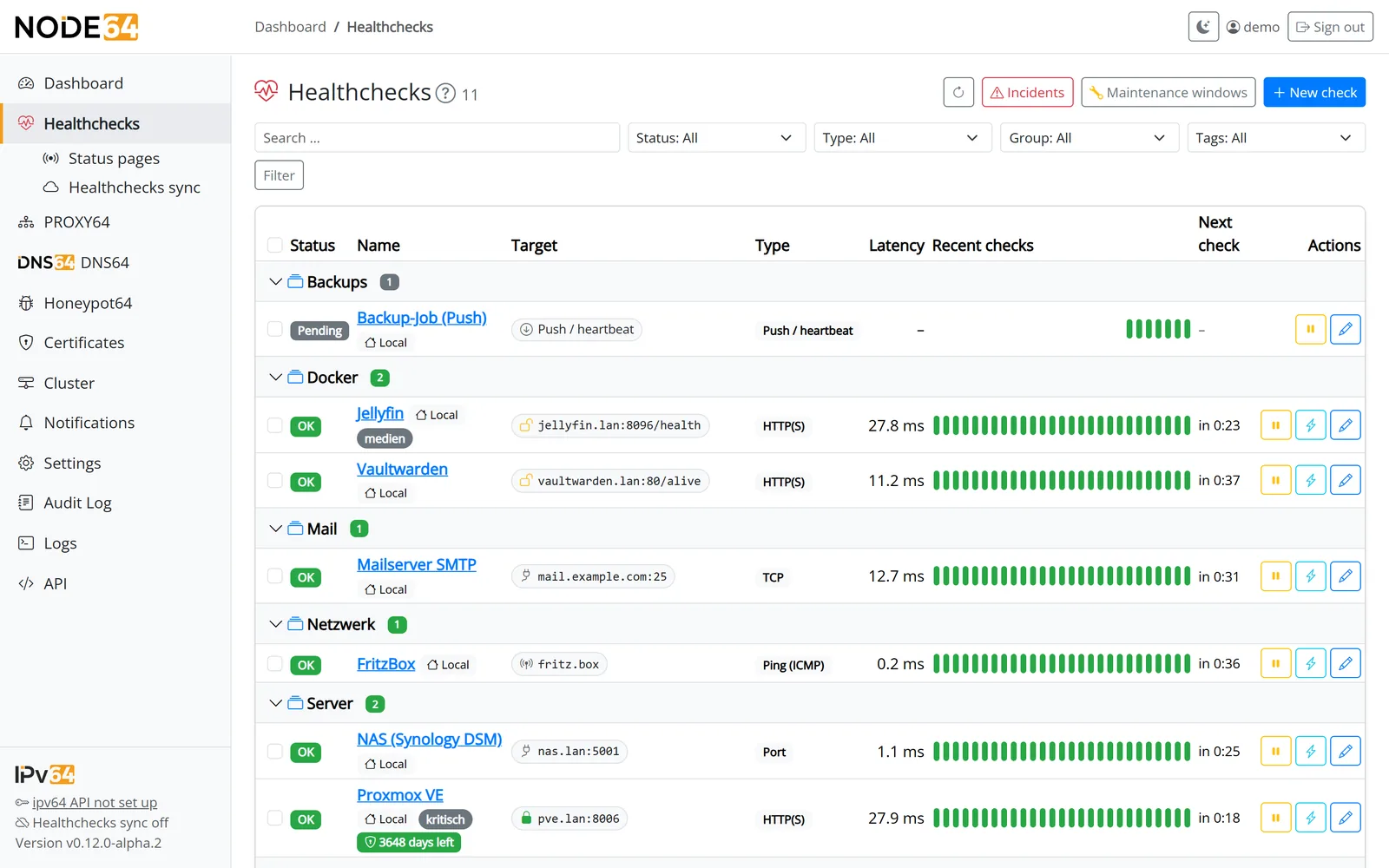
- the list of all checks with groups, target, state and a countdown to the next measurement,
- filters by search, state, type, tag and group, plus sorting and bulk actions (pause, resume, check now, delete, add or remove a tag),
- the Docker page (all containers of the host) and Proxmox VE,
- the incident list across all checks and the maintenance windows,
- the public status pages.
Local checks work entirely without an account and without internet. For online and hybrid checks, connect the node to ipv64.net – see Connect to ipv64.net.
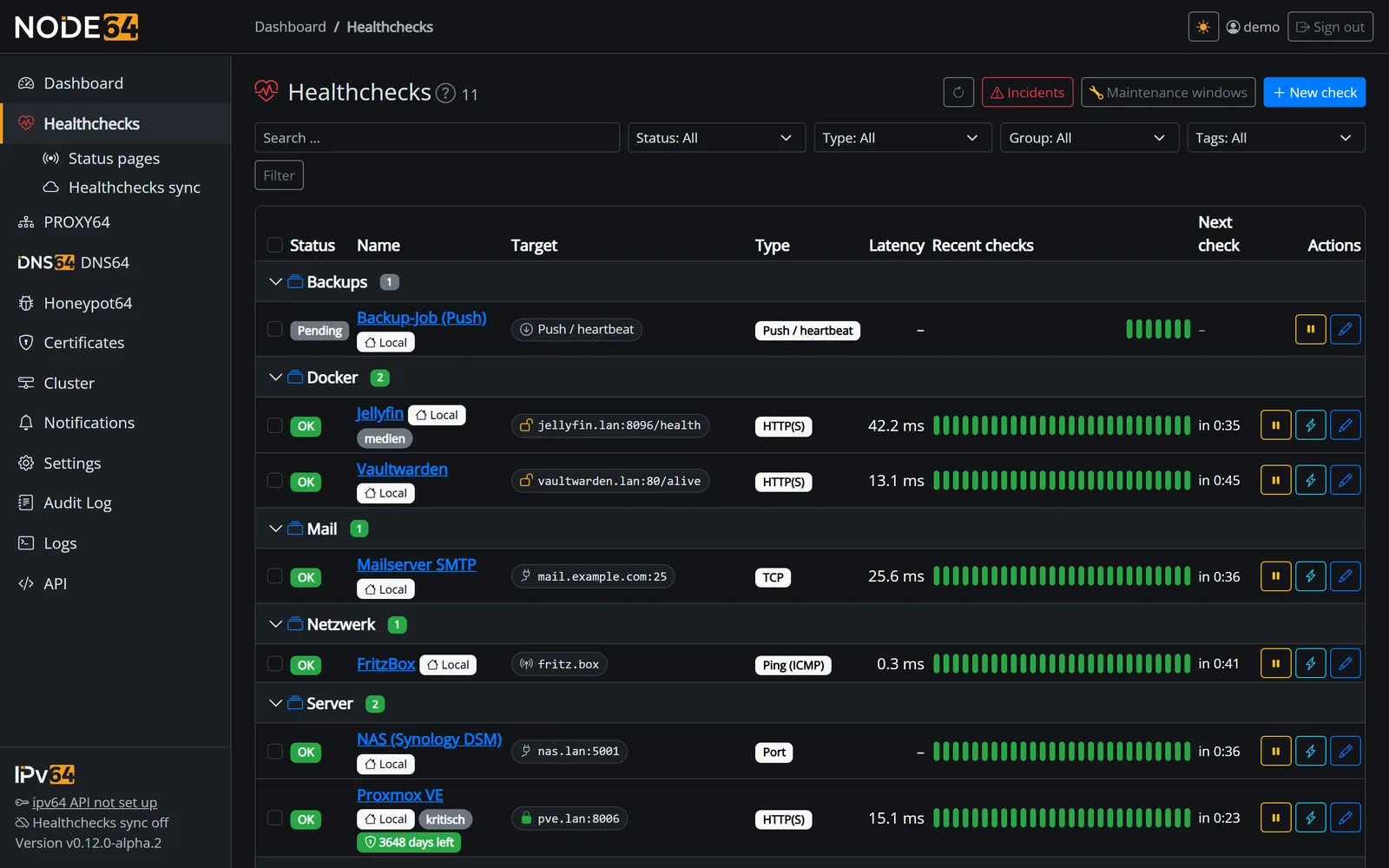
Create your first check
- Turn on the module
Enable health checks under Settings → Modules. - Create a new check
Under Health checks → New check, pick a type, give it a name and enter the target, for examplehttps://www.example.com/. - Review interval and alerting
The defaults fit most cases: a measurement every 60 seconds, one failed attempt is retried, and after three successes in a row the check is OK again. - Choose channels
Without a selection, the check uses all default channels. You create channels under Notifications. - Save
From now on, Node64 measures at the configured interval. Use Check now to trigger an extra measurement at any time.
Check types
Node64 has eleven check types, plus proxmox from Proxmox monitoring. The name in brackets is the value used by the API.
| Type | Checks | Target | Online possible |
|---|---|---|---|
HTTP(S) (http) | HTTP request and status code | full URL | yes |
Keyword (keyword) | like HTTP(S), plus a search term in the response | full URL | yes |
JSON (json) | like HTTP(S), plus conditions on values of the JSON response | full URL | yes |
DNS (dns) | answer to a DNS query (A, AAAA, MX, TXT …) | name (for PTR also an IP) | yes, except a DNS server in the home network and “public IP” |
Ping (icmp) | ICMP echo, packet loss, latency | hostname or IP | yes |
TCP (tcp) | connection, optional send/expect and TLS | hostname or IP, port | yes |
Port (port) | port open or closed | hostname or IP, port | yes |
Certificate (cert) | TLS certificate: validity, chain, name, days left | hostname | yes |
WHOIS / RDAP (whois) | registration data: expiry, registrar, name servers, network, AS | domain, IP or network, or AS number | yes |
Push / heartbeat (push) | whether a service reports in regularly | – (push URL) | yes, additional online push URL |
Docker container (docker) | state and health check of a container | Docker host and container from the list (API: name or ID) | no, local only |
Proxmox VE (proxmox) | state of a guest or node from Proxmox monitoring | Proxmox system and machine from the list, or the “as a check” switch | no, local only |
If you write the target of a TCP, port or certificate check as host:port, Node64 moves the port into the port field automatically.
Check from a monitored system: under New check, the type list has Proxmox VE (VM, container, node) and Docker container. Then you pick the Proxmox system or Docker host and the machine or container from the last poll; entries already kept as a check are marked and locked. The check is created like with Keep as a check: interval, group and channels come from the system's rules, and alerts don't arrive twice. The name is optional (empty = “system – name”); group, tags, measuring points and alert options are hidden in this case. Afterwards you edit the check like any other.
HTTP(S)
Requests a URL and checks the status code. For HTTPS, Node64 always reads the certificate's expiry date, issuer and TLS version; the message shows how long the certificate is valid. Node64 uses at least TLS 1.2, no keep-alive connections, no proxy and the user agent node64.
| Option | Default | Note |
|---|---|---|
Method (method) | GET | |
Headers (headers) | – | one header per line |
Body (body) | – | e.g. for POST requests |
Basic auth (basic_user, basic_password) | – | |
Accepted status codes (accept_status) | 200-299 | lists and ranges, e.g. 200-299,301,404 |
Follow redirects (follow_redirects) | yes | up to 5 redirects (max_redirects) |
Ignore certificate errors (insecure_tls) | off | for self-signed certificates, e.g. Proxmox |
Certificate: warn below (cert_min_days) | 0 = off | down if the certificate expires in fewer than N days |
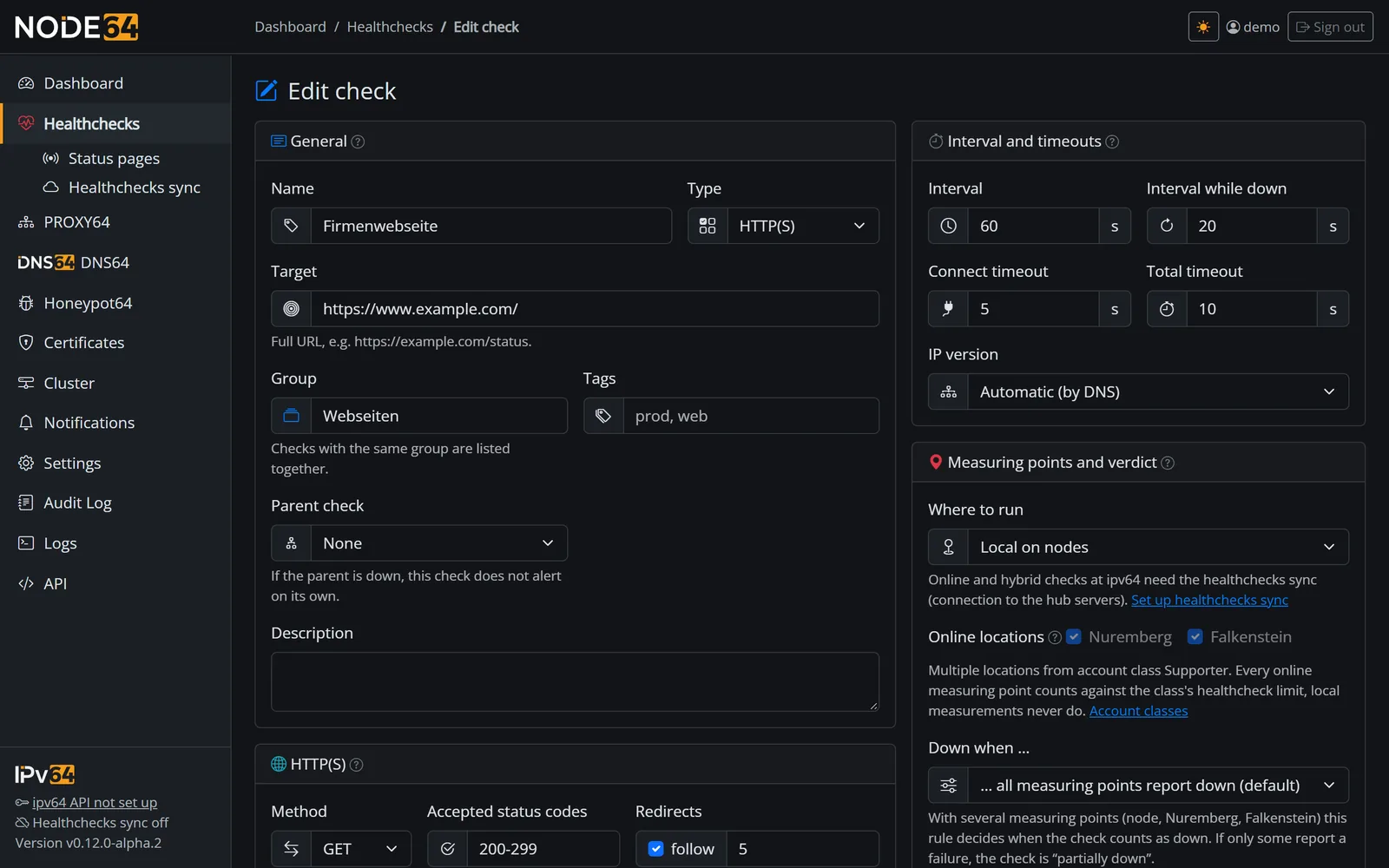
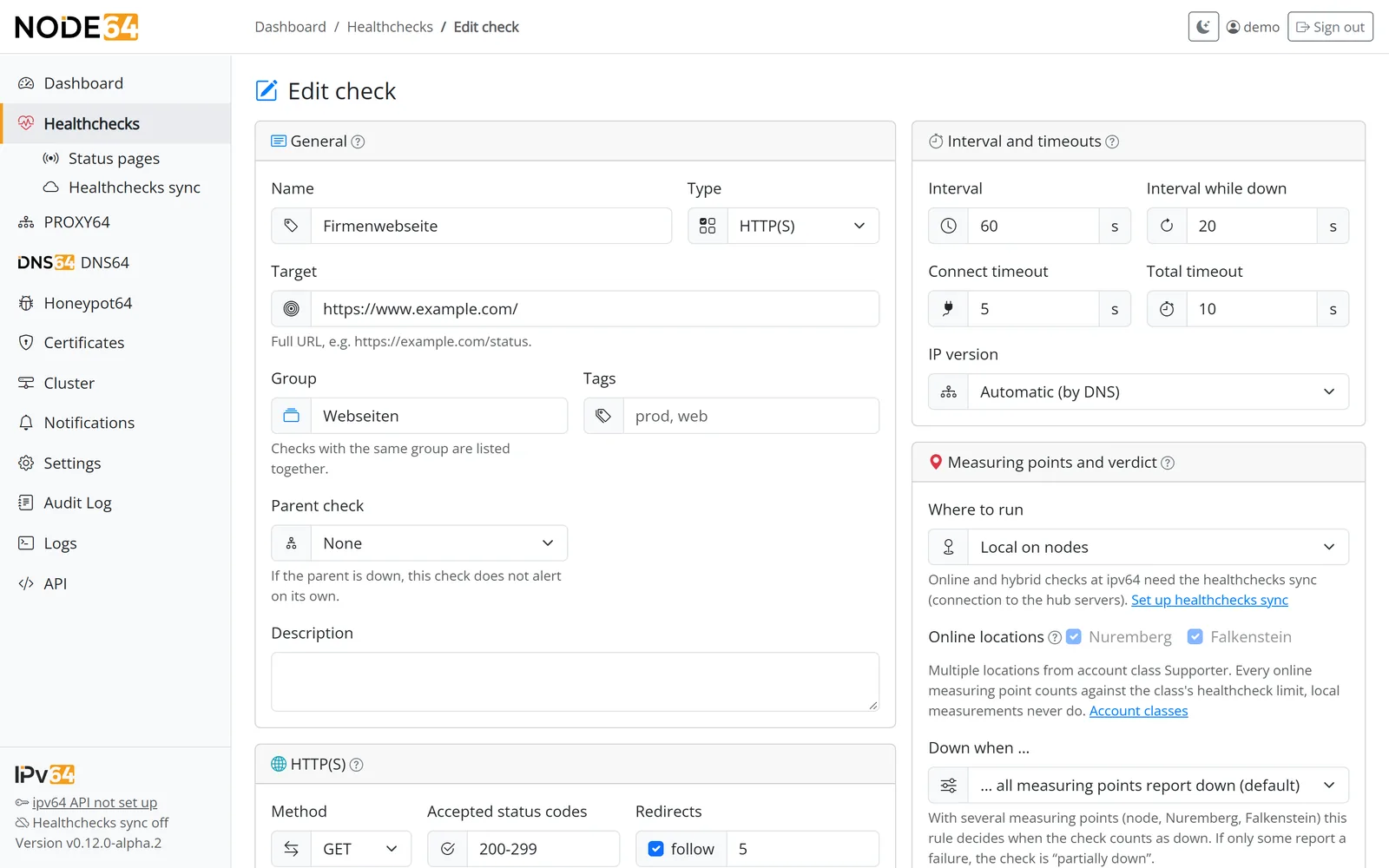
Example: the check Firmenwebseite (company website) checks https://www.example.com/ online from Nuremberg and Falkenstein, warns below 21 days of remaining validity and measures IPv4 and IPv6 separately.
Keyword
Like HTTP(S), but Node64 also searches the first 1 MiB of the response for a term. Keyword must be absent (keyword_absent) flips the check around – handy for spotting an error message on a page.
The search is a plain substring match and is case-sensitive. Regular expressions are not supported.
Example: the check Nextcloud requests https://cloud.example.com/status.php and looks for "installed":true.
JSON (API)
Like HTTP(S) with all its options, but Node64 also reads the response as JSON and checks conditions. In the form you enter one condition per line: path operator value. By default all must be met; with One fulfilled condition is enough (json_any) one is enough.
| Condition | Meaning |
|---|---|
status == ok | value is equal (numbers are compared as numbers, also true, false, null) |
queue < 100 | numeric comparison: < <= > >=, not equal with != |
items[0].up == true | path with dots and array index |
tags contains web | text contains or list has the element; opposite !contains |
version exists | field present; opposite !exists |
name ~ ^web-[0-9]+$ | regular expression |
The value of the first condition appears in the message (e.g. HTTP 200, queue = 42), and as a number also in the measurement details. In the API the conditions are called json_rules (list of path, op, value).
Example: the check Home Assistant requests http://homeassistant.local:8123/api/ with the header Authorization: Bearer … and checks message == API running.
DNS
Queries a name and checks the answer; the response time is measured. The target is the name, for PTR also an IP address.
| Option | Default | Note |
|---|---|---|
Record type (record_type) | A | A, AAAA, CNAME, MX, TXT, NS, SRV, CAA, PTR, SOA |
Ask via (resolver) | default resolver | a specific server (server, e.g. 1.1.1.1) or the authoritative name servers of the zone – they bypass caches and show changes immediately |
Expectation (expect) | any answer | contains values, exactly these values, regex, name does not exist (NXDOMAIN) or points to my public IP |
Values (values) | – | one per line, as in the record, e.g. 10 mail.example.com for MX |
DNSSEC (dnssec) | off | answer must be validated (AD flag of the resolver) |
Minimum TTL (min_ttl) | 0 = any | down if the TTL is lower |
A DNS server in the home network and “points to my public IP” are checked only by your node – ipv64 knows neither your internal resolver nor the address of your connection. Everything else also works online and hybrid: you see whether the world gets the same answer as your home network.
Example: the check DynDNS at home queries home.example.com (A) at the authoritative name servers and expects the name to point to the node's public IP.
Ping (ICMP)
Sends ICMP echo packets over IPv4 or IPv6, 300 ms apart.
| Option | Default | Note |
|---|---|---|
Packets (count) | 3 | up to 20 |
Max. loss % (max_loss_percent) | 50 | down if loss is higher |
Max. latency ms (max_latency_ms) | 0 = off | down if the average latency is higher |
Node64 first tries unprivileged ping and falls back to a raw socket. Inside the container, that needs one of these two settings:
services:
  node:
    # Option 1: allow unprivileged ping (recommended)
    sysctls:
      - net.ipv4.ping_group_range=0 65535
    # Option 2: allow raw sockets
    # cap_add:
    #   - NET_RAW
Example: the check FritzBox pings fritz.box with 3 packets and at most 50 % loss.
TCP
Checks whether a TCP connection can be established. Optionally, Node64 then sends something and checks the reply.
| Option | Default | Note |
|---|---|---|
Port (port) | – | required, or host:port in the target |
Send (send) | – | understands \r, \n and \t |
Expected reply contains (expect) | – | substring; up to 64 KiB are read |
TLS handshake after connecting (tls) | off | also checks that TLS can be established |
Example: the check Mailserver SMTP connects to mail.example.com on port 25 and expects the reply 220.
Port
Checks the state of a port and tells open, closed (connection refused), filtered (no answer) and unreachable apart.
| Option | Default | Note |
|---|---|---|
Port (port) | – | required, or host:port in the target |
Expectation (expect) | port is open (open) | or port is closed (closed) |
Examples: NAS (Synology DSM) expects port 5001 on nas.lan to be open. RDP von außen gesperrt (RDP blocked from outside) checks online that port 3389 on vpn.example.com stays closed.
Certificate
Checks a server's TLS certificate: expired, not yet valid, chain against the system CAs, matching hostname and days left. The detail page shows subject, issuer, validity, days left, DNS names and TLS version.
| Option | Default | Note |
|---|---|---|
Port (port) | 443 | |
Valid for at least days (min_days) | 14 | below that, the check is down |
Server name / SNI (server_name) | hostname of the target | if the server expects a different name |
Skip chain check (skip_chain) | off | for certificates from your own CA |
Skip hostname check (skip_hostname) | off |
Example: the check Zertifikat Shop (shop certificate) checks shop.example.com on port 443 with at least 14 days left.
WHOIS / RDAP
Checks the registration data of a domain (example.de), an IP address or network (192.0.2.1, 2001:db8::/32) or an AS number (AS3320). Node64 first asks the responsible server via RDAP (found through the IANA bootstrap), otherwise via classic WHOIS on port 43 – through whois.iana.org to the registry, for .de that's DENIC.
| Option | Default | Notes |
|---|---|---|
Source (source) | automatic (auto: RDAP, otherwise WHOIS) | rdap = RDAP only, whois = WHOIS only (port 43) |
Warn before expiry (min_days) | 14 | domains only, when the registry states an expiry date; 0 = only once expired; at most 3650 |
Expected values (contains) | – | one per line, at most 20; field: value with the fields registrar, nameserver, status, org, country, city, netname, cidr, asn – or free text searched in all values. Part of the text is enough, case doesn't matter. |
- Down when the query fails (“WHOIS/RDAP query failed”), the domain isn't (or no longer) registered (“not registered”), expires soon or has expired (“domain expires soon”, “domain expired”) or an expected value is missing (“expected value missing”). The reasons for the API:
whois_failed,whois_not_found,whois_expiring,whois_expired,whois_mismatch. - Last measurement shows what was found: for domains registrar, status, name servers, created, changed, expiry and days until expiry; for networks and AS network name, CIDR or range, AS, organisation, country, city and abuse contact.
- Going easy on the servers: WHOIS and RDAP servers limit queries. So the check runs at most hourly (interval from 3600 s), every 10 minutes while down (from 600 s); the answer may be at most 256 KB.
- Runs locally and online at ipv64; online only against public servers. The type is also available in the ipv64 portal with its own form (source, warn before expiry, expected values) and through the API v2 with
params.source,min_daysandcontains– with the same limits.
Example: the check Domain example.de warns 30 days before expiry and expects nameserver: ns1.example.org and status: connect.
Push / heartbeat
Here Node64 doesn't measure – your service reports in by itself. Perfect for backups, cron jobs and scripts. If the call doesn't arrive within period plus grace, the check goes down.
| Option | Default | Note |
|---|---|---|
Period (period_seconds) | 3600 s | expected time between two pushes |
Grace (grace_seconds) | 600 s | 0 = no grace |
After saving, the detail page shows the push URL and a ready-to-use curl command. There are two addresses:
- Local (this node):
/api/push/{token}on your node, reachable inside your network and without login. The push counts even when the internet is down. - Online via ipv64: with a connected node, an additional address reachable from anywhere. ipv64 forwards the push to your node while it is connected.
# Report that everything is fine
curl -fsS -m 10 http://node64.lan:8080/api/push/YOUR_PUSH_TOKEN

# Report an outage yourself, with a short message (max. 200 characters)
curl -fsS -m 10 "http://node64.lan:8080/api/push/YOUR_PUSH_TOKEN?status=down&msg=backup+failed"

# Send data along: the body (max. 4 KiB, JSON or text) is stored with the measurement
curl -fsS -m 10 -X POST --data '{"files": 1200}' http://node64.lan:8080/api/push/YOUR_PUSH_TOKEN
Example Backup-Job (Push): period 86 400 s (one day), grace 3600 s. The cron job only reports in when the backup succeeded – and reports an outage otherwise:
# Every night at 02:30 – report success or report an outage
30 2 * * * /usr/local/bin/backup.sh && curl -fsS -m 10 --retry 3 http://node64.lan:8080/api/push/YOUR_PUSH_TOKEN >/dev/null || curl -fsS -m 10 "http://node64.lan:8080/api/push/YOUR_PUSH_TOKEN?status=down&msg=backup+failed" >/dev/null- Two pushes must be at least 1 second apart, with at most 60 pushes per minute per token. Otherwise the node answers with HTTP 429.
- Unknown tokens get “ok” as well – so the URL doesn't reveal which tokens exist.
- If the node doesn't measure the check on its own, it forwards the push via ipv64 to the other measuring nodes. If that isn't possible without a connection, it answers with HTTP 503.
- Push checks don't use any of your daily online measurement quota.
Docker container
Docker has a page of its own: Monitoring Docker – monitoring all containers of a host, the docker check type (target: container name or ID, local only), access to the Docker socket and remote Docker hosts.
Access to the Docker socket and docker-socket-proxy: see Docker → Access to the Docker socket.
Docker hosts via SSH, TLS or TCP: see Docker → Remote Docker hosts.
Intervals, timeouts and alerting
These options apply to all check types. For push checks, period and grace replace the interval.
| Option | Default | Limits and notes |
|---|---|---|
Interval (interval_seconds) | 60 s | local from 5 s, online and hybrid from 20 s, up to 86 400 s (24 h); if you switch a shorter local check to online or hybrid, Node64 sets 20 s |
Interval while down (retry_interval_seconds) | 20 s | 5 s up to the normal interval; a separate, shorter interval while there's a problem – a longer value is shortened to the interval; online at ipv64 no sooner than 20 s |
Retries before alert (retries) | 1 | 0 to 10; 0 = alert immediately |
Stabilize (stabilize) | 3 | 1 to 20 successes in a row until the check is OK again |
Connect timeout (connect_timeout_seconds) | 5 s | 0.5 to 60 s; online at ipv64 at most 30 s |
Total timeout (timeout_seconds) | 10 s | at least the connect timeout, at most 120 s; online at ipv64 at most 60 s |
Repeat alert every (repeat_minutes) | 0 = only once | 0 to 10080 minutes (one week), while the check is down or flapping |
IP version (ip_mode) | Automatic (auto, by DNS) | ipv4, ipv6 or both (two separate results) |
Invert (invert) | off | down counts as OK and vice versa |
Critical (critical) | off | alerts during quiet hours, too |
Notify on outage / on recovery (notify_down, notify_up) | both on | |
Channels (channels) | no selection | no selection = default channels |
Parent check (parent) | – | see Parent checks |
| Name, description | – | name up to 200 characters, description up to 2000 characters |
Group, tags (group, tags) | – | see Groups and tags |
Paused (paused) | off | paused checks don't measure |
To keep checks from all firing at once, Node64 spreads measurements with 10 % random jitter on the interval. By default, at most 20 measurements run in parallel.
The node regularly checks whether IPv4 and IPv6 actually get out of the container. In Automatic mode, it only measures over the address families it has itself. So if IPv6 is only missing inside the Docker network, the target isn't wrongly reported as down. If you force a family the target doesn't have with ipv6 or both, the reason is “No address for IP version”.
Local, online or hybrid
Under Measuring points and verdict you decide who measures a check. Online and hybrid need a node connected to ipv64.net.
Where to run (execution) | Who measures | Typical for |
|---|---|---|
Local on nodes (local, default) | this node, optionally more nodes of your account | devices and services in your home network |
Online at ipv64 only (online) | the ipv64 locations Nuremberg (nbg) and Falkenstein (fsn) | public websites, certificates, ports from outside |
Local and online (hybrid, both) | nodes and ipv64 locations at the same time | self-hosted services that should be reachable from outside |
Measuring points and evaluation rule
- Online locations (
locations): the list comes from ipv64. Multiple locations are available from the Supporter plan (see ipv64.net/pricing). - Measuring nodes (
nodes): several nodes of your account can measure the same check, for example at different sites or over a VPN. Each node shows up as its own measuring point. - Down when … (
policy):all– all measuring points report down (default),any– one measuring point reports down,majority– the majority reports down. - Partially down: if only some measuring points report a problem and the rule doesn't trigger, the check is “partially down”. You only get a message for that if you turn on Also notify on “partially down” (
notify_degraded). - Measuring points without fresh data (older than three intervals, at least 5 minutes) don't count.
 # Measuring points               # Overall state (rule “all”)
 This node (inside)   OK       ──┐
 Nuremberg            down     ──┼──►  Partially down
 Falkenstein          down     ──┘     Diagnosis: internet uplink,
                                       port forwarding, DNS or firewall
Inside and outside diagnosis
For hybrid checks, the detail page compares the measuring points inside your network with those at ipv64 and shows a diagnosis:
| Inside | Outside | Diagnosis |
|---|---|---|
| down | OK | problem in the home network, on the node or on the internal path |
| OK | down | internet uplink, port forwarding, DNS or firewall |
| down | down | the service itself is affected |
Example: the hybrid check Nextcloud is measured by your node and from Nuremberg and Falkenstein.
Private targets and quota
- ipv64 can't reach private targets (private IP addresses, loopback, link-local,
.local,localhost) from the outside. Node64 rejects online and hybrid for such targets – they stay local. - Public addresses only: for every online measurement, ipv64 checks the actual target address when connecting – also after DNS resolution, after redirects and for a DNS check's own DNS server. If a host name, a redirect or a DNS server points to an internal or reserved address (private, CGNAT, loopback, link-local, ULA, multicast, documentation ranges, NAT64, 6to4, Teredo), the measurement is down with “target resolves to a private or reserved address”. Measure such targets locally.
- Online limits: at ipv64, the connect timeout is at most 30 s and the total timeout at most 60 s; longer values are shortened for the online measurement and stay as they are locally. While a check is down, ipv64 measures every 20 s at the most.
- Abuse brake per target: each target host has a cap across all accounts (600 runs per minute per ipv64 server). Beyond that, a run is skipped without changing the state. In normal operation the cap isn't reached.
- Local measurements never count against the health check limit of your account plan – only online measuring points do.
- The form shows in advance how many online measurements a check uses per day and projects the total for your account. When the daily quota is reached, you get a notification; online measurements and push evaluation at ipv64 then pause until midnight – or until an upgrade of your account plan, which releases them right away. Local measurements keep running.
- Test from ipv64: before you switch a check to online or hybrid, this button in the form has the ipv64 locations measure your input once and shows the result per location. Nothing is saved. With “Local on nodes”, the button and the online locations are hidden.
- Locations not included in your account plan are locked in the form; it shows how many online measuring points are already in use and checks the limit when you save – just like the ipv64 portal.
- Above the check list, an account bar shows your account plan, used and allowed online measuring points, the number of checks per execution mode (online, local, hybrid) and how many nodes are online right now. The list can also be filtered by execution mode and by node.
- Below the check table, the Online measurements today (daily quota) card shows today's usage as a bar and projects it to midnight from the active online and hybrid checks (interval × locations, not push). If the quota won't last, it shows when it will probably be reached; once reached, online measurements pause until midnight or until an upgrade while local ones keep running. If a whole day needs more than the quota, the card points that out and links to the plans. The card only appears for classes with a daily quota (Free, Home/Supporter).
- You can also manage online checks without sync, directly through the ipv64 API v2 with your API key (create, edit, pause, check, delete). Hybrid, live states and notifications via ipv64 need the sync.
When the connection to ipv64 is missing
The node opens the connection to ipv64 itself, outbound and encrypted – no port forwarding required. There are two equivalent ipv64 servers in Germany (Nuremberg and Falkenstein); if one fails, the node switches to the other. If the connection is gone entirely, the node carries on by itself: it measures, stores measurements and events locally, notifies through its own channels and uploads everything once the connection is back.
States
| State | Meaning |
|---|---|
| OK | The last measurement succeeded. |
| Down | More failures in a row than the configured retries. |
| Stabilizing | Successful again after an outage, but not often enough in a row yet. A relapse doesn't trigger a new alert. |
| Flapping | At least three changes within 15 minutes. You get one message instead of many; the state ends after 15 quiet minutes. |
| Dependent | Failed while the parent check is down – no alert of its own. |
| Partially down | Only some measuring points report a problem. |
| Not monitored | No measuring point has measured for three intervals (at least 5 minutes), e.g. because the only measuring node is offline. All values then come from the last measurement. |
| Quota used up | Online checks with ipv64.net only: the daily quota of online measurements for your account plan is reached, and ipv64 stops measuring until midnight – after an upgrade it resumes right away. The list and detail page show this with a note instead of “Not monitored”. There is no alert per check – the single “quota reached” alert is enough; at midnight things resume silently. |
| Pending | The check is new and has no result yet. |
| Paused | The check isn't measuring right now. |
For every measurement, Node64 stores a reason such as Timeout, DNS failure, TLS error, Wrong HTTP status, Keyword missing, Packet loss, Certificate expiring soon, Push missing or Container unhealthy. When connected to ipv64.net, ipv64 actively tells you when a check becomes “Not monitored” – and later, when it is being checked again.
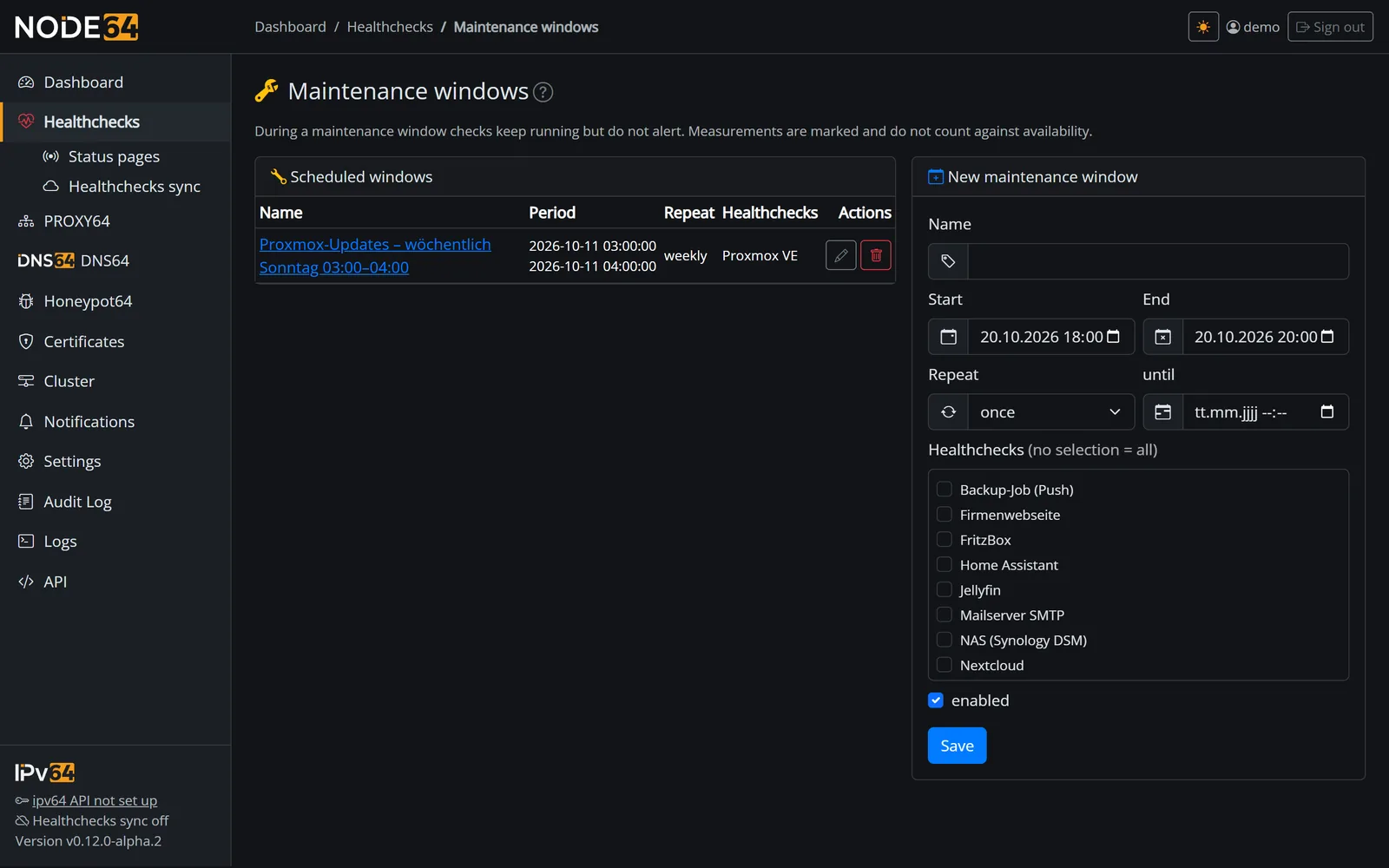
Maintenance windows
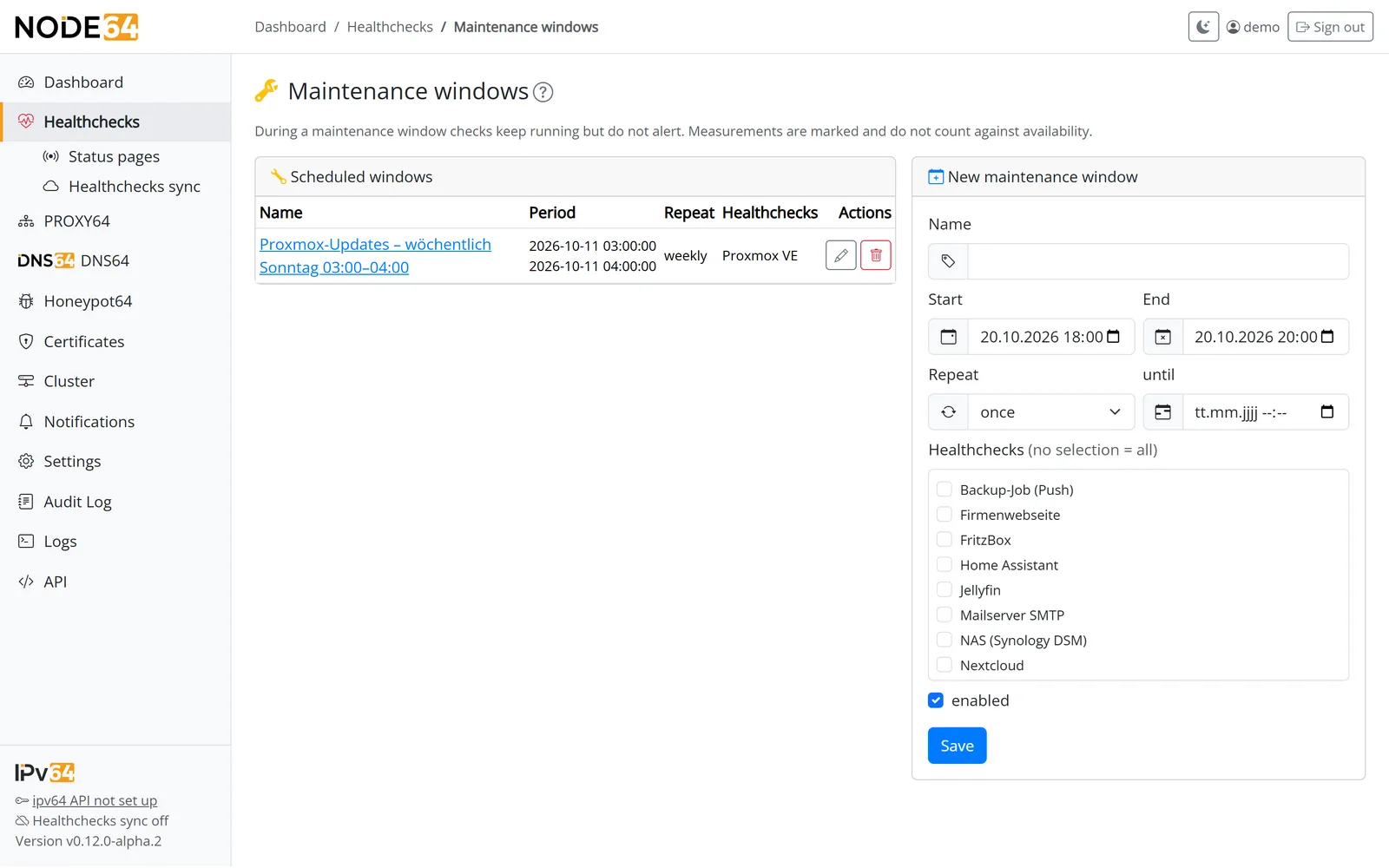
During a maintenance window, checks keep running but don't alert. Measurements are marked and don't count against availability. You'll find the windows under Health checks → Maintenance windows.
| Field | Note |
|---|---|
| Name | e.g. “Proxmox updates” |
| Start, end | period of the first window |
| Repeat | once, daily, weekly or monthly – optionally “until” a date |
| Checks | no selection = all checks |
| Active | switch a window off temporarily without deleting it |
When connected to ipv64.net and in a cluster, maintenance windows are synced automatically.
Groups and tags
- Group (
group, up to 100 characters): any name you like, such as “Home network”, “Websites” or “Docker”. Checks with the same group are listed together. - In the Proxmox VE and Docker groups, each Proxmox system or Docker host gets a collapsible subgroup with counters. Its name comes live from the monitoring – for Proxmox the cluster name from the last poll, otherwise the system name, for Docker the host name. For this, every check kept “as a check” from Proxmox VE or Docker carries the system name in
params.system; the node keeps it up to date with every poll, and it goes to ipv64 via sync. So checks of other nodes also appear under their system name (Docker: “name · node”). The browser remembers whether a subgroup is open or closed. The ipv64 portal also shows the groups collapsible, with subgroups per system or host; in the API v2,systemis optional and for display only. - Tags (
tags): as many keywords per check as you want, e.g.cloud,sslorcritical(no commas). The bulk action adds or removes a tag on many checks at once. - The list and filters work with both: search, state, type, tag and group can be combined.
- Clone creates a copy of a check. The copy starts out paused.
Parent checks
When your router goes down, every device behind it is unreachable too. To avoid getting ten messages, give those checks a parent check (parent). While the parent is down, the dependent checks don't alert on their own and show “Dependent” instead. These measurements don't count against availability.
Example: FritzBox is the parent check for Home Assistant, Proxmox VE and NAS (Synology DSM). The FritzBox detail page lists its dependent checks. Node64 rejects cycles – A depending on B and B depending on A.
History and availability
A check's detail page shows:
- the events as coloured badges (e.g. down, recovered, flapping, not monitored) – when connected to ipv64.net also the events ipv64 evaluated itself (with a cloud icon, e.g. not monitored, re-checked, partially down); outages with duration and reason (also in the outage list),
- a chart per measuring point (this node, other nodes, ipv64 locations). Clicking a legend entry shows only that measuring point; Ctrl-click selects several.
- periods of 1 h, 6 h, 24 h, 7 days, 30 days and 1 year,
- availability in percent and response time (min, avg, max),
- events with reason and HTTP code, incidents with start, end, duration and reason, plus maintenance windows,
- the last measurement in detail as JSON.
Under Health checks → Incidents you see all incidents across all checks, filterable by days and “open only”.
| Retention (local) | Default | Options |
|---|---|---|
| Single measurements | 30 days | 30, 90, 180 or 365 days |
| Hourly values | 365 days | 365, 730, 1825 days or unlimited |
| Chart resolution | standard | standard, fine, finest |
Events and closed incidents follow the hourly values; daily values are kept indefinitely. Set this under Settings → Data & backup (overview).
When connected to ipv64.net, the node fetches the history of other measuring points from the server: single measurements for the last 2 days and hourly values for 90 days.
Status pages
A status page shows visitors, customers or the family whether your services are up – publicly and without access to the web interface. You find it under Health checks → Status pages. A page shows any number of checks, arranged by the health check groups. Node64 computes state, daily bars and availability from the measurements that run anyway.
Visitors see the display name, the state and the availability. Targets, IPs, ports, error messages and the internal names of the checks never appear – not in status.json, the badges or the feed either.
What the page shows
- Your logo next to the title in the header; it also serves as the favicon in the browser tab. Without your own logo the tab shows the Node64 logo.
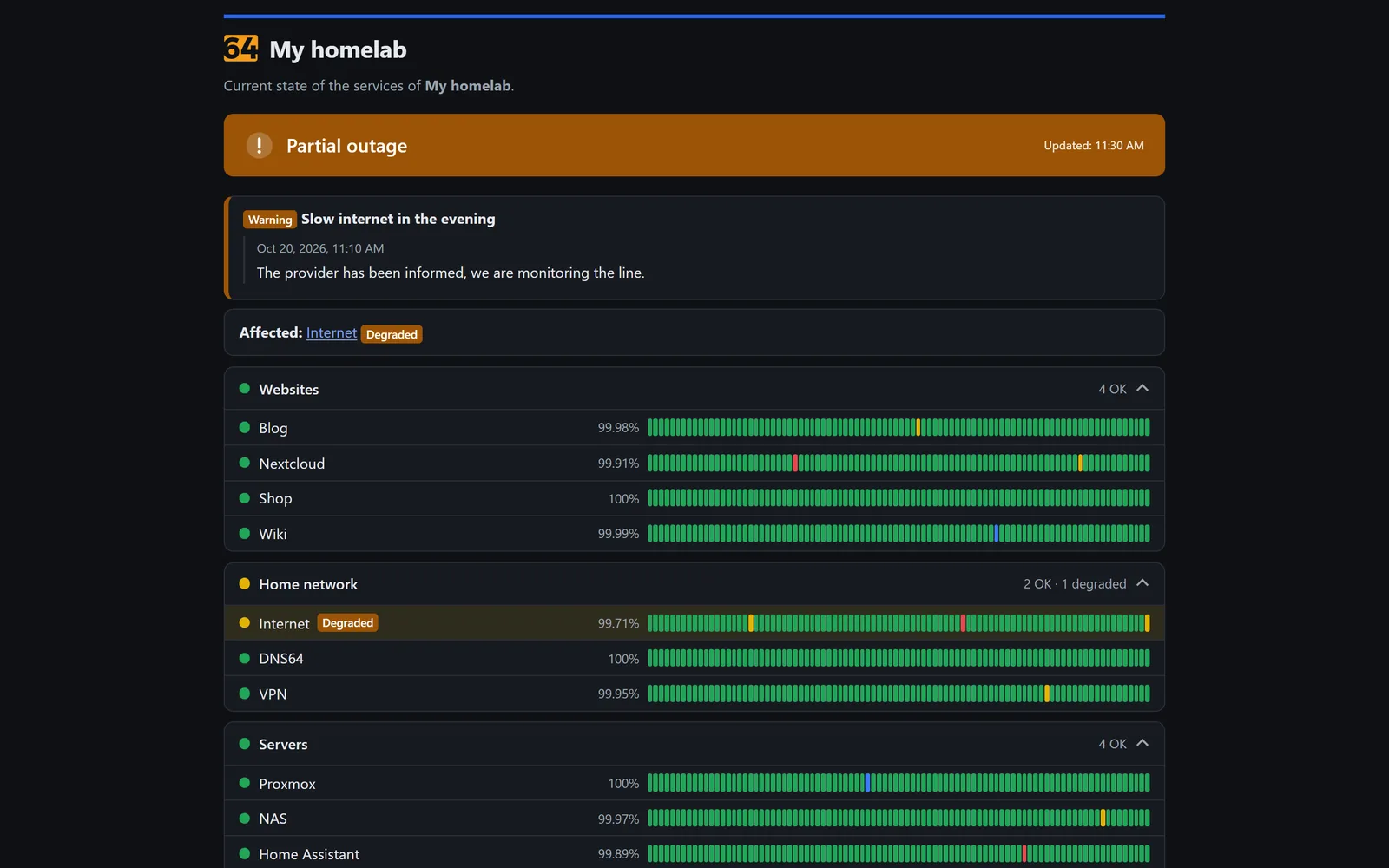
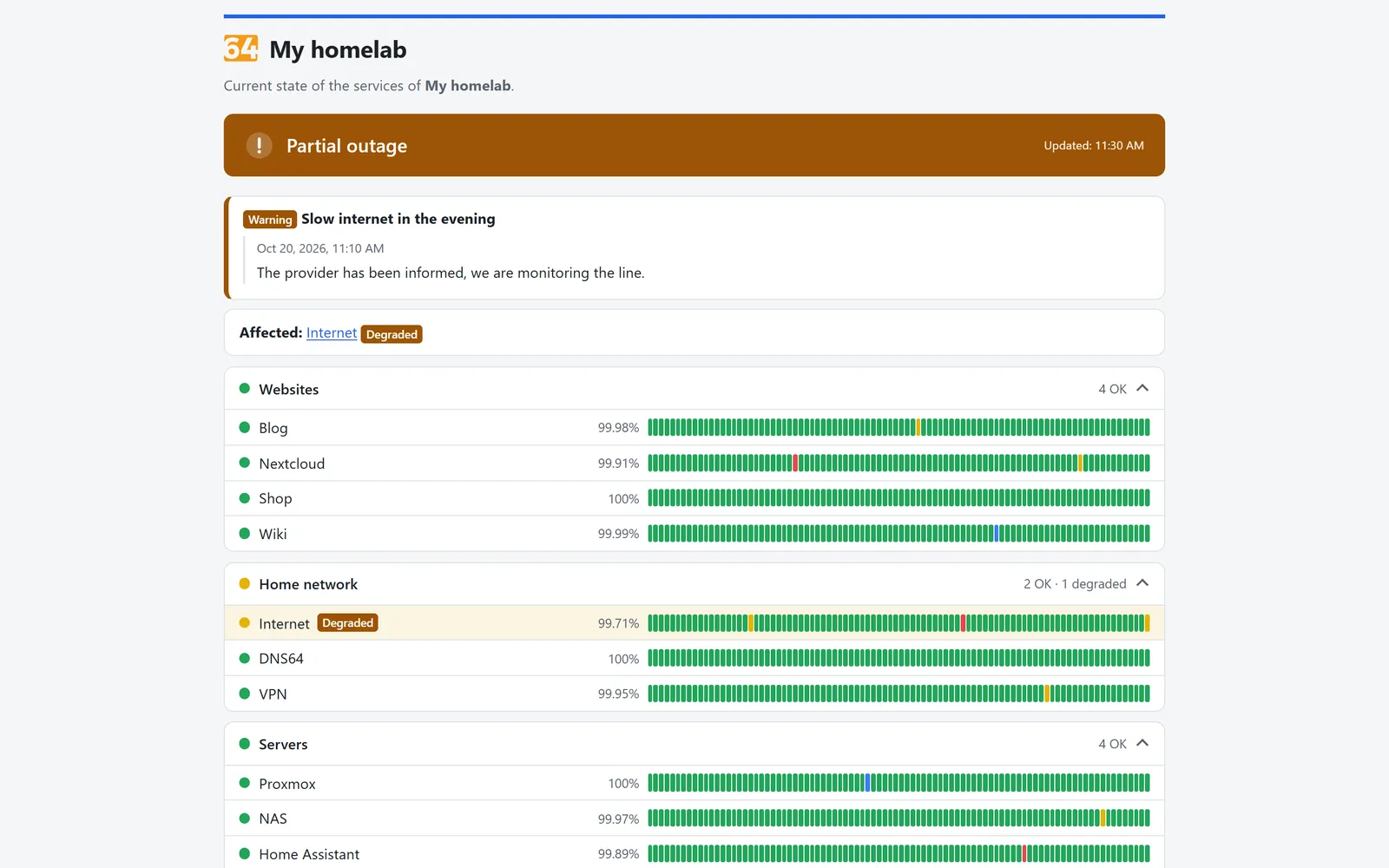
- At the top an overall banner: all systems operational, partial outage, outage or maintenance.
- Groups – always the health check groups such as “Websites” or “Home network”, in “Proxmox VE” and “Docker” with the system name (e.g. “Proxmox VE · Cluster”); checks without a group appear under “Other”. Groups with problems stay expanded, problems come first.
- Per entry the state, daily bars for 30, 60 or 90 days and, if you like, the availability in percent. A day is green, yellow for a partial outage, red for an outage, blue for maintenance and grey without data.
- Clicking an entry shows availability over 24 hours, 7 and 30 days, the average latency, 24 hourly bars and the latest incidents.
- Incidents and maintenance windows appear on their own: running maintenance at the top, planned maintenance of the next 7 days as a notice. The reason for an incident is only given in general terms, such as “unreachable” or “timeout”.
- You write announcements yourself – see Announcements.
- Optionally a history with the incidents and announcements of the last 30 days.
Online checks count too: if the node has no measurements of its own for a day, the page uses the measurements from ipv64 (no double counting with “both”). Where data is missing entirely, it shows “–”. The page adapts to any size, from phone to 4K monitor – in the tiles layout text and tiles grow moderately on large screens, while list and compact stay easy to read without getting oversized.
A deleted check disappears from the page, a paused one shows “paused”.
Creating a page
| Field | Note |
|---|---|
| Title, slug | The slug is the name in the address: lowercase letters, digits and hyphens; empty = from the title. |
| Logo | PNG, JPEG, WebP or SVG up to 256 KiB; shown in the header and used as the favicon. A new file replaces the old logo, “Remove logo” deletes it. |
| Description, footer | simple Markdown: **bold**, *italic*, [link](https://…), lists |
| Entries | a simple list; add via one shared list (see below). Display name empty = name of the check. |
| Layout | list, tiles (monitor/TV) or compact (for embedding) – see below |
| Look | light, dark or automatic; optionally your own accent colour (#rrggbb) |
| Language | like browser, German or English |
| Daily bars | 30, 60 or 90 days (default 90) |
| Reload every | 30 to 3600 seconds (default 60) |
| Show uptime, show history, “Powered by Node64” | each can be switched, on by default |
| Password | optional, 4–72 characters. Only a hash is stored. Visitors log in once and stay logged in for 30 days; after 10 failed attempts within 5 minutes an IP has to wait. |
| Do not index | asks search engines not to list the page (noindex), on by default |
| Publish on the node port | on by default: the page is served at /status/<slug> on the node's port – see Publishing |
| Enabled | off = not reachable anywhere. The preview in the admin interface always works, even with unsaved changes. |
Entries are a simple list with name, group, display name and remove. On the page, entries are always grouped by the health check groups; you set the group on the check (see Groups and tags).
Add checks is one shared list for all checks plus nodes, VMs, LXC and containers from Proxmox and Docker monitoring that don't have a check yet. The search also finds the system name, and you can filter by group and tag; Select visible marks all filtered ones, Add selected adds them.
If a node, guest or container has no check yet (badge “new check”), Node64 creates it when you add it, just like “Keep as a check” – with the notifications from the Proxmox or Docker rules and without duplicate alerts; systems without data show “No data yet”. If a check is deleted – also via another node, via ipv64 or by switching off “Keep as a check” – it disappears from all status pages.
Layouts
| Layout | Good for |
|---|---|
| List | the default: groups with entries and daily bars |
| Tiles | large tiles per entry for a monitor or TV on the wall; the page reloads itself |
| Compact | only the overall banner and one line per group – for embedding via <iframe> in another website |
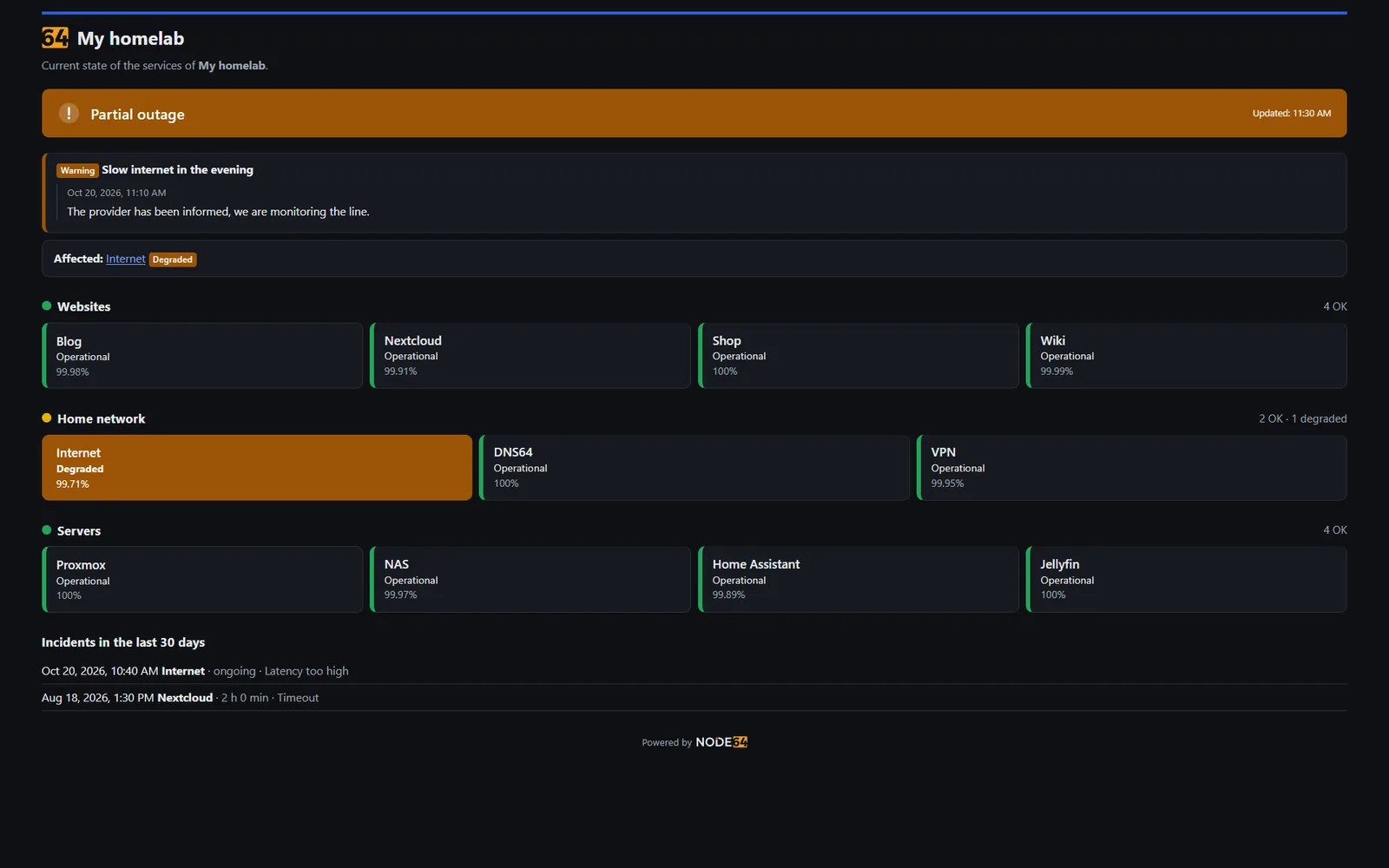
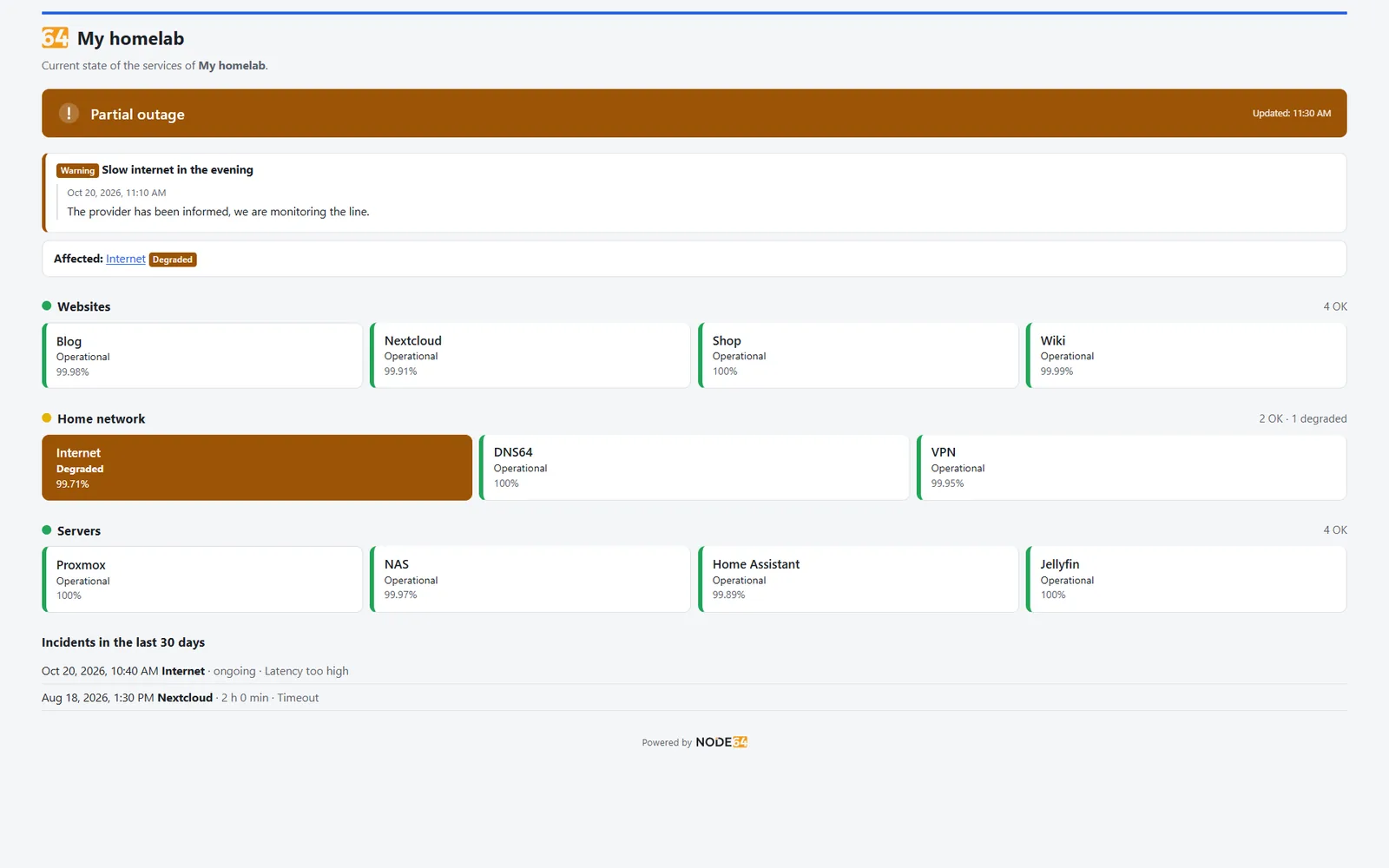
“Tiles” layout for the wall monitor – problems stand out at once.
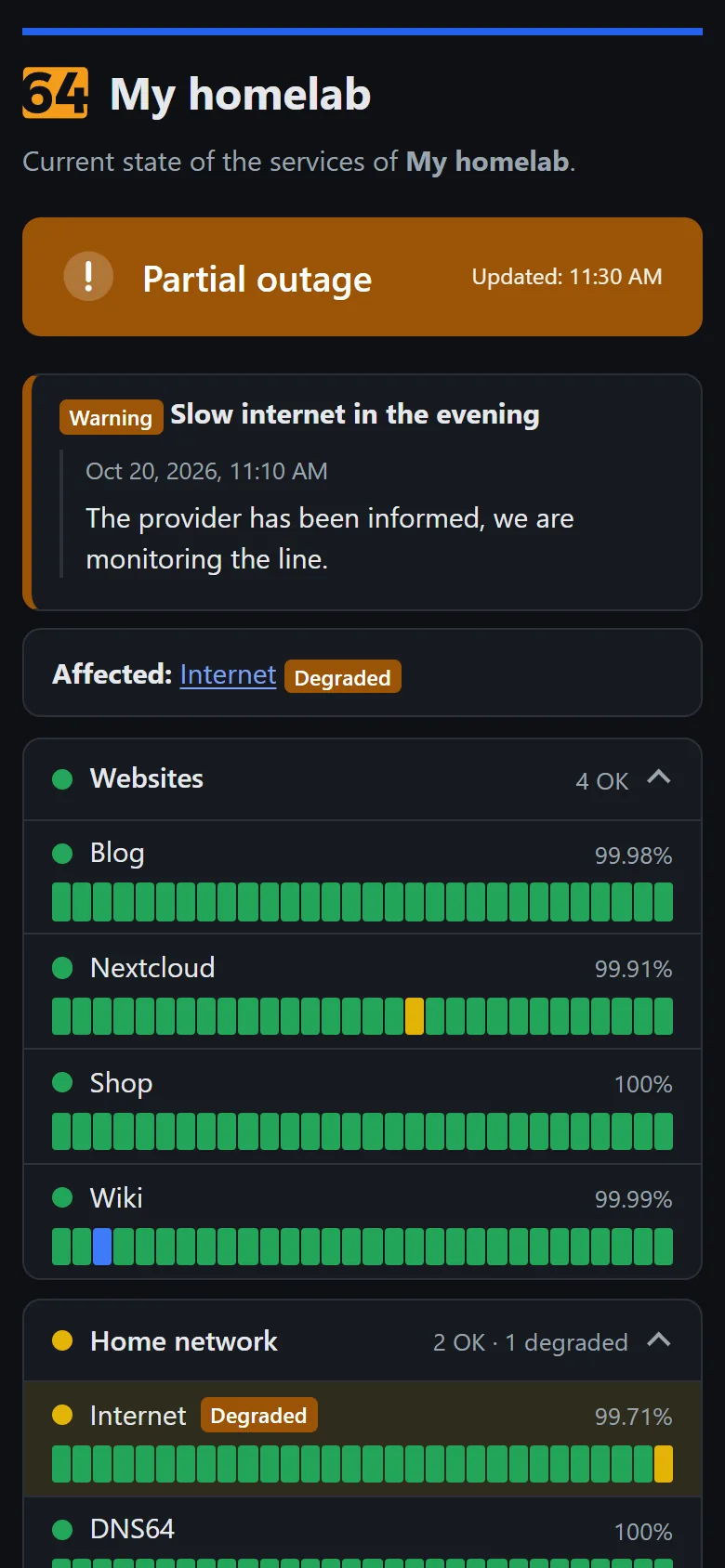
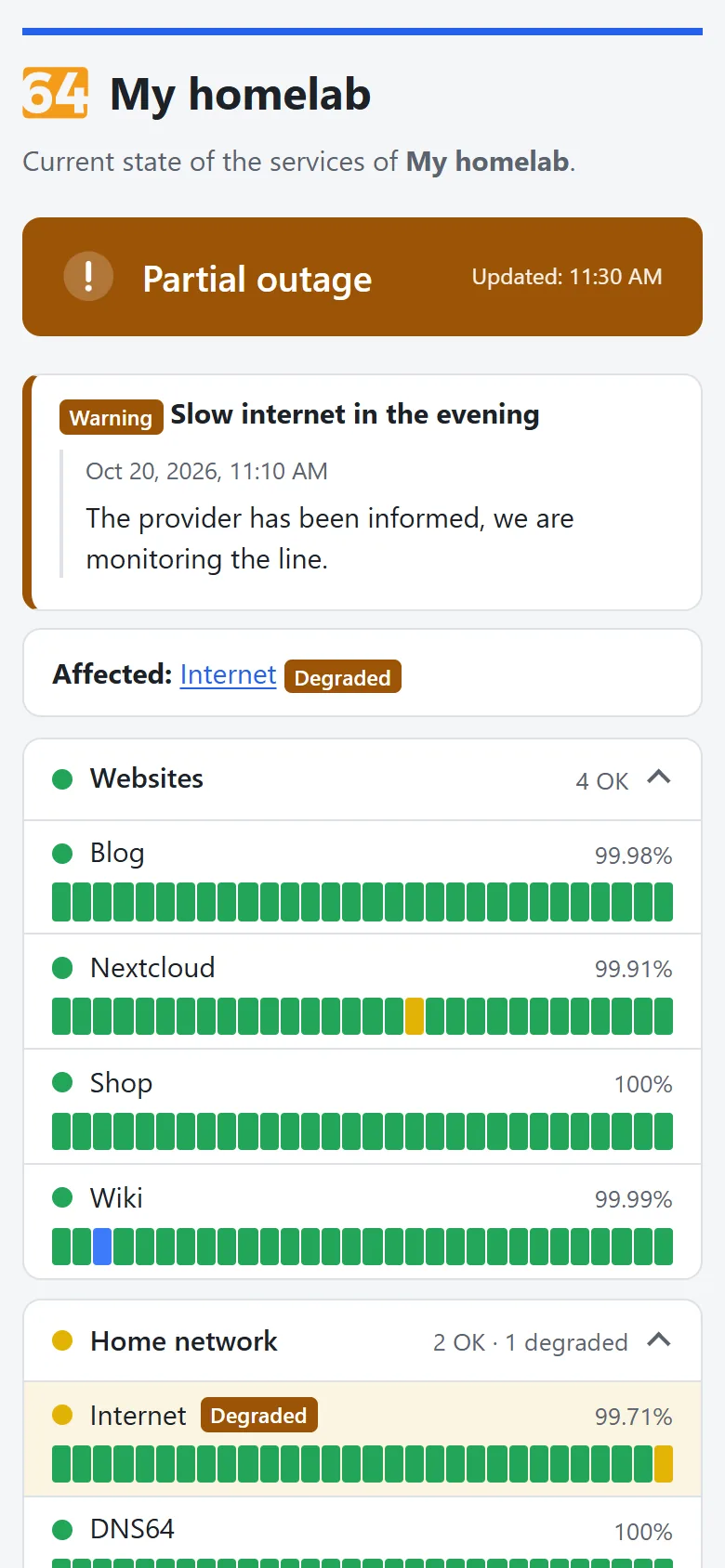
On a phone
Pages without a password may be embedded anywhere; with a password only from the same address.
<iframe src="https://status.example.com/" width="100%" height="220"
        style="border:0" title="Status"></iframe>
Publishing
A new page is off and costs nothing. Once enabled, it is served directly on the node's port by default; your own domain via PROXY64 is the optional route. Only when someone requests the page does Node64 compute it, keep the result in the cache for 30 seconds and deliver it compressed. Many visitors hardly put any load on the node.
| Route | Address | Note |
|---|---|---|
| Node port (default) | http(s)://<node>:<port>/status/<slug> | switch “Publish on the node port”, on for new pages. Reachable in the home network right away; from outside only if the node's port is reachable. |
| PROXY64, host type “status page” (optional) | https://status.example.com/ | your own domain with certificate; blocklists, country block and limits apply. The admin port stays closed – see PROXY64: status page. |
| CDN64 | https://status.example.com/ | switch the status page host on at CDN64: no port forwarding, your IP stays hidden |
If the page should only be reachable via your own domain, switch “Publish on the node port” off.
status.json, badges and feed
Every page also has fixed paths. They hang off the page's address – with your own domain off /, on the node port off /status/<slug>/.
| Path | Content |
|---|---|
status.json | everything the page shows, as JSON – for your own widgets or Home Assistant. It also contains the ids of the entries. |
item/<id>.json | details of one entry (as when clicking it on the page) |
badge.svg | badge with the overall state of the page |
logo, favicon.ico | your own logo or the favicon (the Node64 logo without your own); without login even on protected pages |
badge/<id>.svg | badge of one entry; with ?type=uptime the availability (green from 99 %, yellow from 95 %, red below) |
feed.atom | Atom feed with incidents and announcements |
Responses are cached for 30 seconds. If the page is protected with a password, these paths only answer after logging in (otherwise 401).
# State as JSON, no login needed
curl -s https://status.example.com/status.json
# Badge in a README (Markdown)

Announcements
For planned work or a problem the checks can't see – say “mail delivery delayed” – you write an announcement. You find it in the list of status pages behind the megaphone icon.
- Title (up to 200 characters), text in simple Markdown (up to 5000 characters) and a level: info, warning or outage.
- An open announcement stays at the top of the page until you mark it as resolved.
- With Add update you add the latest state, e.g. “cause found” or “back up”. Updates appear as a timeline, and you can change the level along the way.
- Mark as resolved removes it from the top. With history switched on it stays visible for 30 days under “Past announcements”, in the admin interface for 90 days under “Resolved”.
- Announcements also appear in the feed (
feed.atom) and instatus.json.
Export and import
Under Settings → Data & backup, you export the configuration as a JSON file. For health checks, it contains all checks, maintenance windows, Proxmox systems and the status pages with entries and logo, but no measurement data. The password hash of a protected status page is only included in an export with a password, otherwise the page arrives switched off; announcements stay on the node.
- Secrets such as tokens and passwords are either left out or encrypted with a password (at least 8 characters).
- On import, Node64 matches checks by their token, channels and maintenance windows by name, status pages by slug. Nothing gets deleted.
- Imported checks point to the matching channels on the target node.
You create a full backup including all measurement data in the same place – see Update & backup.
API at a glance
Everything the UI can do is available through the JSON API as well. You authenticate with an API key (Authorization: Bearer …) – details and examples are under Local API. The full reference lives on your node under /api/docs, the OpenAPI 3.1 description under /api/openapi.json.
| Method | Path | Purpose |
|---|---|---|
| GET, POST | /api/checks | list, create checks |
| GET, PUT, DELETE | /api/checks/{token} | read, update, delete a check |
| POST | /api/checks/{token}/pause, /resume, /run, /clone | pause, resume, check now, clone |
| POST | /api/checks/online-test | Test run from ipv64: the locations measure the definition once (up to about 70 s), nothing is saved; requires the ipv64 connection |
| POST | /api/checks/bulk | bulk actions with a result per check |
| GET | /api/checks/{token}/measurements, /events, /incidents, /stats?range=, /chart?range= | measurements, events, incidents, statistics, chart data per measuring point |
| GET | /api/events, /api/incidents | across all checks |
| GET, POST / PUT, DELETE | /api/maintenance, /api/maintenance/{id} | maintenance windows |
| GET, POST | /api/status-pages | list, create status pages |
| GET, PUT, DELETE | /api/status-pages/{id} | read, change, delete a page with its entries |
| PUT, DELETE | /api/status-pages/{id}/logo | set the logo (body = image file) or remove it |
| GET, POST / PUT, DELETE | /api/status-pages/{id}/notices, /notices/{nid} | announcements; PUT adds an update or marks as resolved |
| GET | /api/healthchecks/docker/containers | all containers of the host with their checks (Docker page) |
| GET, POST, PUT, DELETE | /api/healthchecks/docker/systems/… | Docker host, containers, history and rules – structured like Proxmox VE |
| GET | /api/check-types | available check types |
| GET, POST, PUT, DELETE | /api/healthchecks/proxmox/… | Proxmox VE systems, query, history and rules – see Proxmox VE |
| GET, POST | /api/push/{token} | heartbeat, no login |
| GET, POST, PUT, DELETE | /api/online-checks, /api/online-checks/{token} | online checks directly at ipv64 via your API key (no sync) |
# Create the hybrid check "Nextcloud"
curl -X POST http://node64.lan:8080/api/checks \
  -H "Authorization: Bearer YOUR_API_KEY" \
  -H "Content-Type: application/json" \
  -d '{
    "name": "Nextcloud", "type": "keyword",
    "target": "https://cloud.example.com/status.php",
    "params": {"keyword": "\"installed\":true"},
    "execution": "both", "locations": ["nbg", "fsn"], "policy": "all",
    "group": "Webdienste", "tags": ["cloud"]
  }'

# Availability over the last 24 hours
curl -H "Authorization: Bearer YOUR_API_KEY" \
  "http://node64.lan:8080/api/checks/CHECK_TOKEN/stats?range=24h"
stats supports the ranges 1h, 24h, 7d, 30d and 1y. In a check's JSON, state.unchecked: true indicates the “Not monitored” state.
Prometheus
Node64 exposes Prometheus metrics under GET /api/metrics (login required). For health checks, these include, per check, the state, up/down, maintenance, time of the last measurement, latency, consecutive failures, interval and certificate expiry – plus the number of checks per state and the open incidents. Setup and Grafana tips are under Prometheus & Grafana.
Something unclear, missing, or a question about Node64? Ask in the official forum v64.tech.

