DNS64
DNS64 is the DNS filter in Node64: a caching DNS server for your home network that filters ads, trackers and malware with blocklists and only ever talks encrypted to the outside world. This guide walks you through the setup step by step – from port 53 and blocklists to encrypted DNS on iPhone and Android.
"DNS64" is the module's name. It does not perform NAT64 synthesis as in RFC 6147; it answers IPv4 and IPv6 queries as usual. You don't need an ipv64.net account for DNS64.
Network and ports
DNS64 is a Node64 module. When it's switched off, nothing runs and no port is open. When it's on, it offers these services to your devices:
| Service | Port | Default | Note |
|---|---|---|---|
| DNS (UDP and TCP) | 53 | on as soon as the module is on | Port is configurable, but devices on your network need port 53. |
| DNS-over-TLS (DoT) | 853/tcp | off | Port is configurable. |
| DNS-over-QUIC (DoQ) | 853/udp | off | Same port as DoT. |
| DNS-over-HTTPS (DoH) | 443, path /dns-query | off | Shares port 443 with PROXY64, HTTP/3 included. |
| Notice page for "internet off" | 80/tcp | only when needed | Only open while a device group can be blocked; via the shared entry point. |
Without a fixed bind address, DNS64 listens on all addresses, IPv4 and IPv6 at the same time. Settings → Ports shows which ports are in use and whether anything overlaps. The image allows the binary to use ports below 1024; the process still runs without root.
Host networking (recommended)
With network_mode: host, DNS64 sees the real IP addresses of your devices (important for the query log and top clients) and finds the router for local names on its own. The web UI is then available directly on port 8080 of the host.
services:
  node:
    image: ghcr.io/ipv64net/node64:latest
    container_name: node64
    restart: unless-stopped
    network_mode: host        # instead of ports:, UI on port 8080
    volumes:
      - node64-data:/data
    read_only: true
    tmpfs:
      - /tmp
volumes:
  node64-data:
The public image ghcr.io/ipv64net/node64:latest is coming soon. Everything about installing is under Installation, all variables under Configuration.
Bridge networking
Without host networking, publish the ports one by one. Then enter the router for local names by hand under DNS64 → Settings → Router for local names, because inside the container DNS64 would otherwise only see the Docker gateway – and the Docker gateway is not a router: with port 53 published, it sends queries back into the container. The automatic detection recognises this and skips the gateway; enter your router's LAN IP so local names and device names work.
    ports:
      - "8080:8080"
      - "53:53/udp"
      - "53:53/tcp"
      - "443:443/tcp"     # DoH (only if enabled)
      - "853:853/tcp"     # DoT
      - "853:853/udp"     # DoQ
Whether DNS64 sees the real device IPs in bridge mode depends on your Docker configuration. If the query log only ever shows a single address, switch to host networking.
Docker: what to watch out for in the bridge network
- Gateway instead of the device IP: depending on the path, Docker replaces the sender with the gateway – for example via the host's
127.0.0.1or the userland proxy, with IPv6 without ip6tables, or on some NAS. The log then shows172.17.0.1instead of the device IP, and device groups don't apply. For real client IPs usenetwork_mode: host. The log page shows a notice if the gateway was among the clients in the last 24 hours. - Refused networks: queries from networks that aren't allowed get REFUSED and never appear in the log. In the bridge network DNS64 doesn't know your public IPv6 /64 or further VLANs, for example – add them under further allowed client networks. The log page shows a counter and the last refused IP.
- Port check: in the bridge network DNS64 checks at startup and every 30 minutes whether 53/udp, 53/tcp and 853 (DoT/DoQ) are really published on the Docker host. If one is missing, overview, log, settings and encryption show a warning – with examples for
docker run -p 53:53/udp -p 53:53/tcp …,ports:in Compose ornetwork_mode: host. - Anonymisation: with “shortened” all devices of a /24 look the same, with “don't store” the log only shows “-”.
- Under very high load, log entries may be dropped; a counter shows how many.
Port 53 is in use (systemd-resolved)
If another DNS service already uses port 53 on the host, the DNS64 page shows the error. The module retries every minute, so it starts as soon as the port is free. On many Linux systems (Ubuntu, for example), systemd-resolved occupies port 53 on 127.0.0.53 with its "stub listener". To see who holds the port:
sudo ss -lntup | grep ':53 'The steps below are the common fix for systemd-resolved. Check first whether your system really uses the stub listener, and only do this if you know what it means for your host.
- Disable the stub listener
In/etc/systemd/resolved.conf, set this line in the[Resolve]section (remove the leading#if there is one):[Resolve] DNSStubListener=no - Restart the service
sudo systemctl restart systemd-resolved - Fix the host's own name resolution
If/etc/resolv.confstill points to127.0.0.53, the host itself can no longer resolve names. The usual approach is to link the file to the list of real DNS servers that systemd-resolved maintains:sudo ln -sf /run/systemd/resolve/resolv.conf /etc/resolv.conf
Alternatively, set a different DNS port under DNS64 → Settings – but that's only useful for testing, since devices on your network always query port 53.
Switching DNS64 on
- Enable the module
In Node64, enable the DNS64 module under Settings → Modules. DNS64 starts right away with the default blocklists and default upstreams. - Check the status
DNS64 → Overview shows the address the DNS service is running on ("DNS on …"). If it isn't running, the reason is shown there – usually a port that's in use. - Test it
From a computer on your network, send a query directly to DNS64. If it shows up in the query log, everything works:nslookup example.com NODE-IP - Enter it in your router
So that all devices use DNS64 – see Router setup.
Router setup
Your devices normally get their DNS server automatically from the router. That's why you enter the address of the host running Node64 there, once:
- IPv4: In the router's DHCP settings, enter the host's IPv4 address as the DNS server.
- IPv6: Have the router announce the host's IPv6 address as DNS server (via router advertisement/RDNSS or DHCPv6). Ideally use an address that doesn't change, such as a ULA (
fd…).
DNS64 is not a DHCP server itself – your router keeps assigning addresses. Devices usually pick up the new DNS server when they renew their lease (briefly disconnect from Wi-Fi or restart the device).
FRITZ!Box and other routers: On a FRITZ!Box, the home network's network settings let you choose which DNS server the FRITZ!Box hands out to devices via DHCP – separately for IPv4 and IPv6. Exactly where the setting lives and what it's called depends on the model and FRITZ!OS version; the FRITZ!Box's built-in help will point you there. On other routers the option is usually named similarly, e.g. "DNS server" in the DHCP or LAN settings.
- If the router only announces itself as DNS server and then forwards to DNS64, DNS64 sees every query as coming from the router – top clients and the query log become far less useful. It's better to hand out DNS64 directly to the devices via DHCP.
- If the router still announces its own DNS server over IPv6, some devices will bypass DNS64. So check the IPv6 settings too.
- Some browsers have their own "secure DNS" switched on and then typically bypass DNS64. Enter DNS64's DoH address there (see Encrypted at home) or use the system setting.
How DNS64 answers a query
Every query goes through the same order. The first stage that has an answer wins:
- Check the client network – if the query doesn't come from an allowed network, the answer is REFUSED (see Allowed client networks).
- Split DNS for CDN64 – names you publish via CDN64 point straight to the node for devices in your home network.
- Custom records – your A, AAAA, CNAME, TXT, MX, SRV, PTR and CAA records.
- Rewrites – one name answers like another (see Rewrites).
- Local zones – names under a zone such as
home.lan, including device names (see Local zones). - Local names – go to a matching forward or to the router, never to the internet. Without a router the answer is NXDOMAIN.
- Device groups, own blocklist and blocklists – unless blocking is paused or the domain is allowed (see Own blocklist).
- Forwards – domains with their own DNS servers go there instead of the upstreams.
- Cache – known answers come back immediately.
- Encrypted upstream – afterwards DNS64 also checks the answer's CNAME chain against the blocklists.
Allowed client networks
DNS64 is never an open resolver. It only answers these networks; everything else gets REFUSED:
- private IPv4 networks (
10.0.0.0/8,172.16.0.0/12,192.168.0.0/16) and the Tailscale/CGNAT range100.64.0.0/10 - IPv6 ULA (
fc00::/7), link-local and loopback - directly attached networks if they're private or an IPv6 /64 (or smaller) – which includes your own public IPv6 /64 at home
Under DNS64 → Settings → Further allowed client networks you add more networks, one per line – a VPN network or another IPv6 prefix, for example. 0.0.0.0/0 and ::/0 are rejected. If you enter a public network, the page warns you: DNS64 will then answer every device in it.
The same list applies to DoH: These networks apply to DoT, DoQ and DoH alike. Over DoH, devices outside the allowed networks get a neutral 404 – so the shared port 443 doesn't reveal that a DNS server is running there. Node64 doesn't open port 80 for DoH.
DNS64 counts rejected queries from foreign addresses (number, last address) and logs them at most once an hour.
Upstream servers
Whatever DNS64 can't answer itself, it asks upstream servers on the internet – encrypted only, via DoH, DoT or DoQ. There is no plain-text DNS to the outside. A new installation uses Cloudflare (DoH), Quad9 (DoH) and dnsforge (DoQ and DoH, servers only in Germany). Existing installations keep their selection; just tick dnsforge there. You change this under DNS64 → Settings; at least one server has to be on.
| Preset | DoH | DoT | DoQ |
|---|---|---|---|
| Cloudflare | https://cloudflare-dns.com/dns-query | tls://one.one.one.one | – |
| Quad9 | https://dns.quad9.net/dns-query | tls://dns.quad9.net | – |
https://dns.google/dns-query | tls://dns.google | – | |
| AdGuard | https://dns.adguard-dns.com/dns-query | tls://dns.adguard-dns.com | quic://dns.adguard-dns.com |
| Mullvad | https://dns.mullvad.net/dns-query | tls://dns.mullvad.net | – |
| DNS4EU EU | https://unfiltered.joindns4.eu/dns-query | tls://unfiltered.joindns4.eu | – |
| dnsforge DE | https://blank.dnsforge.de/dns-query | tls://blank.dnsforge.de | quic://blank.dnsforge.de |
| Freifunk München DE | https://doh.ffmuc.net/dns-query | tls://dot.ffmuc.net | quic://doq.ffmuc.net |
| Digitalcourage DE | – | tls://dns3.digitalcourage.de | – |
European templates: DNS4EU (Whalebone, Czech Republic, co-funded by the EU), dnsforge (adminForge, servers only in Germany), Freifunk München (Germany, second site in Vienna) and Digitalcourage (Germany). Each uses the unfiltered variant, since DNS64 filters itself. On existing installations they appear switched off – switch them on and Cloudflare off. More under Sovereignty.
Mode
| Mode | Behaviour |
|---|---|
| Fastest (automatic) – default | Keeps measuring the selected servers and only asks the 1–3 currently fastest at the same time (default: 2). The others are briefly re-measured every 30 seconds and step in if one hangs or fails. |
| Parallel | Every query goes to all servers; the fastest valid answer wins. Fast, but a lot of traffic. |
| In order | Always the first server; the next one only on an error. |
DNS64 connects to the servers using "Happy Eyeballs": IPv6 and IPv4 addresses alternately, the next attempt after 250 ms, the most recently successful family first. Connections are reused. If no server answers within 8 seconds, the device gets SERVFAIL.
Custom server
Under Custom server you enter an address and its bootstrap IPs:
- Plain DNS server: just the IP, e.g.
8.8.8.8(port 53), orIP:port– unencrypted, marked “DNS (unencrypted)” in the list. No bootstrap IPs are needed for it. - DoH:
https://…/dns-query - DoT:
tls://name[:853] - DoQ:
quic://name[:853]
The bootstrap IPs are mandatory if the address contains a name: they let DNS64 reach the server without needing DNS first – otherwise you'd get a loop when the host uses DNS64 as its own resolver. The server's certificate is checked against the name (DoT with at least TLS 1.2, DoQ with TLS 1.3). All presets come with IPv4 and IPv6 bootstrap addresses.
DNSSEC: DNS64 passes the DNSSEC flag (DO bit) on to the upstream but does not validate signatures itself.
Blocklists
You manage blocklists under DNS64 → Allowlist & blocklists: tick the boxes, click "Apply", done – the DNS service reloads the lists in the background without interruption.
| List | Category | Default |
|---|---|---|
| StevenBlack Unified | Ads | on |
| AdGuard DNS Filter | Ads | on |
| OISD Small | Ads | on |
| HaGeZi Multi Normal | Ads | on |
| EasyPrivacy | Tracking | on |
| URLhaus Malware | Security | on |
| OISD Big | Ads | optional |
| HaGeZi Pro | Ads | optional |
| HaGeZi Pro++ | Ads | optional |
| HaGeZi Ultimate | Ads | optional |
| HaGeZi Pop-up Ads | Ads | optional |
| Peter Lowe's Ad Servers | Ads | optional |
| HaGeZi Threat Intelligence | Security | optional |
| HaGeZi Fake (fake shops, subscription traps) | Security | optional |
| Phishing Filter (malware-filter) | Security | optional |
| HaGeZi Badware Hoster | Security | optional |
| HaGeZi DoH/VPN/Proxy Bypass (third-party DoH servers, VPNs, proxies) | Bypass | optional |
| HaGeZi Native Tracker: Samsung, LG webOS, Amazon, Apple, Windows/Office, Xiaomi, Huawei, TikTok, Roku (one list each) | Device tracking | optional |
| HaGeZi Gambling | Parental control | optional |
| HaGeZi NSFW | Parental control | optional |
| OISD NSFW | Parental control | optional |
Each preset carries a category badge in the interface. All presets except the six default lists start switched off. Enabled globally, lists apply to every device on the network; per device group they can be switched on or off selectively – parental control just for the kids, for example.
On top of that you can add your own lists by URL. The "Domains" count only includes entries that aren't already in a list above.
Formats
- hosts file, e.g.
0.0.0.0 ads.example.com - One domain per line, e.g.
ads.example.com - Wildcard
*.example.com: applies to the domain and all its subdomains.*.comon its own never blocks a whole TLD. - Adblock syntax, the DNS-relevant part:
||ads.example.com^blocks,@@||ads.example.com^makes an exception. Browser rules such as paths, cosmetic filters or modifiers are skipped.
Internationalized domain names (e.g. bücher.example) are converted to Punycode automatically and take effect – in lists, in allowed domains and in custom records.
Updates and answers
- Updates: every 6, 12, 24 or 48 hours (default 24). A single list can be at most 64 MB. If a list can't be loaded three times in a row, you get a notification.
- Answer when blocked (Settings):
0.0.0.0or::(recommended; other record types get an empty answer) or NXDOMAIN. - CNAME cloaking: if an allowed domain points via CNAME to a listed tracker, DNS64 still blocks the answer.
Allowed domains (allowlist)
An allowed domain is never blocked – including all its subdomains. Ways to allow a domain:
- In the query log: click "Allow" next to a blocked query. Devices pick it up within a few seconds.
- By hand under Allowlist & blocklists.
- Import allowed domains: paste a list, one domain per line – a Pi-hole whitelist, for example. Comments (
#) and timestamps are ignored, existing entries stay.
Allowed domains are stored in /data/dns64/allowlist.txt.
Own blocklist
Domains you block yourself apply, including all subdomains, to all devices – in addition to the blocklists. Ways to block:
- In the query log: click “Block” next to an allowed or cached query.
- By hand in the Own blocklist card below “Allowed domains” (Blocklists tab); you also remove blocks there.
- Allowing the same domain lifts the block, a more specific allow wins: if
example.comis blocked andcdn.example.comallowed,cdn.example.comstays reachable. Blocking removes an identical allow entry and vice versa; the cache is cleared. - The log shows the reason “own blocklist (…)”. The list is stored in
/data/dns64/denylist.txt, included in the export and its own area in the cluster.
Pausing blocking
At the top right of the DNS64 pages you can pause blocking for 10 minutes or until you switch it back on. DNS keeps running, custom records, local names, allowed domains and the device groups' own blocks stay active, and the log shows what would otherwise have been blocked.
Custom records and local names
Under Local DNS → Zones you create DNS records for your home network. They apply immediately, take precedence over the blocklists and never go to the internet. PROXY64 adds the names of a proxy host at the click of a button – see Add to local DNS64.
| Type | Value | Example |
|---|---|---|
A | IPv4 address | nas.home.lan → 10.0.0.20 |
AAAA | IPv6 address | nas.home.lan → fd00::20 |
CNAME | another name | photos.home.lan → nas.home.lan |
TXT | text | home.lan → "v=spf1 -all" |
MX | priority and mail server | home.lan → 10 mail.home.lan |
SRV | priority, weight, port, target | _ldap._tcp.home.lan → 0 5 389 dc.home.lan |
PTR | name for an IP (the name may be the IP) | 10.0.0.30 → printer.home.lan |
CAA | allowed certificate authority | home.lan → 0 issue "letsencrypt.org" |
- Wildcards like
*.home.lancover every name below. - For A and AAAA, DNS64 automatically answers the reverse lookup (PTR) as well – can be switched off per record, e.g. if several names point to the same IP.
- TTL 1 to 86,400 seconds, default 300. Each record can be switched on and off individually.
- A CNAME stands alone: no other record for the same name. DNS64 follows CNAME chains up to a depth of 8.
- Edit in the same form, with a comment per record; DNS64 checks and normalises values when saving. The list has a search.
- This node only: records with this tick are never synced by the cluster.
Import and export
Records can be imported and exported as text or a file:
- hosts file, e.g.
10.0.0.20 nas nas.home.lan– lines withlocalhostand0.0.0.0are skipped, - CSV and JSON with all fields.
Via the API: POST /api/dns64/records/import and GET /api/dns64/records/export?format=hosts|csv|json; PUT /api/dns64/records/{id} changes a single record.
Local names
DNS64 only asks your router about these names, never the internet:
- single-label names such as
nasorprinter .local,.lan,.home,.home.arpa,.internal,.localdomain,.localhost,.fritz.box,.speedport.ip- reverse lookups for private address ranges – that's how DNS64 shows the device names of your clients that the router knows
As router, DNS64 automatically uses the IPv4 default gateway, or without IPv4 the IPv6 gateway (link-local such as fe80::1%eth0 included). Under Settings → Router for local names you can set it explicitly, as an IP, IP:port or [IPv6]:port. If DNS64 finds no router, local names are not resolved. The detection recognises the node itself and never uses it as the router; queries coming from the router itself are not passed back to it for local names.
Local DNS
Custom records, zones and forwards have a menu item of their own: Local DNS with the tabs Zones and Forwards. DNS64 itself stays the ad blocker. The old addresses /dns64/records and /dns64/forwards redirect.
- Zone view: zones on the left with the number of their records, plus All records and Without zone; on the right the records of the selected zone, names relative to the zone (
@= the zone itself). - Per zone: default TTL and SOA (refresh, retry, expire, TTL for “does not exist”, responsible mail).
- A network such as
10.0.0.0/24becomes a reverse zone.
Local zones and device names
Under Local DNS → Zones you make DNS64 the authoritative DNS server for a zone such as home.lan:
- DNS64 answers names under the zone itself – from your custom records, with the zone's SOA and NS so
nslookupand clients behave properly. - If the zone is authoritative, unknown names get NXDOMAIN with SOA. Otherwise they go on to a forward or to the router.
- Device names: devices in your device groups that have a label automatically appear as
<name>.<zone>– “Tablet Lea” becomestablet-lea.home.lan– with their current IP (via the MAC from the neighbour table or the entered IP) and reverse lookup. Can be switched off per zone; the card lists the names with their addresses. - Without a zone everything stays as described under Local names.
- API:
GET|POST /api/dns64/zones,PUT|DELETE /api/dns64/zones/{id},POST /api/dns64/zones/{id}/enable|disable,GET /api/dns64/device-names.
Zone file (BIND)
Each zone can be downloaded as a zone file in BIND format – with $ORIGIN, $TTL, SOA, NS, relative names and comments. Zone files from Bind, Technitium or Windows DNS are imported through the same import as hosts files, CSV and JSON: SOA values go to the zone, NS and unsupported types are skipped. API: GET /api/dns64/zones/{id}/zonefile and POST /api/dns64/records/import?zone=….
Dynamic updates (RFC 2136)
Per zone you can switch on dynamic updates with a TSIG key. DHCP servers such as pfSense, OPNsense or Kea then enter the names of their devices themselves.
- The node creates the key (HMAC-SHA256); New key replaces it and the old one stops working immediately. The zone shows the DNS server, key name, algorithm and an example for
nsupdate. - Allowed are A, AAAA, CNAME, TXT, PTR, SRV, MX and DHCID; prerequisites and deletion per RFC, all or nothing.
- Rejected without a valid key, outside the zone and for SOA or NS. Records created by an update are marked.
- The key stays on the node – never in the API, export or cluster.
Forwards
Under Local DNS → Forwards you send a domain to your own DNS servers – for example company.local to the DNS in your VPN, or a network such as 192.168.0.0/16 (it becomes the reverse zone) to the router.
- Servers as an IP,
IP:port,tls://(DoT),https://(DoH) orquic://(DoQ). DNS64 asks several servers in order; if one fails, the next one follows. - The domain applies with all subdomains; the longest matching domain wins.
- Blocklists and device group rules still apply – except for local names and private reverse lookups.
- If no server answers, the result is SERVFAIL. The name never goes to the public upstreams – internal names stay internal.
- Test per forward (queries the SOA), statistics per server, and the query log shows the reason “forward … via …”.
- This node only: never synced in the cluster, e.g.
company.localonly at the office site. - Prometheus:
node64_dns64_forward_up,node64_dns64_forward_requests_total,node64_dns64_forward_errors_totalwithdomainandserver. - API:
GET|POST /api/dns64/forwards,PUT|DELETE /api/dns64/forwards/{id},POST /api/dns64/forwards/{id}/enable|disable|test.
Rewrites
With a rewrite, a name – also with a wildcard such as *.example.com – answers like another one. DNS64 resolves the target itself and answers under the requested name, without a CNAME. Chains are followed, loops result in SERVFAIL. API: GET|POST /api/dns64/rewrites, PUT|DELETE /api/dns64/rewrites/{id}, POST /api/dns64/rewrites/{id}/enable|disable.
DNS64 in the cluster
In the cluster, DNS64 appears with eight switches that are all off by default:
| Area | Contents |
|---|---|
| Settings | upstreams, operating mode, block type, cache, anonymisation, retention, Firefox switch, notifications |
| Blocklists | selection and your own lists (each node downloads them itself) |
| Allowlist | allowlist |
| Own blocklist | domains you blocked yourself |
| Custom records | all types including local zones |
| Forwards | forwards including rewrites |
| Device groups | rules, categories, parental controls, domains, schedules, block and allow |
| Group members | MAC, IP or network per group – usually tied to the site |
- An area is only synced with nodes where it's also on; the newer change wins. That way “internet off” takes effect on all nodes at once.
- Records and forwards with this node only are never synced, and an identical record from another node doesn't overwrite them.
- If the same group (same name) already exists on both nodes, it is merged on the first sync.
- A node takes over the records even while DNS64 is still off there.
- Never synced: ports, interfaces, router, DoH/DoT/DoQ, names and certificate, client networks, pause and query log.
Cache
DNS64 uses an optimistic cache: popular domains are refreshed automatically shortly before they expire. Expired entries are served instantly for up to an hour and refreshed in the background. The longest TTL in the cache is 24 hours.
- Size: 20,000 entries by default, adjustable from 1,000 to 200,000 (Settings → DNS cache).
- Shown on the overview: hit rate, entries, waiting time saved, served stale, refreshed in background (counters since the last start).
- Flush cache with a button – the next queries then go to the upstreams again.
Statistics and query log
The overview shows key figures (queries, blocked, from cache, clients, Ø upstream time, blocklists), a chart for 1 hour, 24 hours or 7 days (the Queries over time chart also has its own buttons for 30 min, 6 h, 24 h and 7 days), the state of the upstreams and the cache, plus top blocked domains, top allowed domains and top clients. A tile with the last 24 hours is also available on the Node64 dashboard.
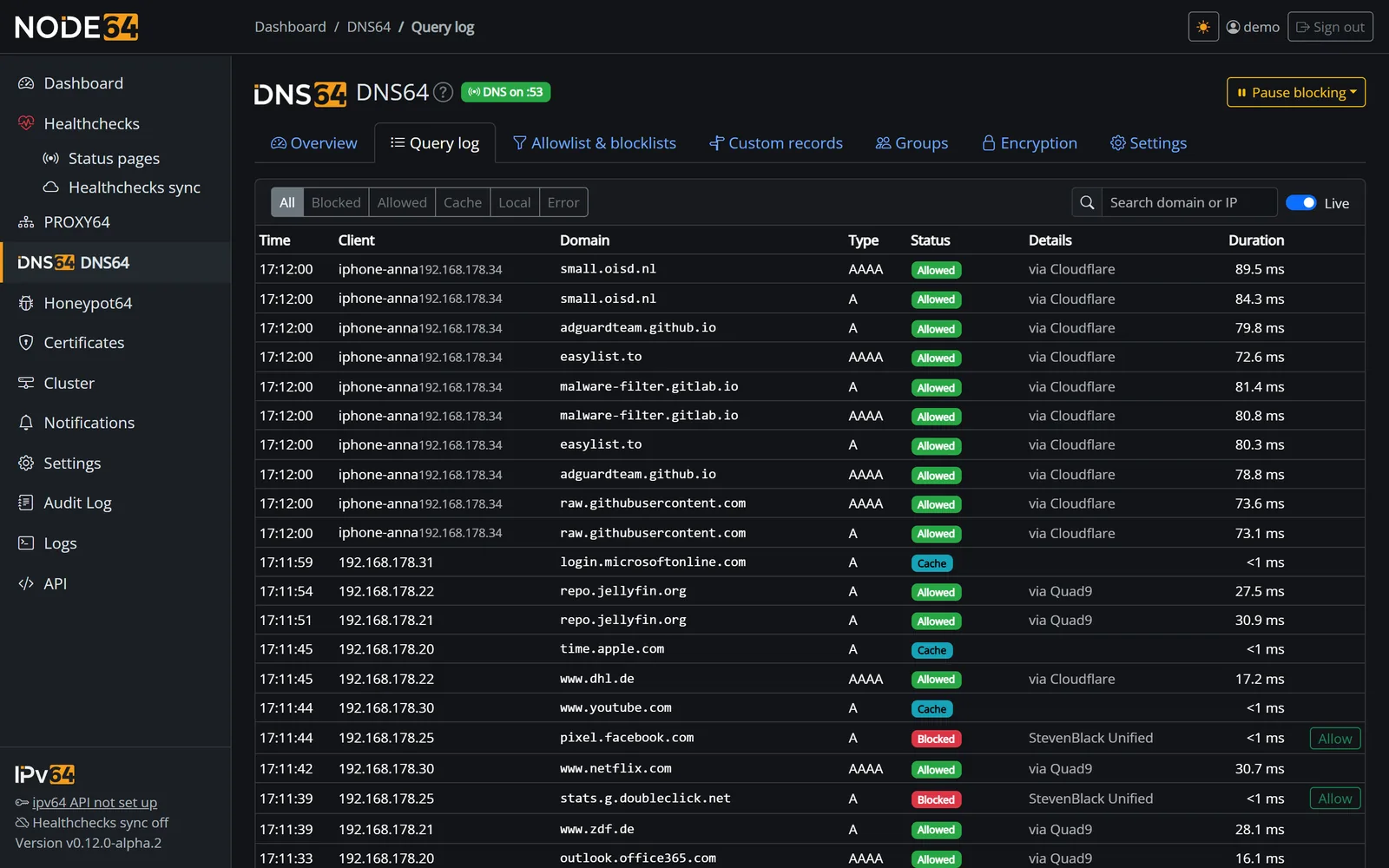
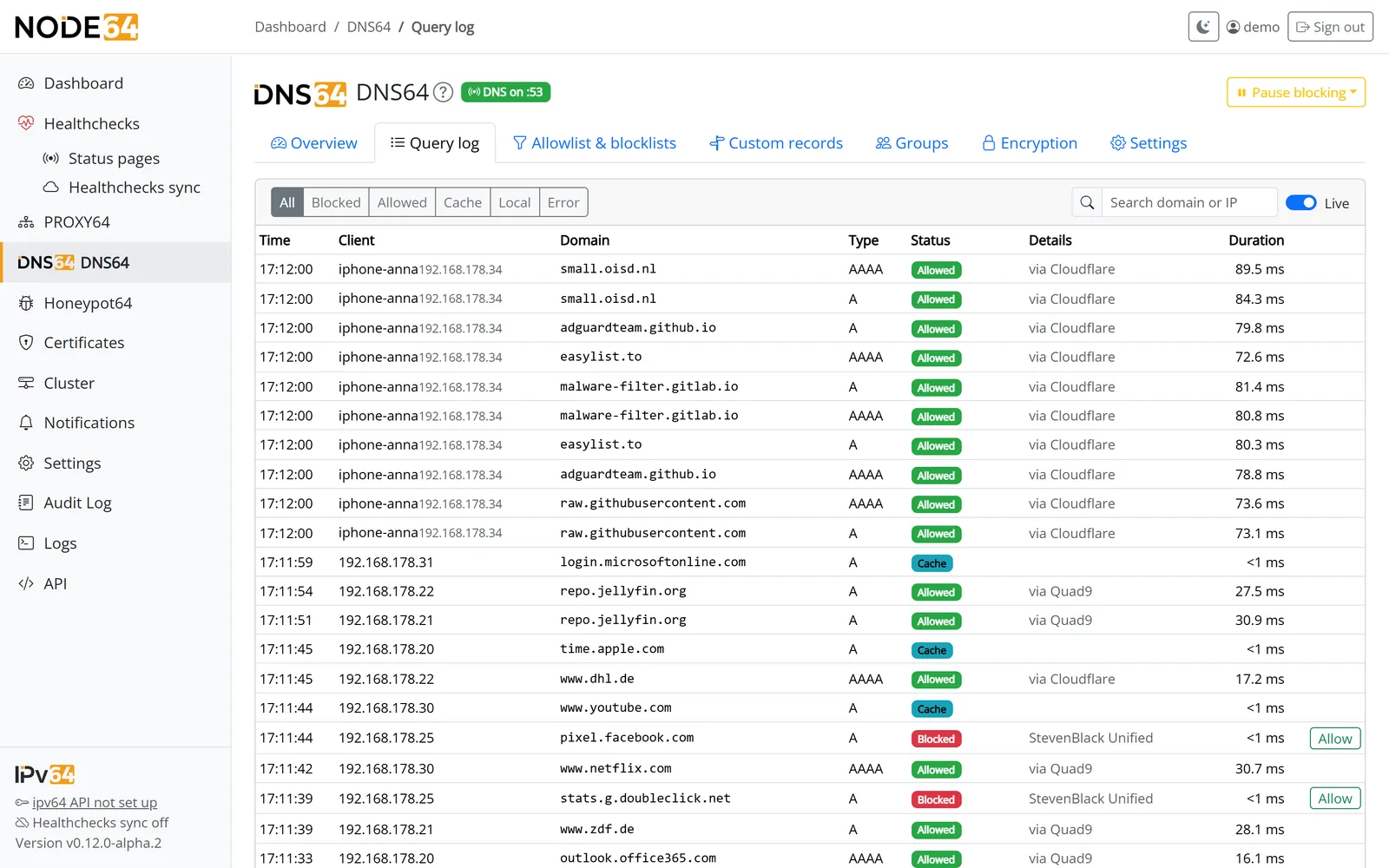
The query log filters by All, Blocked, Allowed, Cache, Local and Error, searches by domain or IP, shows the protocol of every query (UDP, TCP, DoH, DoT, DoQ) and can follow along live. It counts hits up to 100,000 at most and shows “100,000+” beyond that. Overview, dashboard card, top lists and device list read from per-minute and per-hour counters instead of the whole log – so they stay fast even with millions of entries. When updating to DNS64 1.28.0, the node builds these counters once from the existing log.
If a device queries a public domain with a local search domain appended, such as example.com.home.local, the log adds “search domain appended by the device”. The device does that itself, usually after the actual query failed (e.g. SERVFAIL because the upstreams briefly didn't answer). DNS64 appends nothing.
| Setting | Values | Default |
|---|---|---|
| Keep query log | 1–90 days | 7 days |
| Client addresses in the log | full · shortened (IPv4 /24, IPv6 /48) · do not store | full |
Shortened or not stored applies to new entries; device names and top clients are then limited or unavailable. The log lives in its own SQLite file (/data/dns64/dns64.db); expired entries are deleted hourly in small chunks.
For Grafana and friends, DNS64 exposes metrics at GET /api/metrics – queries per result and protocol, response times, cache, blocklists and upstreams. Details under Prometheus.
Device groups
In the Groups tab you combine devices, e.g. "Kids", "Smart TV" or "Guests". The query log then shows at a glance which group is asking for what.
- Recognised by MAC first: DNS64 reads the MAC address from the host's neighbour table (IPv4 and IPv6). A device therefore stays in its group even when it gets a new IPv4 or IPv6 address. This only works for devices on the same network and with host networking.
- Otherwise by IP address or network, e.g. ranges of your home network or single addresses.
- Order = priority: a device belongs to at most one group; if it matches several, the topmost wins. Reorder by moving groups.
- Assign with a click: devices seen in the last 24 hours (from the query log, with the name from your router and the MAC) can be assigned to a group directly.
- Query log: shows the group next to the client and filters by group, including "no group".
# list groups and recognised devices
curl -H "Authorization: Bearer YOUR_API_KEY" http://NODE-IP:8080/api/dns64/groups
curl -H "Authorization: Bearer YOUR_API_KEY" http://NODE-IP:8080/api/dns64/devices
# query log of one group
curl -H "Authorization: Bearer YOUR_API_KEY" "http://NODE-IP:8080/api/dns64/log?group=GROUP_ID"
# a group's rules (lists, categories, safesearch, youtube, bypass): PUT /api/dns64/groups/GROUP_ID/rules
# own allowed/blocked domains: POST /api/dns64/groups/GROUP_ID/domains, DELETE /api/dns64/groups/domains/ID
Rules per group
Under Groups → Rules each group gets its own rules – stricter for the kids, more relaxed for work devices, for example:
- Blocklists: the same as for all devices, or a separate selection from all presets and your own lists.
- Block categories: social networks, games and streaming (small lists maintained by Node64, including TikTok, Instagram, Roblox, Fortnite, YouTube, Netflix) as well as gambling and adult content (these switch on HaGeZi Gambling or HaGeZi NSFW for the group).
- Own allowed and blocked domains per group, each including subdomains.
- Order: the group's allowed domains before the group's blocks before categories before blocklists.
- Query log: shows "blocked by group" or "category …" as the reason.
DNS64 loads the globally enabled lists plus those a group uses in addition – each list only once (at most 64 in total). The cache is shared by all groups; hidden trackers behind CNAMEs are also checked for answers from the cache. The global pause suspends blocklists and categories, not a group's own blocks. Every change to groups is recorded in the audit log.
SafeSearch per group
One switch per group forces the big search engines into safe mode – via DNS, without software on the devices:
- Google (all country domains) →
forcesafesearch.google.com - Bing →
strict.bing.com - DuckDuckGo →
safe.duckduckgo.com - YouTube restricted mode: strict (
restrict.youtube.com), moderate (restrictmoderate.youtube.com) or off
This also applies if the group has allowed the domain. HTTPS is left untouched; the query log shows the reason "SafeSearch → …".
Protection against bypassing
So that devices in a group can't simply get around the filter, "protection against bypassing" enables for the group:
- the list HaGeZi DoH/VPN/Proxy Bypass (third-party DoH servers, VPNs and proxies),
- iCloud Private Relay off:
mask.icloud.comandmask-h2.icloud.comget NXDOMAIN, - Firefox DoH off:
use-application-dns.netgets NXDOMAIN.
DNS filtering has a natural limit: mobile data or a third-party DNS server hard-coded on the device still bypass it.
Schedules, block and free
For fixed times – "no internet after 9 pm on school nights", for example – you create schedules per group:
- When: chosen weekdays, from–to in the node's time zone. Spanning midnight works too; if start and end are equal, the whole day counts.
- What: "internet off" or block additional categories (e.g. social networks and games during homework).
- Each schedule can be switched on and off individually.
For spontaneous cases, each group has buttons in its header:
| Button | Duration | Effect |
|---|---|---|
| Block | 30 min, 1 or 2 h, until 7:00 tomorrow, until lifted | like "internet off" |
| Free | 30 min, 1 or 2 h | suspends schedules and categories; blocklists still apply |
| Lift | – | ends block or free immediately |
"Internet off" means: only local names, custom records and the group's allowed domains still work. All other names get the node's address (TTL 10 s). If a device then opens a page via http://, the shared entry point on port 80 shows a notice page with the group, the reason and when the block ends; with https:// the browser only shows a certificate error. Port 80 is only open for this while a group can be blocked. The query log shows the reasons "internet off" or "schedule …: internet off".
# block a group for 60 minutes (mode: block, free or "" to lift)
curl -X POST -H "Authorization: Bearer YOUR_API_KEY" -H "Content-Type: application/json" \
  -d '{"mode":"block","minutes":60}' http://NODE-IP:8080/api/dns64/groups/GROUP_ID/hold
# schedule: Mon–Fri 21:00–07:00 internet off
curl -X POST -H "Authorization: Bearer YOUR_API_KEY" -H "Content-Type: application/json" \
  -d '{"label":"Bedtime","days":[1,2,3,4,5],"start":"21:00","end":"07:00","action":"off"}' \
  http://NODE-IP:8080/api/dns64/groups/GROUP_ID/schedules
GET /api/dns64/groups returns each group's current state (state: internet off, free, by button, until lifted, until when, which schedule). The DNS64 dashboard card shows the number of device groups and how many currently have "internet off"; Prometheus gets values per group (see Prometheus). More endpoints: POST /api/dns64/groups/schedules/{id}/enable or /disable and DELETE /api/dns64/groups/schedules/{id}.
Encrypted at home (DoH, DoT, DoQ)
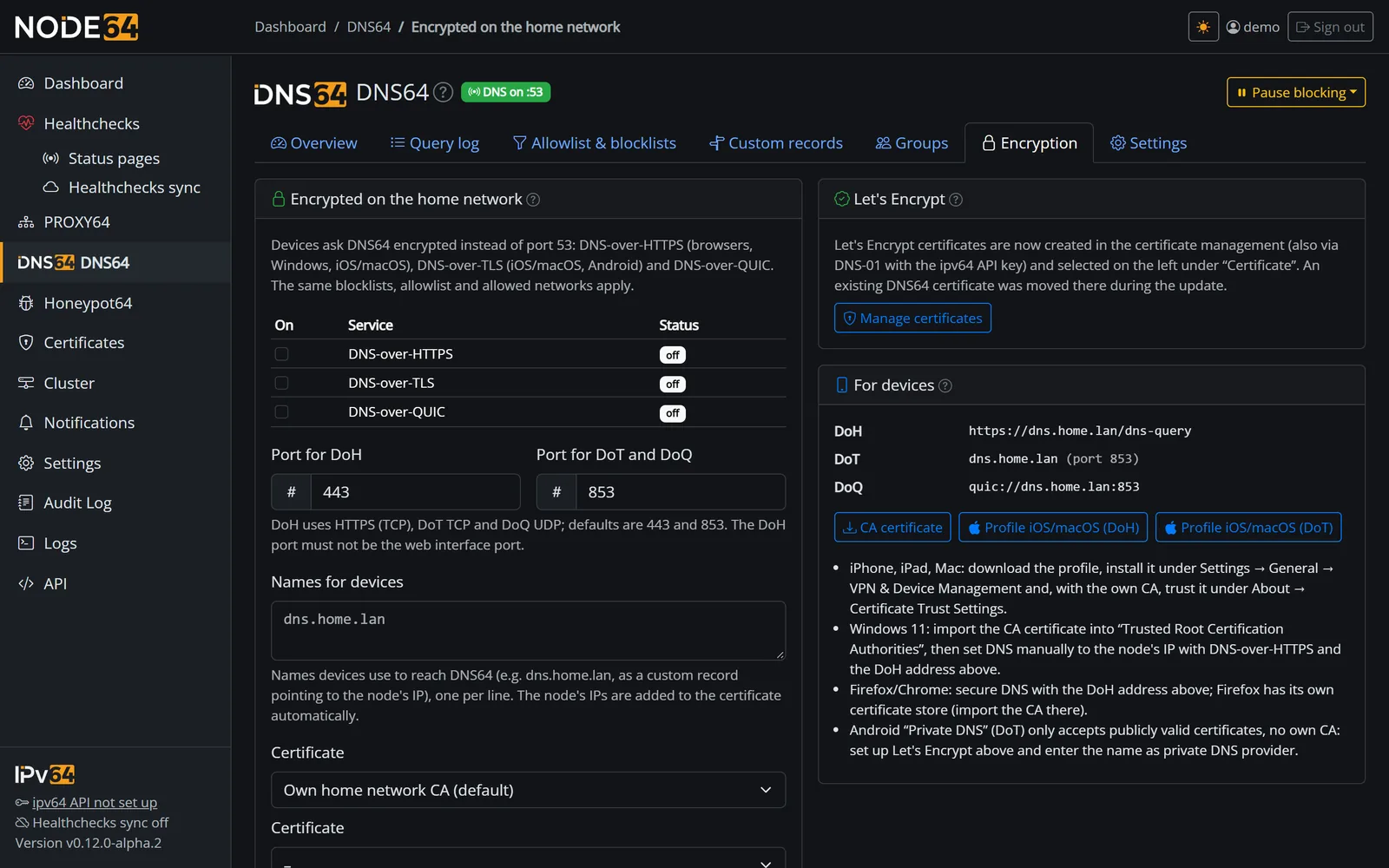
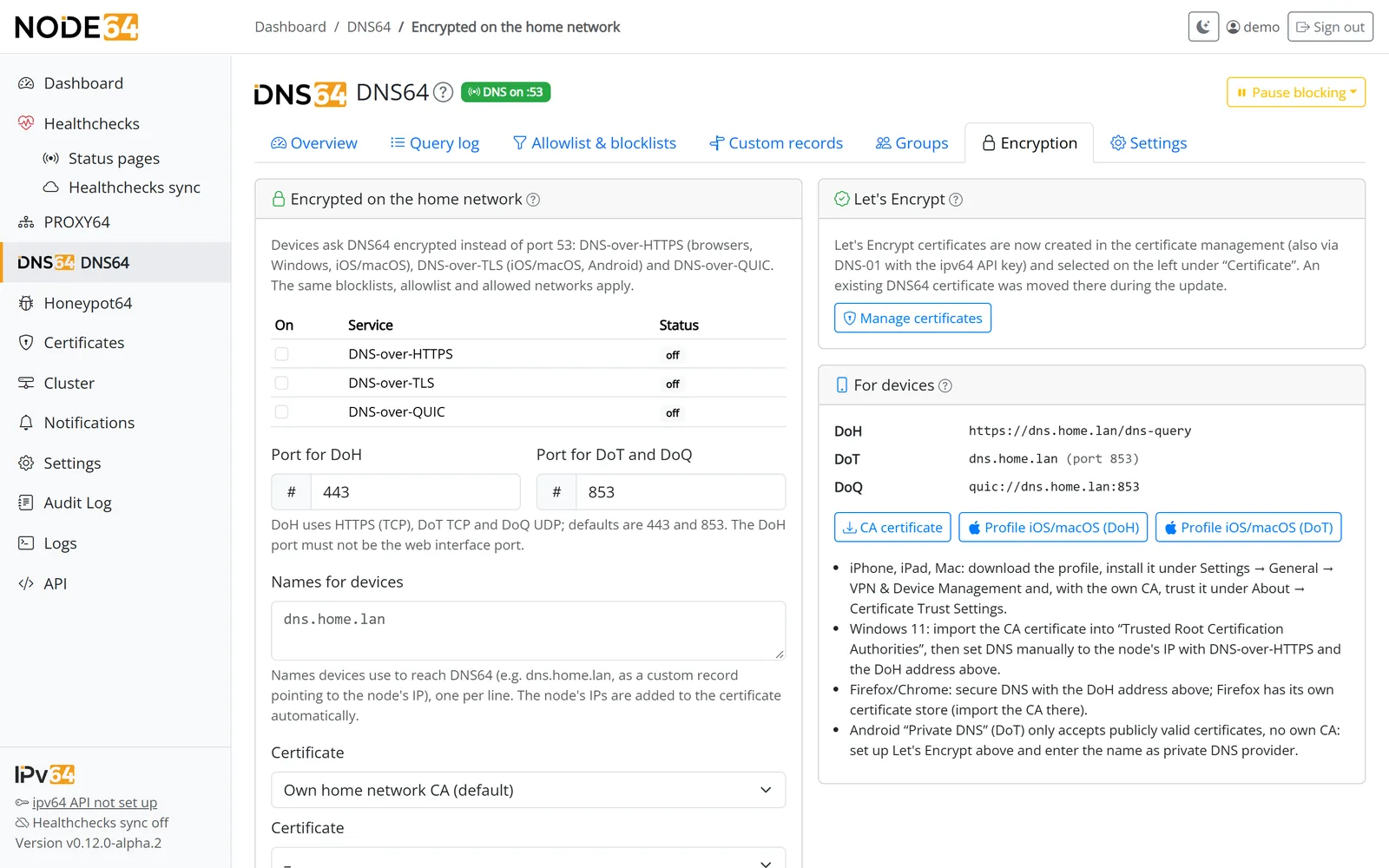
Your devices can also query DNS64 encrypted instead of over port 53. The same blocklists, allowed domains and allowed networks apply. You switch each service on individually under DNS64 → Encryption; if a port is in use, only that service stops.
| Service | Address for devices | Typically used by |
|---|---|---|
| DoH | https://NAME-OR-IP/dns-query (port 443) | browsers, Windows, iPhone/iPad/Mac |
| DoT | NAME, port 853/TCP | iPhone/iPad/Mac, Android |
| DoQ | NAME, port 853/UDP | apps with DoQ support |
DoH runs through Node64's shared entry point and shares port 443 with PROXY64, HTTP/3 included. The DoH port can't be the web UI's port, and the DoH and DoT ports must differ from the DNS port.
Under Names for devices you enter the names devices use to reach DNS64 – e.g. dns.home.lan, created as a custom record pointing to the node's IP. The node's IPs are added to the certificate automatically.
Certificate
DoT, DoH and DoQ need a certificate. There are three options:
| Option | What happens | Good for |
|---|---|---|
| Own home network CA (default) | A dedicated CA (valid for 10 years) issues the server certificate for all private IPs of the node plus your names (800 days, below Apple's limit of 825). Name constraints restrict the CA to private addresses only. It's reissued when names or IPs change. Devices install the CA certificate once. | iPhone, iPad, Mac (via profile), Windows, browsers |
| From certificate management | Any certificate from the central certificate management, e.g. Let's Encrypt for a name under your ipv64 domain (DNS-01 via your ipv64 API key; the name doesn't have to be reachable from the internet). Renewal happens there, and DNS64 picks it up without a restart. | all devices without installing a CA, Android "Private DNS" |
| Web UI certificate | The certificate configured via NODE64_TLS_CERT / NODE64_TLS_KEY. | if you already have a certificate of your own |
The home network CA only vouches for private addresses. Devices that reach DNS64 via a public IPv6 address should therefore use a name instead of the IP for DoT/DoH.
iPhone, iPad and Mac: profile
In the Encryption tab, under "For devices", you download a ready-made profile – for DoH or DoT (dns64-doh.mobileconfig or dns64-dot.mobileconfig). It contains the DNS settings and, with the own CA, the CA certificate as well.
- Download the profile
Ideally open it directly on the device in Safari. - Install it
On iPhone and iPad under Settings → General → VPN & Device Management. On a Mac, open the file and confirm the installation in System Settings. - Trust the CA (own CA only)
On iPhone and iPad, turn on trust for the DNS64 CA under Settings → General → About → Certificate Trust Settings.
Android: Private DNS
Android "Private DNS" uses DoT and only accepts publicly trusted certificates, not your own CA. Here's how:
- In certificate management, create a Let's Encrypt certificate for a name under your ipv64 domain, e.g.
dns.YOUR-DOMAIN.ipv64.de. - Under DNS64 → Encryption, select this certificate and switch on DoT.
- So that the name points to the node on your network, add it in DNS64 as a custom record (A/AAAA to the node's IP).
- On the Android device, enter the name as the "Private DNS" provider.
Windows and browsers
- Windows 11: With the own CA, import the CA certificate into "Trusted Root Certification Authorities". Then set the DNS server manually to the node's IP in the network settings, with DNS-over-HTTPS and the DoH address.
- Firefox and Chrome: Turn on "Secure DNS" with the DoH address. Firefox has its own certificate store – import the CA there.
- Firefox uses DNS64: by default DNS64 answers
use-application-dns.netwith NXDOMAIN. Firefox then turns off its built-in DoH and asks DNS64 – otherwise it would resolve around the filter. You can switch this off under Settings (API:firefox_canaryin/api/dns64/settings); the log shows "Firefox DoH disabled".
You can also download the CA certificate on its own in the Encryption tab (via API: GET /api/dns64/ca.crt).
Notifications
DNS64 notifies your default channels (not during quiet hours) when
- an upstream server has been failing for more than 3 minutes – and again when it answers,
- a blocklist can't be loaded three times in a row.
You can switch both off under DNS64 → Settings → Notifications. Webhooks receive the kinds dns64_upstream, dns64_upstream_ok and dns64_lists. Set up channels under Notifications.
Data, export and API
- Files under
/data/dns64/:dns64.db(query log),allowlist.txt(allowed domains),denylist.txt(own blocklist),lists/(blocklists). Settings and custom records live in the node's database. - Export/import includes settings, allowed domains, the own blocklist and custom records, local zones (without TSIG keys), forwards and rewrites – see Update & backup.
- Local API under
/api/dns64/…: status, key figures, timeline, top lists, log, lists, upstreams, cache, allowed domains, own blocklist (/api/dns64/denylist), settings, custom records, device groups with their rules (/api/dns64/groups,/api/dns64/devices), pause, plus the CA certificate and Apple profile. Every change is recorded in the audit log. More under API.
# Pause blocking for 10 minutes (0 = until switched back on), then resume
curl -X POST -H "Authorization: Bearer YOUR_API_KEY" \
  -H "Content-Type: application/json" -d '{"minutes": 10}' \
  http://NODE-IP:8080/api/dns64/pause
curl -X POST -H "Authorization: Bearer YOUR_API_KEY" \
  http://NODE-IP:8080/api/dns64/resume
Troubleshooting
| Problem | Fix |
|---|---|
| "The DNS service is not running" | Usually port 53 is in use – see Port 53 is in use. The module retries every minute. |
The log shows names like example.com.home.local | The device appends its search domain itself, usually after a failed query (SERVFAIL). DNS64 appends nothing; the log marks it “search domain appended by the device”. |
| The log only shows one IP | Bridge networking, or the router is asking on behalf of the devices. Use host networking and hand out DNS64 directly to the devices via DHCP. |
fritz.box or device names don't resolve | No router found. Enter the router's IP under Settings → Router for local names. |
| Devices don't show up in the log at all | The router still hands out another DNS server (check IPv6 as well), or the browser uses its own "secure DNS". |
| Queries are rejected with REFUSED | The device isn't in an allowed network, e.g. on a VPN. Add the network under Further allowed client networks. |
| Certificate warning with DoT/DoH | Install and trust the CA certificate, or pick a publicly trusted certificate from certificate management. |
Something unclear, missing, or a question about Node64? Ask in the official forum v64.tech.

