Notifications
Node64 reports outages and recoveries via e-mail, Telegram, Discord, Slack, Microsoft Teams, Matrix, ntfy, Gotify (also to the iPhone via iGotify), SecNtfy (end-to-end encrypted), Pushover, Home Assistant, webhooks and right in your browser – and with a connected ipv64.net account also via e-mail and SMS through ipv64. Built-in safeguards make sure one outage doesn't turn into a flood of messages.
How it works
- Under Notifications you create channels, for example “Telegram personal” or “E-mail family”.
- Each check notifies the channels you select in its form. Without a selection, it uses all default channels.
- Per check, you decide whether it notifies on outage and/or on recovery. The same switches exist per channel – both have to match.
- Other modules notify through the default channels too, such as DynDNS on an address change, DNS64, certificates and PROXY64.
Node64 stores secrets such as bot tokens and passwords encrypted in the database (key in /data/secret.key) and masks them in the logs.
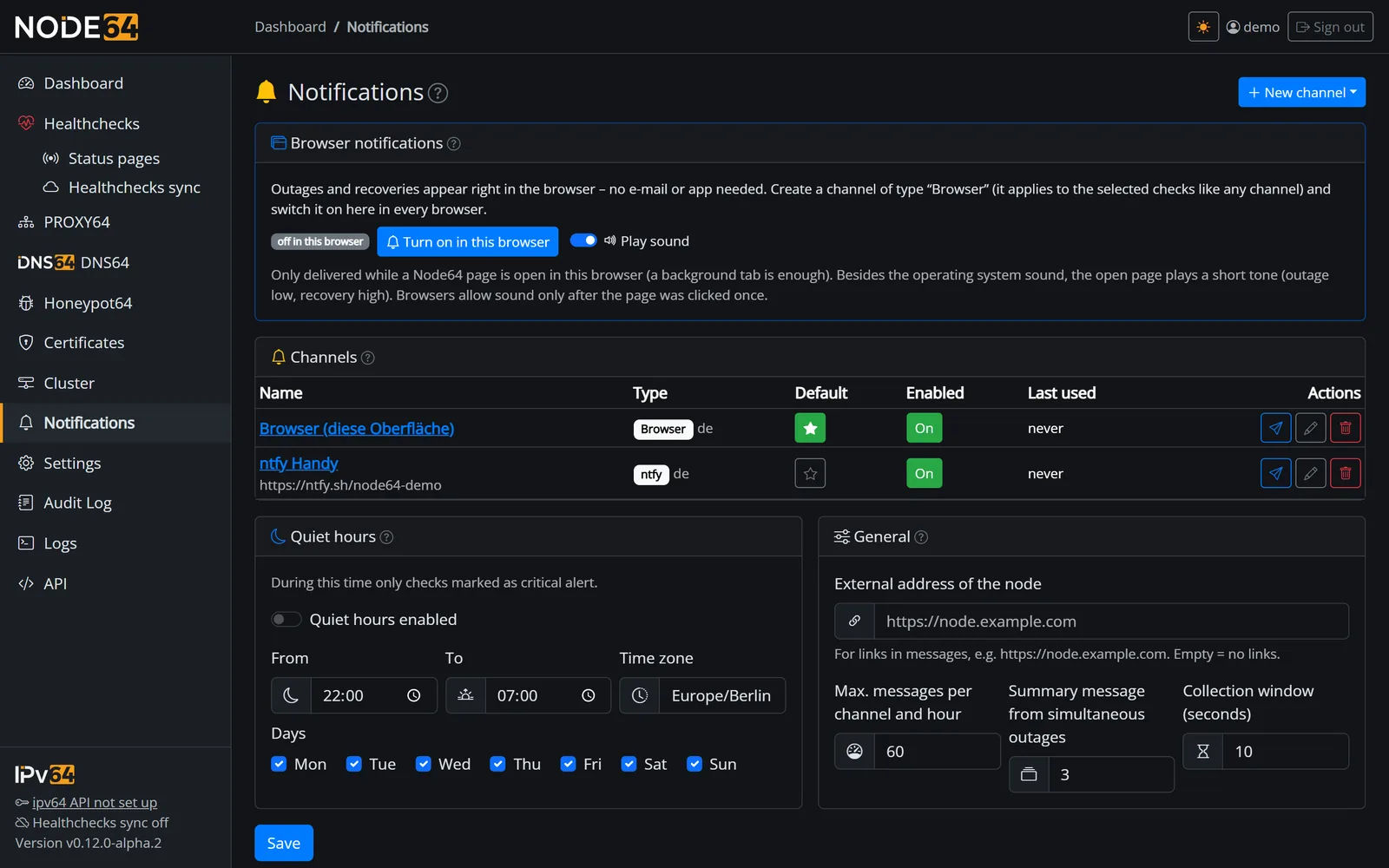
Create a channel
- Create a new channel
Under Notifications → New channel, pick the type and give it a name. - Enter the credentials
What each channel needs is listed below under Channels in detail. - Set the options
Active, Default (for all checks without their own selection), Message language, On outage and On recovery. - Send a test
Send test checks right away whether the message arrives. Tests don't count against the hourly cap and get through during quiet hours.
Every delivery ends up in the delivery log with channel, subject and result. If a delivery fails, the channel shows the last error.
For messages to include a link to the check, enter the external address of the node under General in the notification settings, e.g. https://node.example.com. If the field is empty, Node64 sends no links.
Channels in detail
| Channel | Sent by | Needs |
|---|---|---|
| Browser | node | an open Node64 page |
| E-mail (SMTP) | node | an SMTP server |
| Telegram | node | bot token and chat ID |
| Discord | node | webhook URL |
| Slack | node | webhook URL of a Slack app |
| Microsoft Teams | node | webhook URL of a workflow |
| Matrix | node | homeserver, a bot's access token and room |
| ntfy | node | server and topic |
| Gotify | node | server and app token |
| SecNtfy (encrypted) | node | device token from the SecNtfy app |
| Pushover | node | user key and app token |
| Webhook | node | a URL |
| Home Assistant | node | address and webhook ID of an automation |
| E-mail via ipv64 | ipv64.net | connected node or API key, address confirmed by code |
| SMS via ipv64 | ipv64.net | connected node or API key, number confirmed by code; daily quota per class, unlimited with Business and Company |
Browser
Outages and recoveries show up as system notifications right in your browser – no e-mail or app needed.
- Create a channel of type Browser. Like any other channel, it applies to the selected checks.
- In every browser that should notify you, choose Turn on in this browser on the notifications page and allow the browser's prompt.
- Optionally enable Play sound: the open page also plays a short tone (outage low, recovery high). Browsers only allow sound after the page has been clicked once.
Messages only arrive while a Node64 page is open in that browser – a background tab is enough. Browsers allow system notifications only via HTTPS or localhost; otherwise messages appear at the bottom right of the open page.
E-mail (SMTP)
| Field | Default | Note |
|---|---|---|
| SMTP server | – | e.g. smtp.example.com |
| Port | 587 | typically 587 with STARTTLS, 465 with TLS |
| Encryption | – | STARTTLS, TLS or none |
| User, password | – | credentials of your mailbox |
| Sender | – | e.g. node64@example.com |
| Recipients | – | separate multiple addresses with commas |
No mail server of your own? Use e-mail via ipv64 instead.
Telegram
- Open @BotFather in Telegram, create a bot with
/newbotand copy the bot token. - Send your new bot a message once (or add it to a group and post something there).
- To find the chat ID, open
https://api.telegram.org/botYOUR_BOT_TOKEN/getUpdatesin your browser – it's listed under"chat":{"id":…}. Groups have negative IDs. - Enter bot token and chat ID in Node64. With Deliver silently, messages arrive without a sound.
Discord
- In Discord, go to Server Settings → Integrations → Webhooks and create a new webhook for the channel you want.
- Copy the webhook URL and enter it in Node64.
- Optionally set a display name for the messages.
Slack
- On api.slack.com/apps, choose Create New App → From scratch and enter a name and workspace.
- Under Incoming Webhooks, switch on the toggle and click Add New Webhook to Workspace.
- Pick the channel Node64 should post to.
- Copy the URL
https://hooks.slack.com/services/…, enter it in Node64 as the webhook URL (httpsonly) and check it with Test.
The message has a coloured bar (red for an outage, green for recovery, orange for “attention”), a bold title, the text and a Details button.
Microsoft Teams
- In the Teams channel, click … → Workflows.
- Choose the template Post to a channel when a webhook request is received.
- Select team and channel and create the workflow.
- Copy the URL shown, enter it in Node64 as the webhook URL and check it with Test.
Node64 sends an Adaptive Card with a coloured title, the text and Details. The sender's name and icon can't be changed with Workflows.
The old Office 365 connectors (“Incoming Webhook”) stopped working in May 2026. Node64 needs a URL from Workflows.
Matrix
- Create a separate bot account on your homeserver – not your personal account.
- Invite the bot to the room and accept the invitation: log in to Element as the bot to do so.
- Get the bot's access token: Element → Settings → Help & About → Access token. Afterwards don't log out in Element – that would invalidate the token.
- Enter in Node64: server (default
https://matrix.org), access token (stored encrypted) and room – the room ID!abc:server(Room settings → Advanced) or an alias#room:server. Then check it with Test.
Node64 sends an m.notice with HTML: coloured title, text and a Details link. It works with any homeserver, such as Synapse, Conduit or matrix.org – self-hosted too.
End-to-end encrypted rooms (E2EE) aren't supported. Use a room without encryption for Node64.
ntfy
| Field | Default | Note |
|---|---|---|
| Server URL | https://ntfy.sh | or your own ntfy server |
| Topic | – | the topic you subscribe to in the ntfy app |
| Access token or user/password | – | for protected topics |
| Priority on outage | 4 | |
| Priority on recovery | 3 |
On the public server, anyone who knows a topic's name can typically read along. So pick a name that's hard to guess, or run your own server with access control. An ntfy server inside your network has another upside: it still notifies you when your internet is down.
Gotify
- In your Gotify server, create a new application under Apps and copy its token.
- In Node64, enter the server URL (e.g.
https://gotify.example.com) and the app token. - The priority defaults to 5.
To the iPhone with iGotify: iGotify brings messages from a Gotify server to the iPhone as Apple push notifications. The iGotify assistant runs next to Gotify, and the iGotify app on the iPhone – see the instructions in the project. In Node64 you simply use the normal Gotify channel; the link to the incident comes along as a click target (client::notification), and tapping the notification opens it. A big thank-you to the community member who develops iGotify!
Earlier channels of type “iGotify (iPhone)” are switched to Gotify automatically by the update to Health checks 2.27.1.
SecNtfy (end-to-end encrypted)
SecNtfy delivers push notifications end-to-end encrypted: title and text are encrypted with your device's public RSA key, and only the device can read them.
- Copy the device token in the SecNtfy app (
NTFY-DEVICE-…). - In Node64, create a SecNtfy (encrypted) channel and enter the token; it's stored encrypted. The server defaults to
https://api.secntfy.appand can be changed. - Optionally switch on Send problems as critical alert: it applies to outages, reminders and summaries – critical alerts get through even in silent and focus mode. Then check it with Test.
An encrypted block holds little: with SecNtfy the text is shortened to at most 150 characters and the title to fit the key (245 bytes with RSA-2048), each with “...”. All other channels get the full message. SecNtfy is available in the node and in the ipv64.net portal; the API v2 knows the type secntfy.
Pushover
| Field | Default | Note |
|---|---|---|
| User key | – | shown in your Pushover dashboard |
| App token | – | create a dedicated application in Pushover |
| Device | – | optional; empty = all devices |
| Priority on outage | 1 | |
| Priority on recovery | 0 |
If you set a priority to 2 (emergency), Node64 adds the required parameters automatically: retry every 60 seconds, expire after 3600 seconds.
Webhook
| Field | Default | Note |
|---|---|---|
| URL | – | target of the request |
| Method | POST | POST, PUT or GET |
| Headers | – | one header per line, e.g. Authorization: Bearer YOUR_TOKEN |
| Custom body | empty = JSON payload | with placeholders, see Webhook format |
| Ignore certificate errors | off | for targets with a self-signed certificate |
With a custom body, you can connect many more services that accept webhooks – chat systems or home automation, for example.
Home Assistant
The Home Assistant channel triggers an automation via its webhook trigger: POST <URL>/api/webhook/<webhook ID> with JSON. That way an outage in Node64 can send a push notification to your phone or turn a light red, for example.
- Create an automation
In Home Assistant, create an automation with the Webhook trigger (method POST) and copy its webhook ID. - Create the channel
In Node64 under Notifications, create a Home Assistant channel, enter the address and webhook ID and check it with Test.
| Field | Default | Note |
|---|---|---|
| URL | – | Home Assistant address without a path, e.g. http://homeassistant.local:8123 |
| Webhook ID | – | like a password: stored encrypted, never shown in error texts |
| Verify certificate | on | switch off for a self-signed certificate in the LAN |
- Only the node sends, never the ipv64 server – so Only accessible from the local network (
local_only) can stay on in Home Assistant. - Home Assistant answers 200 for any webhook ID. Whether the automation ran is shown in its trace in Home Assistant.
- Node64 retries network errors and HTTP 5xx after 1, 5 and 15 minutes.
Under trigger.json you get: source (always node64), kind (as for the webhook, e.g. down, up, test, dyndns_fail), state (down, up, degraded, unchecked, test or info), title, message, url, time (RFC 3339, UTC), priority (1–5), event_id, check (name, token, type, target, critical; empty for a test) and node (the node's name).
Push notification to your phone (syntax from Home Assistant 2024.10):
alias: Node64 alert
triggers:
  - trigger: webhook
    webhook_id: node64-xyz   # your own ID
    allowed_methods: [POST]
    local_only: true
actions:
  - action: notify.mobile_app_your_phone
    data:
      title: "{{ trigger.json.title }}"
      message: "{{ trigger.json.message }}"
Turn a light red on an outage:
alias: Node64 outage red
triggers:
  - trigger: webhook
    webhook_id: node64-xyz
    allowed_methods: [POST]
    local_only: true
conditions:
  - condition: template
    value_template: "{{ trigger.json.state == 'down' }}"
actions:
  - action: light.turn_on
    target:
      entity_id: light.hallway
    data:
      color_name: red
E-mail and SMS via ipv64
With an API key stored or the node linked, ipv64 takes care of delivery – no mail server or SMS provider of your own required.
- Create the channel
Under Notifications → New channel, choose E-mail via ipv64 or SMS via ipv64 and enter the address or the mobile number with country code, e.g.+49 177 1234567. - Confirm
A new address or number has to be confirmed: on the Confirm channel page, click Send code and enter the 6-digit code right in the node. Unconfirmed channels carry the badge “unconfirmed” with a link there. - Use it
The channel appears in the normal channel table with the badge “ipv64” and can be edited, switched on and off, set as default, tested and deleted there.
- The channels live at ipv64 and apply to the whole account – on ipv64.net too.
- SMS: the daily limit depends on your account plan; the channel shows “x of y SMS left today”. With Business and Company it's unlimited (“SMS: unlimited in your account class”).
- Without the health check link, all alerts go via the API key to your ipv64 account's default channels – including those of the health checks, not just the modules: e-mail, SMS and the ipv64 app.
- With the health check link, the channels appear via the sync as before, and health check alerts go via ipv64 (see Who sends the message?).
- Without an API key or link, these channels are shown with the note “after linking or with an API key”.
- Via the API v2:
POST /hc2/channels/{id}/verify/sendsends the code,POST /hc2/channels/{id}/verifyconfirms it.
Language per channel
Every channel has its own message language: German or English. The same outage can go to your phone in German and to a team webhook in English – independent of the UI language. Everything is translated, including the reason for an outage and the DynDNS and cluster messages; e-mails carry a status bar matching the subject.
Event types
Every message has a type (kind). It's included as a field in the webhook JSON.
kind | When | status |
|---|---|---|
down | check is down | down |
up | check is OK again (with outage duration) | up |
flapping_start, flapping_end | check is flapping / stable again | down / up |
degraded, degraded_end | partially down / fully reachable again (only if enabled per check) | degraded / up |
unchecked, rechecked | check is no longer / again being checked | unchecked / up |
reminder | reminder: still down | down |
summary, summary_up | summary for several outages / recoveries | own format |
test | test message | own format |
quota | daily quota for online measurements reached | own format |
On top of that, other modules send messages such as dyndns_ip, dyndns_fail, dns64_upstream, cert_expiry, cdn64_online_down, cluster_down or cluster_up (a cluster node unreachable or back again), honeypot_login (attack on the login) and the Proxmox kinds proxmox_down, proxmox_up, proxmox_threshold, proxmox_threshold_ok and proxmox_restarted. They use their own, leaner JSON.
Webhook format and placeholders
Without a custom body, the webhook sends JSON with the content type application/json. Example for an outage of the check “Nextcloud”:
{
  "event_id": "…",
  "kind": "down",
  "status": "down",
  "time": "2026-10-19T08:15:00Z",
  "check": {
    "token": "CHECK_TOKEN",
    "name": "Nextcloud",
    "type": "keyword",
    "target": "https://cloud.example.com/status.php",
    "critical": false
  },
  "reason": "keyword_missing",
  "message": "…",
  "duration_seconds": 0,
  "flaps": 0,
  "node": {"name": "Node64", "location": "Home"},
  "url": "https://node.example.com/healthchecks/CHECK_TOKEN",
  "title": "🔴 Nextcloud is down",
  "text": "Check: Nextcloud (Keyword)\n…"
}event_idis unique per event – handy for spotting duplicates.reasonis a machine-readable reason such astimeout,dns_failed,tls_failed,status_mismatch,keyword_missing,packet_loss,cert_expiring,push_missingorcontainer_unhealthy.duration_secondsis the outage duration on recovery,flapsthe number of changes while flapping.urlis only filled in if the node's external address is set.
Summary messages use their own, shorter JSON with kind, count, checks (names), node, time, title and text.
Custom body with placeholders
In the Custom body field, you define the format yourself. Node64 replaces these placeholders:
| Placeholder | Content |
|---|---|
{{title}} | subject, e.g. “🔴 Nextcloud is down” |
{{text}} | the full message text |
{{name}} | name of the check |
{{status}} | down, up, degraded or unchecked |
{{kind}} | event type, see above |
{{reason}} | machine-readable reason |
{{message}} | message of the measurement |
{{url}} | link to the check |
{{token}} | token of the check |
{{time}} | timestamp |
{{event_id}}, {{type}}, {{target}} | event ID, check type, target |
Values are inserted JSON-safe, so quotes and line breaks won't break your JSON. If the body starts with {, it's sent as application/json, otherwise as text/plain.
{"text": "{{title}}\n{{message}}\n{{url}}"}{{title}} – {{reason}} ({{time}})Protection against alert noise
A short hiccup, a rebooting router or an evening of maintenance shouldn't bury you in messages. These mechanisms work together:
| Mechanism | Effect | Default |
|---|---|---|
| Retries before alert | only alert after several failures in a row; in between, the check measures at the shorter interval while down | 1 retry, 20 s |
| Stabilization | only “OK again” after several successes in a row; a relapse during that time doesn't trigger a new alert | 3 successes |
| Flap detection | from 3 changes within 15 minutes, one “flapping” message instead of many; ends after 15 quiet minutes | always on |
| Parent checks | dependent checks stay quiet while the parent is down | per check |
| Summary message | simultaneous outages (or recoveries) as one message per channel | from 3, window 10 s |
| Quiet hours | only critical checks at night; a summary afterwards | off |
| Cap per channel | limits messages per channel and hour | 60 per hour |
| “Partially down” | only notify if you enable it per check | off |
| Maintenance windows | no alerts during planned work | per window |
| No duplicates | unique event ID; in a combined setup exactly one place notifies | always on |
You set retries, stabilization, dependencies and “partially down” per check – see Intervals, timeouts and alerting. Maintenance windows live under Health checks → Maintenance windows. The remaining settings are on the Notifications page.
Summary messages
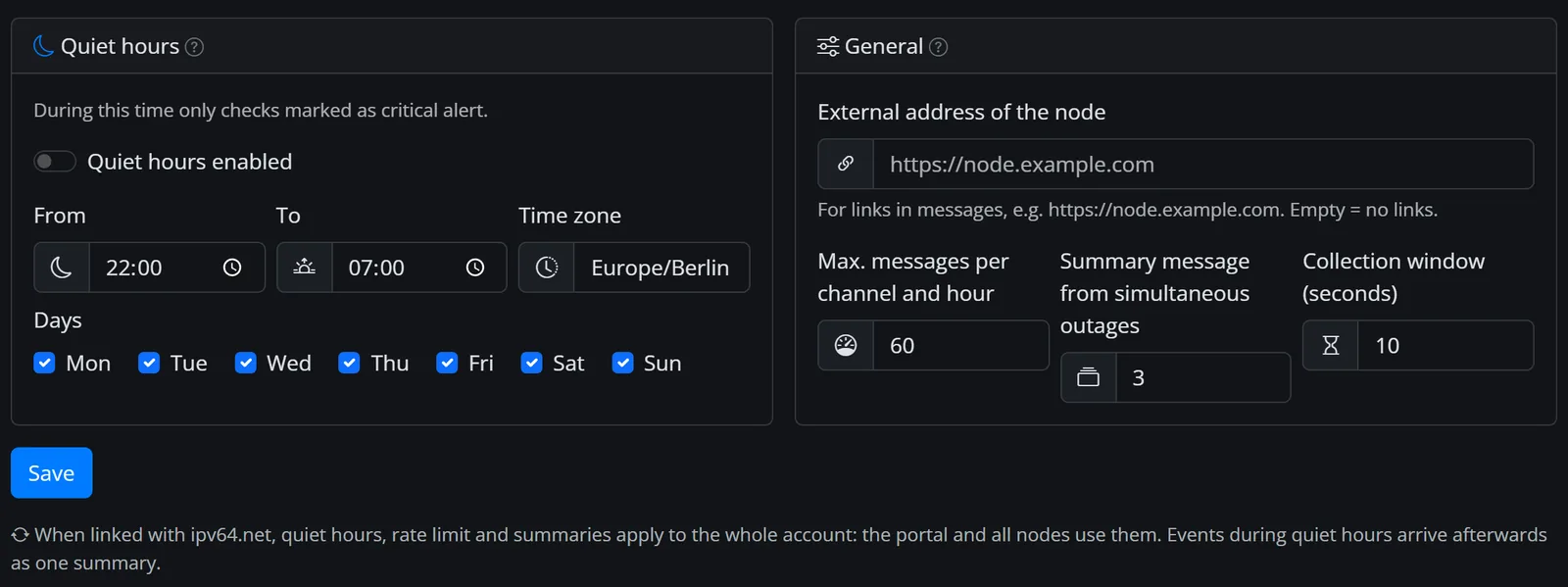
If your switch fails and takes several devices with it, Node64 briefly collects the outages and, above a threshold, sends a single message per channel – e.g. “🔴 3 checks down” with the list of checks. The same goes for recoveries.
| Setting | Default | Range |
|---|---|---|
| Summary message from simultaneous outages | 3 | 0–100; 0 or 1 turns summaries off |
| Collection window (seconds) | 10 | 0–600 |
Quiet hours
During quiet hours, only checks you've marked as Critical get through – Proxmox or your mail server, for example. Node64 holds everything else back and sends one summary afterwards, e.g. “🌙 During quiet hours: 4 checks, 1 still down”. Held-back alerts survive a node restart.
| Setting | Default | Note |
|---|---|---|
| Quiet hours active | off | |
| From / to | 22:00 / 07:00 | across midnight, the start day counts |
| Days | Mon–Sun | individual weekdays can be deselected |
| Time zone | the node's time zone | e.g. Europe/Berlin |
Messages from other modules (DynDNS, DNS64, certificates, PROXY64) and the daily quota message are not sent during quiet hours and are not delivered later either. They remain in the history of the respective module.
Cap per channel
At most 60 messages per channel and hour (configurable from 0 to 1000, 0 = unlimited). Anything beyond that isn't sent and is marked as rate-limited in the delivery log; the channel isn't flagged as faulty because of it. Test messages don't count.
Quiet hours, cap and summary settings then apply to the whole account: the portal and all nodes use the same values.
Reminders
So a long outage doesn't get forgotten, set Repeat alert every N minutes per check (0 = only once, at most 10080 = one week). While the check is down or flapping, you then get a regular reminder such as “🔴 Nextcloud is still down” – including how long the outage has lasted so far.
Delivery and failure behaviour
Who sends the message?
- Standalone node: it sends through its own channels.
- API key only, not linked: the node sends through its channels and additionally via the API key to your ipv64 account's default channels (e-mail, SMS, app) – for health checks too.
- Connected to ipv64.net: ipv64 coordinates the notifications; your node's channels are served on behalf of ipv64. That way there are no duplicate messages, even when several nodes and ipv64 locations measure.
- Connection to ipv64 lost: the node sends through its own channels again by itself. Late states (older than 5 minutes) are filled in quietly at ipv64 afterwards, without alerting again.
- Cluster: exactly one node notifies – the first reachable one among the measuring nodes. If it fails, the next one takes over without duplicates. Channels remain a per-node setting – see Cluster.
On a check's detail page, Notifies shows who currently sends on a state change: ipv64, this node or a node of the group.
Telegram, Discord and the like need internet. If you want to hear about an outage of your own connection, add a channel that works inside your network – your own ntfy or Gotify server, or a browser channel.
Delivery retries
For e-mail and SMS via ipv64, ipv64 retries a message after a temporary error (network, timeout, service overloaded) – after 1, 5 and 15 minutes. Permanent errors such as a wrong address aren't retried.
The other channels (Telegram, Discord, Slack, Microsoft Teams, Matrix, ntfy, Gotify, Pushover, webhook, SMTP) are sent by the node in a single attempt. If it fails, you see it in the delivery log and as the last error on the channel. It's best to check such channels right away with Send test.
Channels via API
You can also manage channels through the local API:
# List all channels
curl -H "Authorization: Bearer YOUR_API_KEY" http://node64.lan:8080/api/channels

# Send a test message through channel 3
curl -X POST -H "Authorization: Bearer YOUR_API_KEY" http://node64.lan:8080/api/channels/3/test
Which channels a check uses is stored in its channels field (list of channel IDs, empty = default channels) – see the health checks API.
Something unclear, missing, or a question about Node64? Ask in the official forum v64.tech.

