Certificates
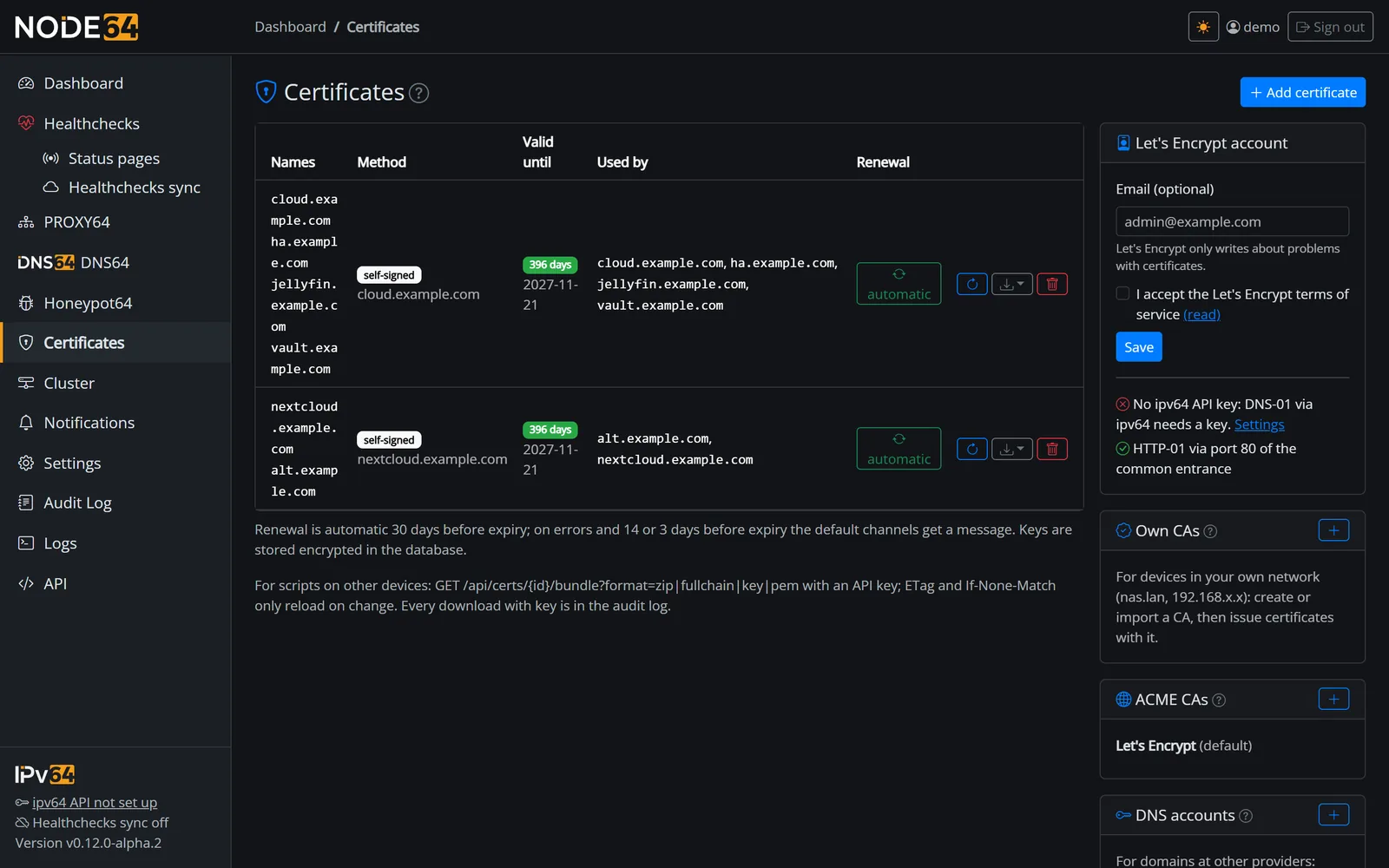
Node64 manages all TLS certificates in one place: Let's Encrypt via DNS or HTTP challenge, 26 DNS providers plus ipv64, your own CA for the home network, uploaded and self-signed certificates. PROXY64, DNS64 and the UI use them – and you can hand them out to your NAS, Proxmox, Windows and other devices.
Overview
- Certificate management is part of the Node64 core (menu item Certificates). It runs regardless of which modules are enabled.
- Renewal is automatic, even if no module currently uses the certificate – and even while PROXY64 is switched off.
- The “used by” column shows who uses a certificate, which protects it from being deleted by accident.
- Keys and credentials are stored encrypted in the node's database.
Ways to get a certificate
| Method | When to use it | Open port? |
|---|---|---|
| ipv64 DNS-01 | The names are in your ipv64 account. Wildcards too. | no |
| Alias via ipv64 | External domain, without the provider's credentials. | no |
| Other DNS provider | Domain at one of 26 providers, with stored DNS credentials. | no |
| HTTP-01 | Any domain that points to your connection via DNS. | port 80 |
| Your own certificate | A purchased certificate or one issued elsewhere. | – |
| Your own CA | Devices in your home network: nas.lan, private IPs. | – |
| Self-signed | Instantly and with no prerequisites, IPs included. | – |
If you pick “Automatic” when requesting, Node64 uses ipv64 DNS-01 when all names are in your ipv64 account, and HTTP-01 otherwise.
ipv64 DNS-01
The most convenient way for every name in your ipv64.net account, such as your DynDNS domains. Node64 sets the required TXT record itself via the ipv64 API.
- Requirement: the ipv64 API key under Settings → ipv64 (see Connect to ipv64.net).
- Wildcards like
*.yourname.ipv64.network. - No port needs to be open, and the name doesn't even have to be reachable from the internet. Handy for services that only run at home.
Alias via ipv64
For domains at another provider whose credentials you'd rather not give to Node64. You create a CNAME at the provider once, which hands the challenge over to ipv64:
_acme-challenge.cloud.example.com. CNAME _acme-challenge.<prefix>.<your-ipv64-domain>.Node64 shows you the exact values when you add the certificate. After that, every renewal runs through ipv64 without any further steps.
Other DNS provider (26)
For domains at one of these providers, you store DNS credentials using the provider's fields (token, key …). They're saved encrypted. Wildcards work here as well. The integration is based on lego v4.35.2.
| Group | Providers |
|---|---|
| German-speaking region | ALL-INKL.COM, AutoDNS (InterNetX), checkdomain, Hetzner, INWX, IONOS, netcup, Infomaniak |
| International | Bunny DNS, ClouDNS, Cloudflare, deSEC, DigitalOcean, Duck DNS, Dynu, Gandi, GoDaddy, Hostinger, Hurricane Electric, Namecheap, OVHcloud, Porkbun |
| Your own servers | PowerDNS, Technitium, RFC 2136 (BIND, Knot, pfSense/OPNsense with TSIG), HTTP request (your own service following the lego httpreq pattern) |
ipv64 itself comes on top as a separate method (ipv64 DNS-01).
HTTP-01
Let's Encrypt fetches a challenge file over port 80. This runs through Node64's shared entry point. Requirements: port 80 is forwarded to the node on your router, and the name points to your connection via DNS. Wildcards aren't possible with HTTP-01.
Uploading your own certificate
Purchased certificates often come with a password-protected key. Node64 understands these formats:
| Format | Recognisable by | Fields |
|---|---|---|
| PKCS#8 encrypted | -----BEGIN ENCRYPTED PRIVATE KEY----- | certificate + key + password |
| PEM encrypted (traditional) | Proc-Type: 4,ENCRYPTED and DEK-Info | certificate + key + password |
| PKCS#12 | .pfx or .p12 file, e.g. exported from Windows/IIS (older “legacy” files too) | file in the Certificate field + password |
| One PEM file with certificate and key | both blocks in one file | Certificate field only (+ password if encrypted) |
- If the password is wrong or missing, the page tells you so explicitly.
- Node64 stores the decrypted key – encrypted with the node's own key. The password itself is neither stored nor written to the audit log.
- Uploaded certificates can't be renewed automatically. Node64 warns you before they expire.
Your own CA for the home network
For devices that can't get a public certificate – nas.lan, printer.home.arpa or a private IP. Your devices trust the CA once, and every certificate it issues is valid from then on.
- Create: ECDSA P-256 or RSA 3072, valid for 10 years. The default is “private names and addresses only” (including
*.lan,*.home.arpa,*.internal,*.local,*.homeand private IPv4/IPv6). You can allow your own domains in addition. Because the CA is restricted with name constraints, a stolen CA key couldn't be used to forge internet domains. - Import: an existing CA with its key as PEM, including an intermediate CA under an offline root (e.g. from step-ca, OpenSSL or XCA).
- Issue: in the “Add certificate” form choose “Own CA” and enter names and IPs one per line. Validity 1–825 days, default 397 (825 is Apple's limit).
- Renew: automatically in the last third of the validity period, at most 30 days before expiry.
Installing the CA on your devices (card Own CAs):
| File | Device |
|---|---|
| PEM | Linux (/usr/local/share/ca-certificates/, then update-ca-certificates), Firefox |
.crt | Windows (double-click → “Trusted Root Certification Authorities”), Android |
| iOS/macOS profile | iPhone/iPad: download and install the profile, then enable it under Settings → General → About → Certificate Trust Settings |
A CA can only be deleted once it no longer issues any certificate.
Self-signed
Instantly and with no prerequisites, IPs included. ECDSA P-256 (default) or RSA 2048, valid for 397 days by default. Browsers warn until you trust the certificate – and again after every renewal. For several devices, your own CA is more convenient.
More ACME CAs
Let's Encrypt is the default, optionally with its test environment (staging) – ideal for not running into rate limits. Under ACME CAs you can add further CAs that speak ACME. Presets are available for:
| CA | Directory | External Account Binding (EAB) |
|---|---|---|
| ZeroSSL | https://acme.zerossl.com/v2/DV90 | yes, in your ZeroSSL account under Developer |
| Google Trust Services | https://dv.acme-v02.api.pki.goog/directory | yes, via gcloud publicca external-account-keys create |
| SSL.com | https://acme.ssl.com/sslcom-dv-ecc | yes |
| step-ca in your own network | your own URL | no; provide the step-ca root certificate |
- When adding a CA, Node64 queries its directory and tells you if it requires EAB. You accept the CA's terms of service in the process.
- The EAB key is stored encrypted in the database.
- When requesting a certificate, you choose the CA under “Issuing CA”. All methods (ipv64, alias, DNS providers, HTTP-01) work with every CA.
Renewal and alerts
- Node64 renews certificates set to “automatic” 30 days before expiry.
- If a renewal fails, the next attempt follows after 6 hours.
- Certificates from your own CA are renewed in the last third of their validity, at most 30 days before expiry.
- Alerts go to your default channels: on failure (once per incident), on recovery and 14 and 3 days before expiry.
- With no certificates and no consumers, nothing runs in the background.
Who uses the certificates
| Consumer | How | “Used by” |
|---|---|---|
| PROXY64 | Proxy hosts and streams take the certificate matching the name or a fixed one. You can request one right from the host form. | host names |
| DNS64 | DoH, DoT and DoQ: a certificate from the store or a server certificate from your own CA (the node's names and private IPs, 800 days, reissued when names or IPs change). | DNS64 |
| Node64 UI | HTTPS port and name at the shared entry point. | Node64 UI |
| Other devices | via download or API. | – |
Since DNS64 1.11.0, DNS64 no longer fetches certificates itself – the central store does that. On update, older DNS64 certificates and its home network CA move over automatically, once – with the same key, so your devices won't notice.
The UI's certificate
Under Settings → General → Reachability of this node → UI certificate you choose how the UI identifies itself. This applies to the HTTPS port (NODE64_HTTPS_PORT) and to its name at the entry point. Changes take effect immediately, without a restart.
| Choice | Behaviour |
|---|---|
| Automatic (default) | a certificate from the store matching the requested name, otherwise self-signed |
| Fixed certificate | always this one, e.g. a Let's Encrypt wildcard or one from your own CA with an IP |
| Self-signed | as without the store |
If NODE64_TLS_CERT is set, the HTTPS port keeps using that file (see Configuration).
Download
The download menu is available in every row of the list.
| File | Contents | Typical for |
|---|---|---|
fullchain.pem | certificate + intermediates | nginx, Apache, Traefik, Proxmox |
cert.pem, chain.pem | only the certificate or only the intermediates | Synology (three-file import), older servers |
privkey.pem | private key | together with fullchain.pem |
.pem (all in one file) | fullchain + key | HAProxy, FRITZ!Box, some routers |
| ZIP | all four PEM files | scripts |
.p12 (PKCS#12) | everything, password-protected | Windows, IIS, Java, NAS; “legacy encryption” for older devices |
Every download that includes the key is recorded in the audit log – with format, name and whether it came via the page or the API.
Fetching via the API
With a regular API key (Settings → API keys, see Local API) other devices can pick up their certificate themselves.
| Endpoint | Purpose |
|---|---|
GET /api/certs | list with IDs (id) |
GET /api/certs/{id}/meta | valid until, days left, fingerprint (= ETag) |
GET /api/certs/{id}/bundle?format=… | file: zip, fullchain, cert, chain, key or pem. With If-None-Match you get a 304 as long as nothing has changed. |
POST /api/certs/{id}/p12 | PKCS#12 with {"password": "…", "legacy": false} |
GET /api/cas/{id}/file?format=… | CA certificate as pem, crt or mobileconfig |
If the UI only runs over HTTP, the private key travels across the network in plain text. So only fetch it inside your own network, or use the HTTPS UI. Create a separate API key for each device – that way you can revoke them individually.
In the examples, http://node64.lan:8080 stands for your node's address, YOUR_API_KEY for the API key and 3 for the certificate ID from GET /api/certs.
# List certificates with their IDs
curl -H "Authorization: Bearer YOUR_API_KEY" http://node64.lan:8080/api/certs

# Expiry and fingerprint (ETag) of a certificate
curl -H "Authorization: Bearer YOUR_API_KEY" http://node64.lan:8080/api/certs/3/meta

# Download fullchain.pem and save the response headers (with ETag)
curl -D headers.txt -o fullchain.pem -H "Authorization: Bearer YOUR_API_KEY" \
  "http://node64.lan:8080/api/certs/3/bundle?format=fullchain"

# Only download if changed: 304 = nothing new, 200 = new file
ETAG=$(grep -i '^etag:' headers.txt | cut -d' ' -f2 | tr -d '\r')
curl -s -o fullchain.pem -w '%{http_code}\n' -H "Authorization: Bearer YOUR_API_KEY" \
  -H "If-None-Match: $ETAG" "http://node64.lan:8080/api/certs/3/bundle?format=fullchain"

# PKCS#12 with a password
curl -X POST -o cert.p12 -H "Authorization: Bearer YOUR_API_KEY" -H "Content-Type: application/json" \
  -d '{"password":"YOUR_P12_PASSWORD","legacy":false}' http://node64.lan:8080/api/certs/3/p12
Example scripts
Linux with nginx – daily via cron
The script only fetches the certificate when it has changed, then reloads nginx. Save it as e.g. /etc/cron.daily/node64-cert and make it executable (chmod +x).
#!/bin/sh
# Fetches the certificate only when it changed and reloads nginx
NODE=http://node64.lan:8080   # Node64 in your own network
KEY=YOUR_API_KEY              # API key
ID=3                          # ID from GET /api/certs
DIR=/etc/ssl/node64
mkdir -p "$DIR" && cd "$DIR" || exit 1
ETAG=$(cat etag 2>/dev/null)
CODE=$(curl -s -o new.zip -D headers -w '%{http_code}' -H "Authorization: Bearer $KEY" \
  -H "If-None-Match: $ETAG" "$NODE/api/certs/$ID/bundle?format=zip")
if [ "$CODE" = 200 ]; then
  unzip -o -q new.zip && chmod 600 privkey.pem
  grep -i '^etag:' headers | cut -d' ' -f2 | tr -d '\r' > etag
  systemctl reload nginx
fi
rm -f new.zip headers
In your nginx config, point to /etc/ssl/node64/fullchain.pem and /etc/ssl/node64/privkey.pem.
Proxmox VE
Same as above, just replace systemctl reload nginx with:
pvenode cert set fullchain.pem privkey.pem --force --restartSynology DSM
Download the ZIP and import privkey.pem, cert.pem and chain.pem under Control Panel → Security → Certificate → Add → Import.
Windows (PowerShell as administrator)
$h = @{ Authorization = "Bearer YOUR_API_KEY" }
Invoke-RestMethod -Method Post -Uri "http://node64.lan:8080/api/certs/3/p12" -Headers $h `
  -ContentType "application/json" -Body '{"password":"YOUR_P12_PASSWORD"}' -OutFile cert.p12
Import-PfxCertificate -FilePath cert.p12 -CertStoreLocation Cert:\LocalMachine\My `
  -Password (ConvertTo-SecureString "YOUR_P12_PASSWORD" -AsPlainText -Force)
Backup and migration
- Certificates, keys, CAs, DNS credentials and EAB data live in
node64.db. The keys in there are encrypted with/data/secret.key. - Both files belong together. Without
secret.key, the keys can no longer be read. The node's full backup contains both, see Update & backup. - New machine: move the whole
/datavolume. The certificates keep working there right away.
Limitations
- Let's Encrypt rate limits apply as usual, e.g. 50 certificates per registered domain per week and 5 identical certificates per week. Use the test environment (staging) for experiments.
- IP addresses in a certificate are only possible with your own CA or self-signed, not via ACME.
- No revocation lists (CRL/OCSP) for your own CA. Delete a compromised certificate and issue a new one. If you suspect the CA itself, create a new CA and replace it on your devices.
DNS-01 check
Before Node64 lets the certificate authority verify a DNS-01 challenge, it checks itself whether the TXT record is already visible. This check doesn't depend on any single resolver:
- Directly at the domain's name servers, via TCP if needed when UDP 53 is redirected or blocked.
- Publicly, all at once: DoH via fixed IPs at Cloudflare, Quad9, Google, DNS4EU, dnsforge, AdGuard and Mullvad, plus port 53 at
1.1.1.1,9.9.9.9,8.8.8.8and2606:4700:4700::1111. If a DNS filter in your network blocks some of them (such ascloudflare-dns.com), that no longer gets in the way. - If your own resolver returns
0.0.0.0or doesn't answer while looking up the name servers, Node64 falls back to the public resolvers. - The error message distinguishes whether the record isn't visible yet (“record not visible”) or no public resolver was reachable at all (“no public resolver reachable either …”), and shows the state per name server.
Under Certificates, a link in the account box leads to the DNS-01 check page (/certificates/dns-check). Test now checks each path there separately – the ipv64 name servers directly and every public resolver. You can also add your own resolvers there, which are asked first: IP, IP:port, https://, tls:// or quic://, at most 10.
Troubleshooting
| Message or state | Cause and fix |
|---|---|
| “Accept the terms of service …” | Tick the box on the Let's Encrypt account card. For other ACME CAs, when adding the CA. |
| “This method needs the ipv64 API key” | Enter the API key under Settings → ipv64. |
| Stuck at “waiting for the name servers” | The TXT record isn't visible everywhere yet. Up to 8 minutes is normal; some providers take longer. After that you get an error and a new attempt after 6 hours. The DNS-01 check with Test now shows per path where it gets stuck. |
| Alias: “CNAME missing” | Create the displayed CNAME _acme-challenge.<name> at the external domain's provider. |
| HTTP-01 fails | Port 80 must point to the node from outside (router), and the name must point to your connection via DNS. |
| Own CA: “… is not allowed by the CA” | The name or IP is outside the CA's constraints. Allow the domain in a new CA or use a CA without constraints. |
| Browser warns about your own CA | Install the CA on the device (card Own CAs); on iOS, also enable certificate trust. |
| Certificate can't be deleted | It's still in use (see “used by”). Switch it there first, or deliberately delete it anyway. |
Error texts from DNS providers are redacted: tokens and keys never appear in plain text in the UI, the API, the log or the cluster sync.
Something unclear, missing, or a question about Node64? Ask in the official forum v64.tech.

