First steps
Node64 is running? Then you'll be ready in five minutes: create the admin account, enable modules, set up your first check and send a test message to your phone.
Not installed yet? Start with Installation and come back here afterwards.
Setup wizard
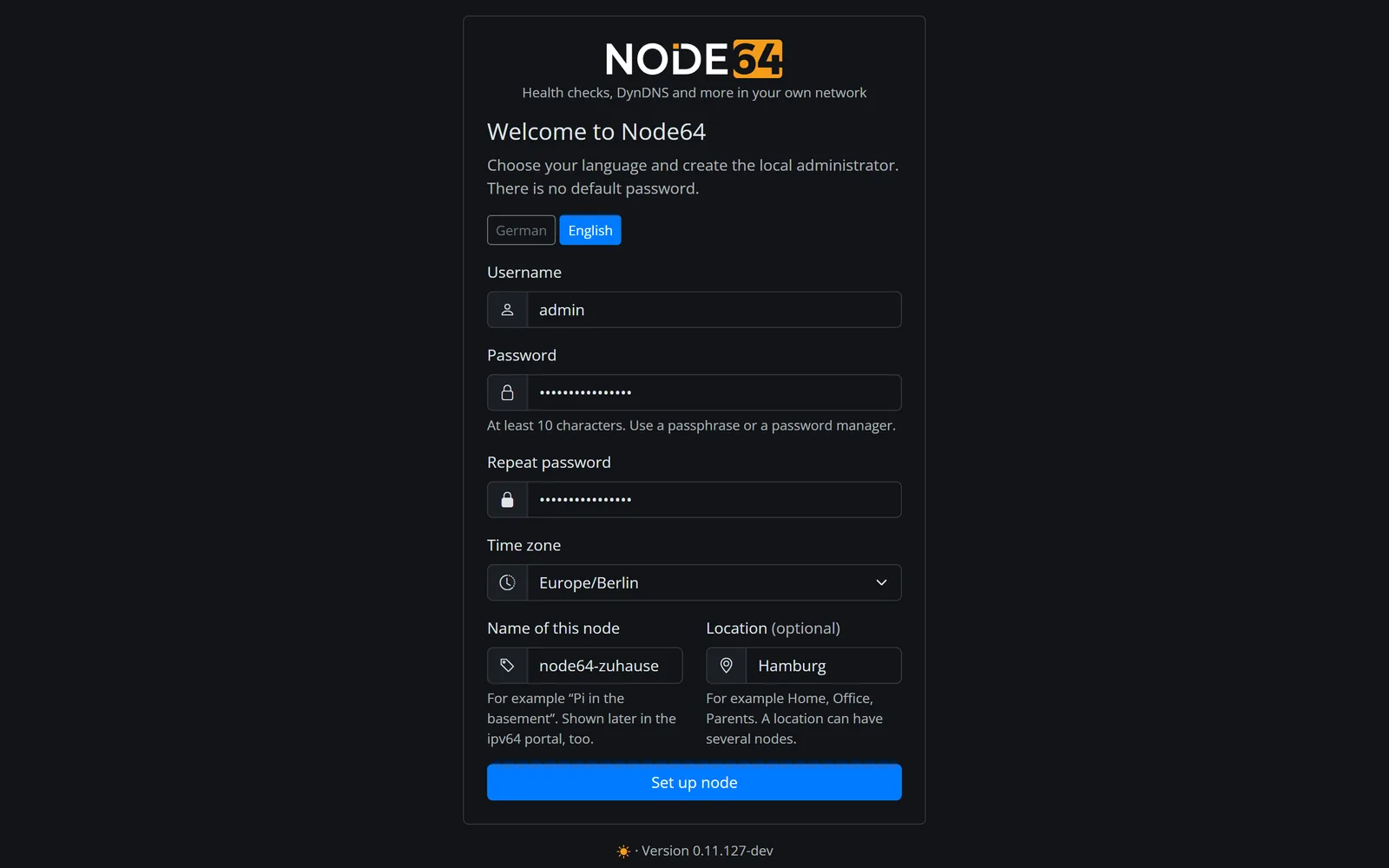
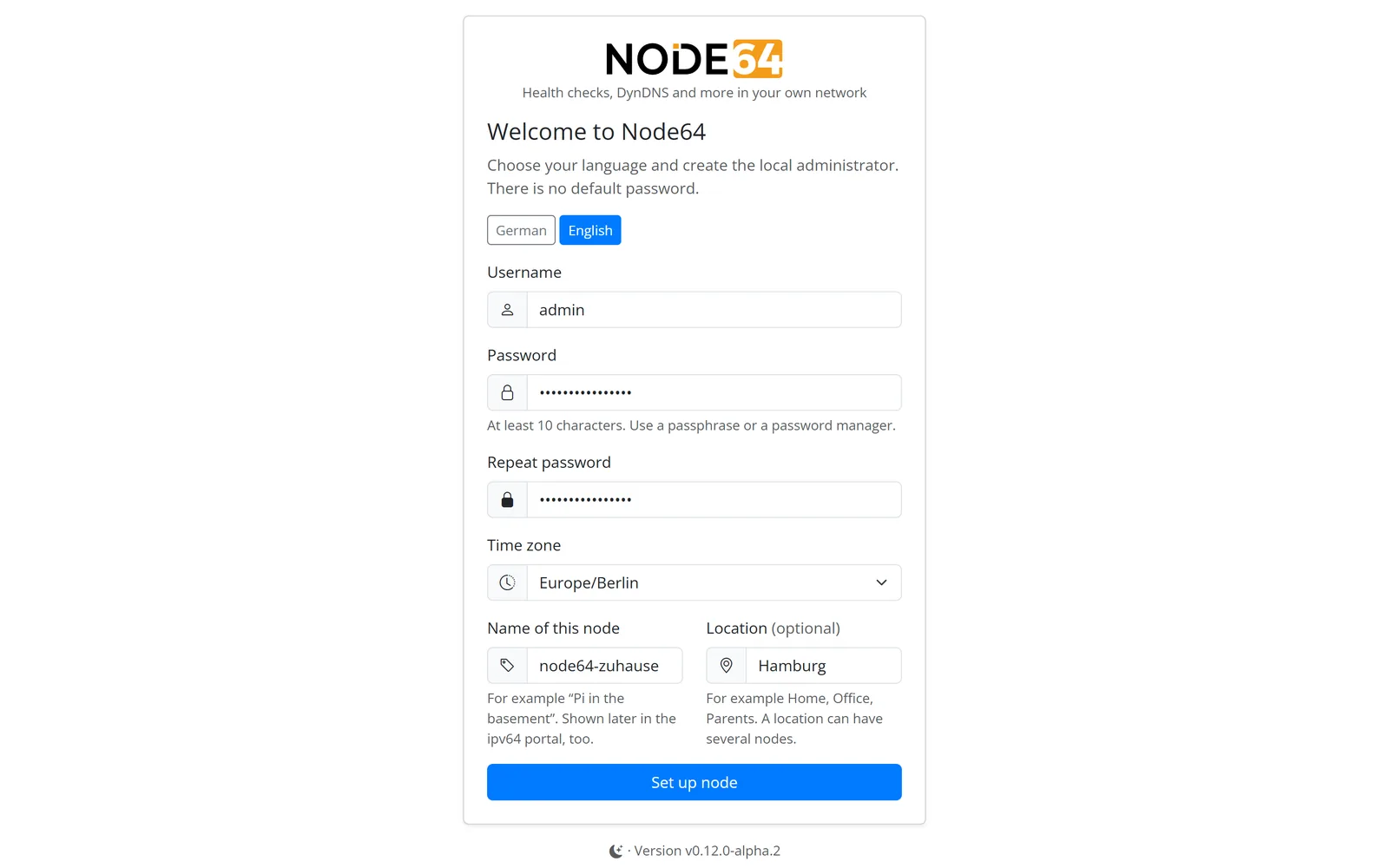
The first time you open http://<host>:8080, the “Welcome to Node64” wizard greets you. It appears as long as no user exists. There is no default password – you set up access yourself.
- Language: English or German. It applies to your user and can be changed at any time.
- Username: defaults to
admin. Allowed are 3–64 characters fromA–Z,a–z,0–9and._-. - Password and confirmation: at least 10 characters. A passphrase or a password from your password manager works best.
- Time zone: used for times in the interface and in messages.
- Name of this node: defaults to the hostname, e.g. “Pi in the basement”. If you link the node later, the name also shows up in the ipv64 portal.
- Location: e.g. home, office or parents. One location can have several nodes.
Click Set up node and everything is saved – you're logged in straight away. The setup is recorded in the audit log.
Tip: right after setup, turn on two-factor login or add a passkey. Login & security shows how.
A tour of the dashboard
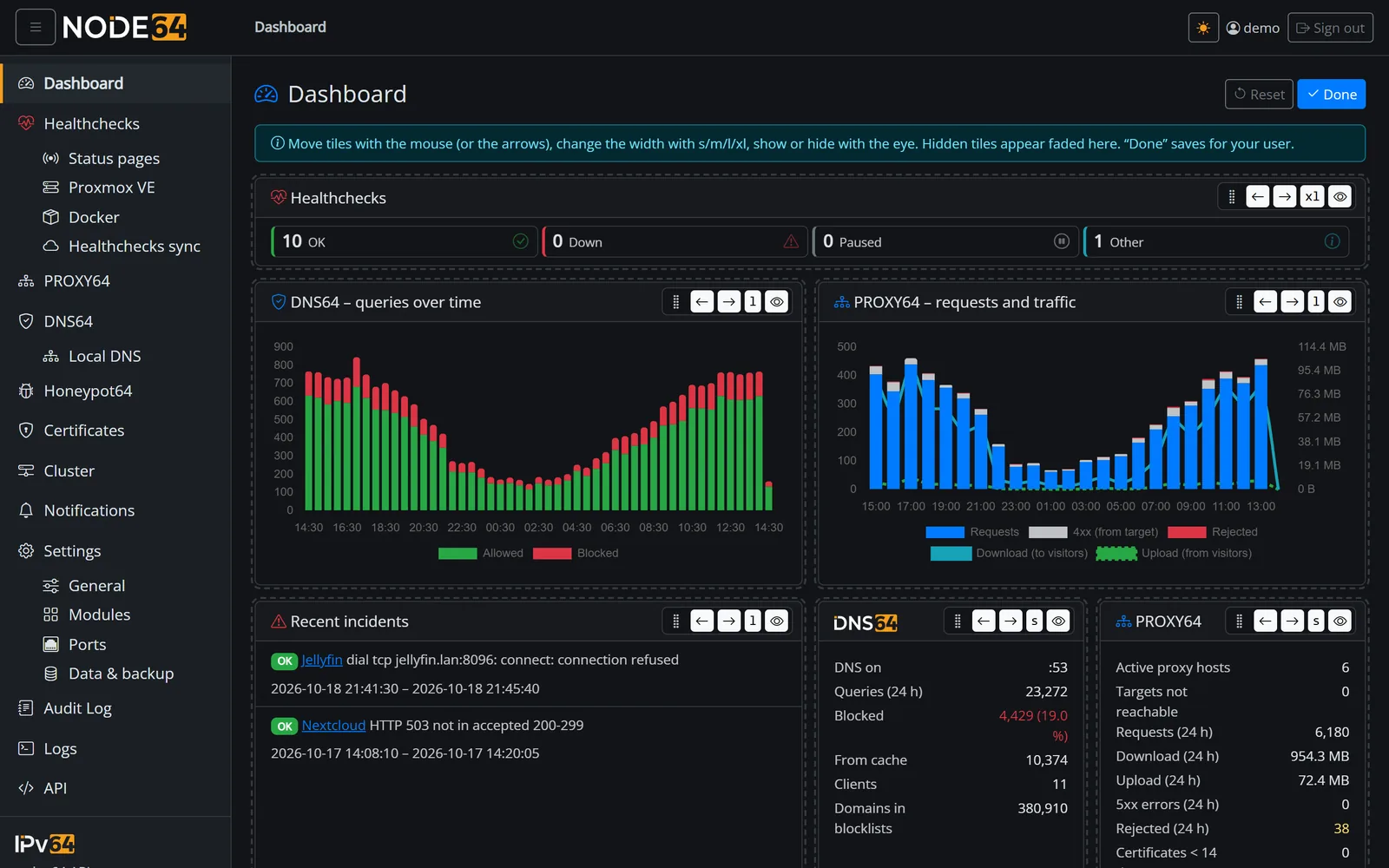
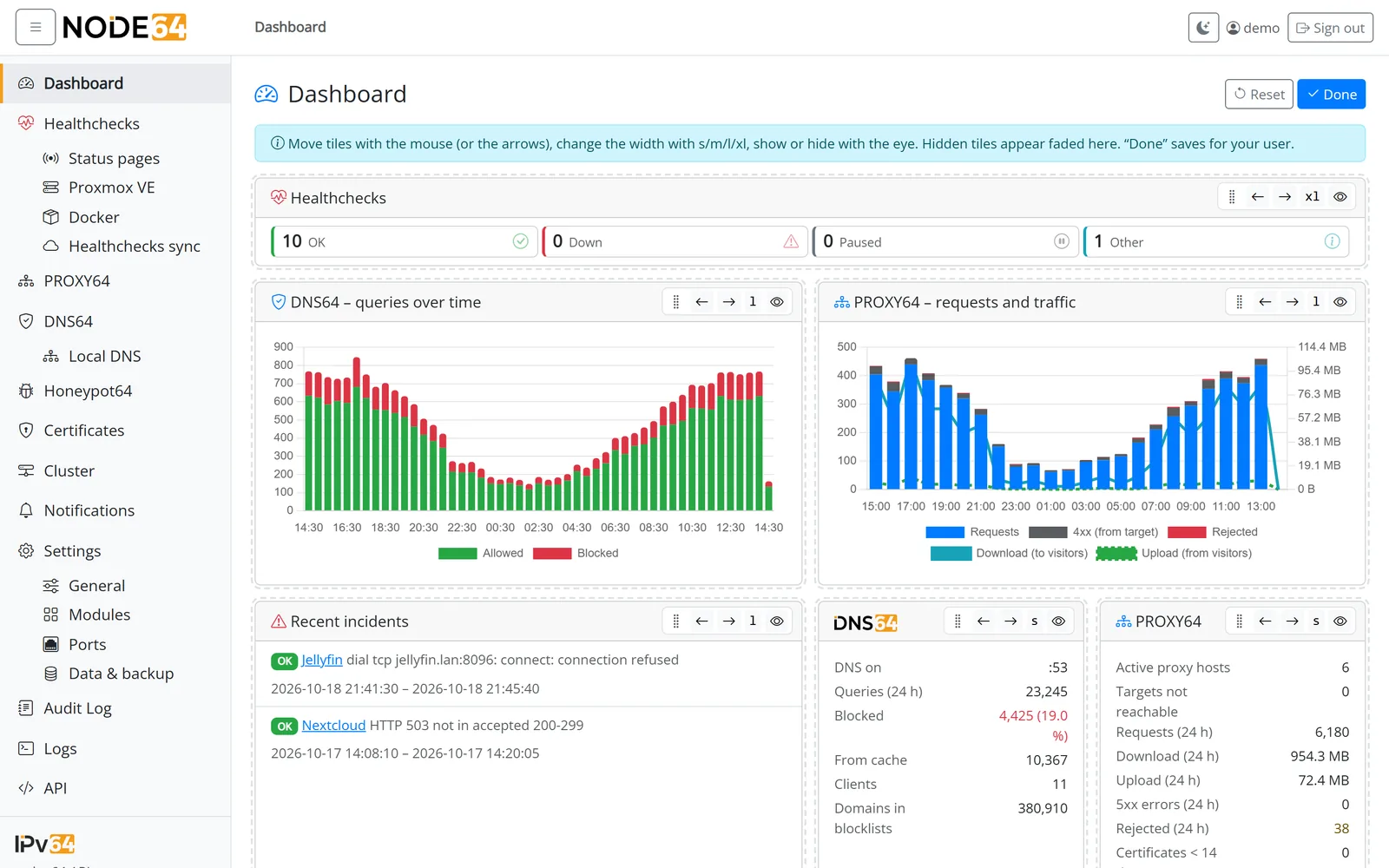
After logging in you land on the dashboard. Its tiles show what's happening on your node – for example overview and incidents per module, separate tile rows for Proxmox VE and Docker, the node itself (name, location, version, uptime), storage and traffic, modules, your ipv64 account and the link status.
- Customize: under Customize you choose which tiles you see, in which order and how wide (a quarter, a third, half or full width). Rearrange them by drag & drop. The layout is saved per user.
- New tiles – say, from a module you enable later – are added at the end.
- Menu: next to the dashboard you'll find the enabled modules, Certificates, Notifications, Settings, Audit Log, Logs and the local API reference. Disabled modules have no menu entry. On desktop and landscape tablets, the menu button at the top left collapses the sidebar to an icon bar – names then appear as tooltips, and the browser remembers the setting. On phones and portrait tablets the same button opens the slide-out menu.
- Appearance: light, dark or automatic color scheme following your system; set the font size under Settings → Appearance.
Enabling modules
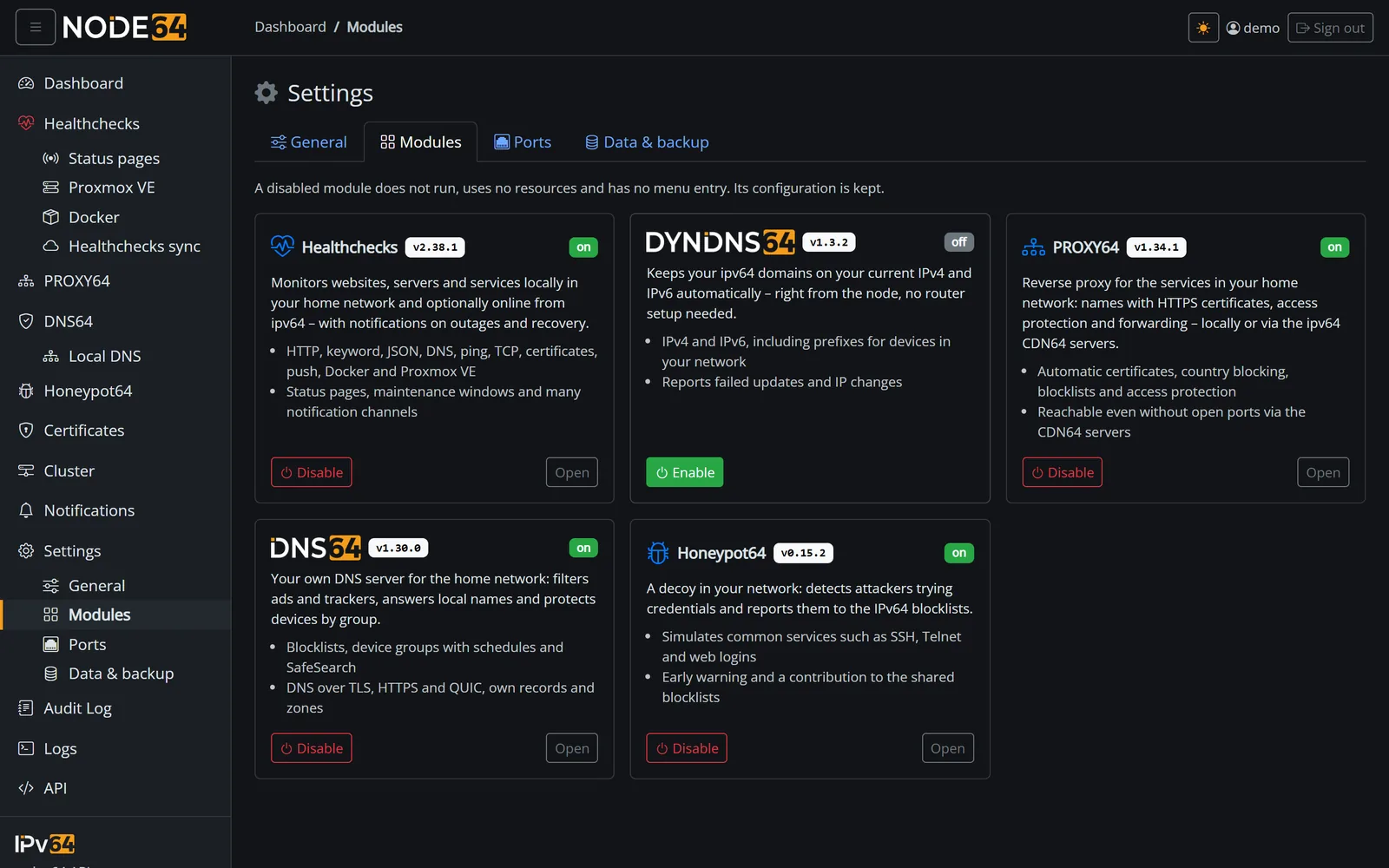
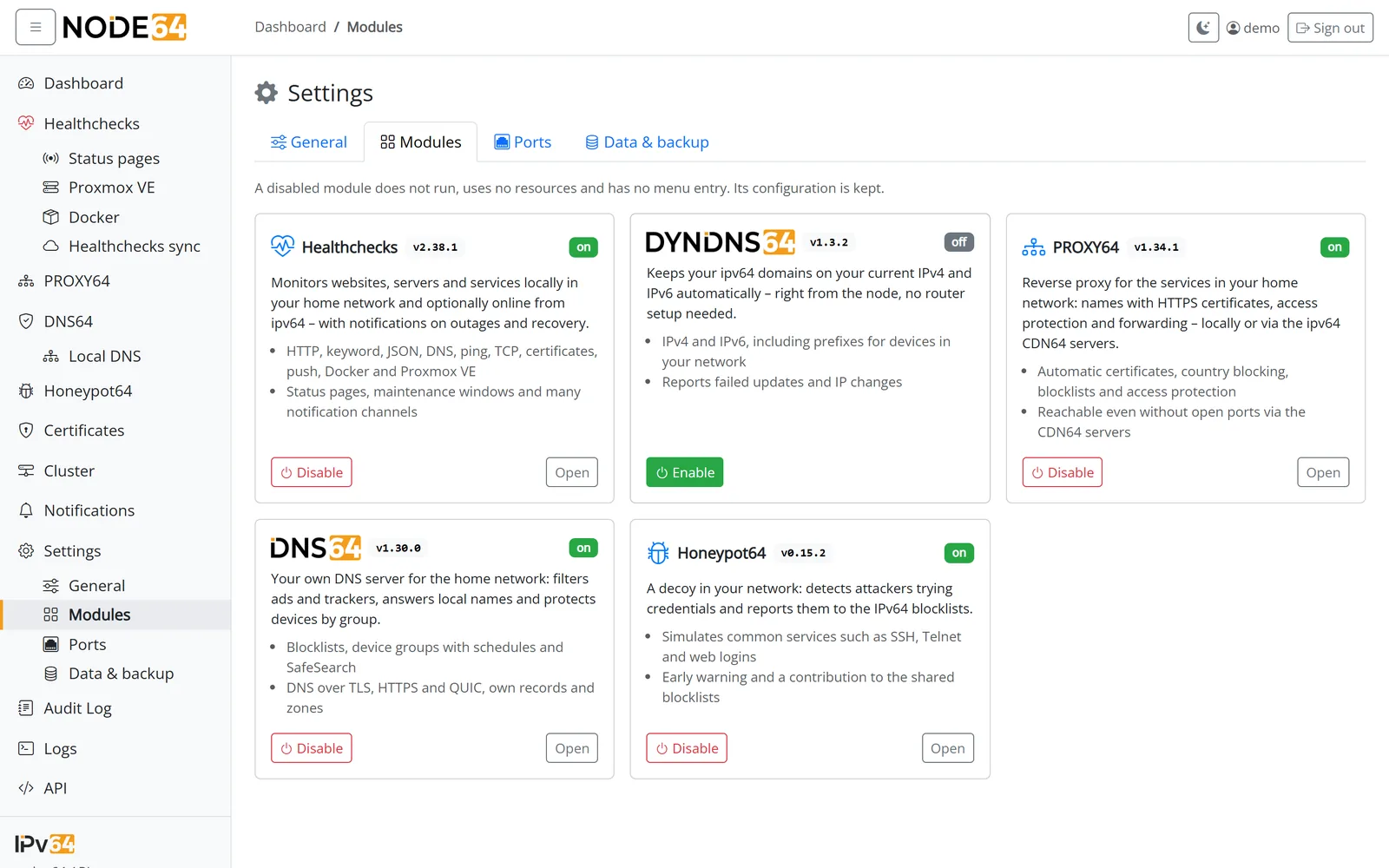
After setup, no module is active yet. You only turn on what you need – under Settings → Modules. Modules start and stop while Node64 keeps running; no container restart required.
| Module | What it's for | Docs |
|---|---|---|
| Healthchecks | Monitor websites, servers, ports, certificates, cron jobs and Docker containers | Health checks |
| DynDNS | Keep ipv64.net domains pointed at your public IPv4/IPv6 | DynDNS64 |
| DNS64 | DNS resolver for your network with blocklists and DoH/DoT/DoQ | DNS64 |
| PROXY64 | Reverse proxy with HTTP/1.1, HTTP/2, HTTP/3 and streams | PROXY64 |
A disabled module doesn't run, uses no resources (and no ports) and has no menu entry. Its configuration is kept. Notifications and certificate management are part of the core and always available.
Every module has its own version and changelog, which you can view under Settings → Modules.
Creating your first health check
- Enable the Healthchecks module under Settings → Modules. A Healthchecks entry appears in the menu.
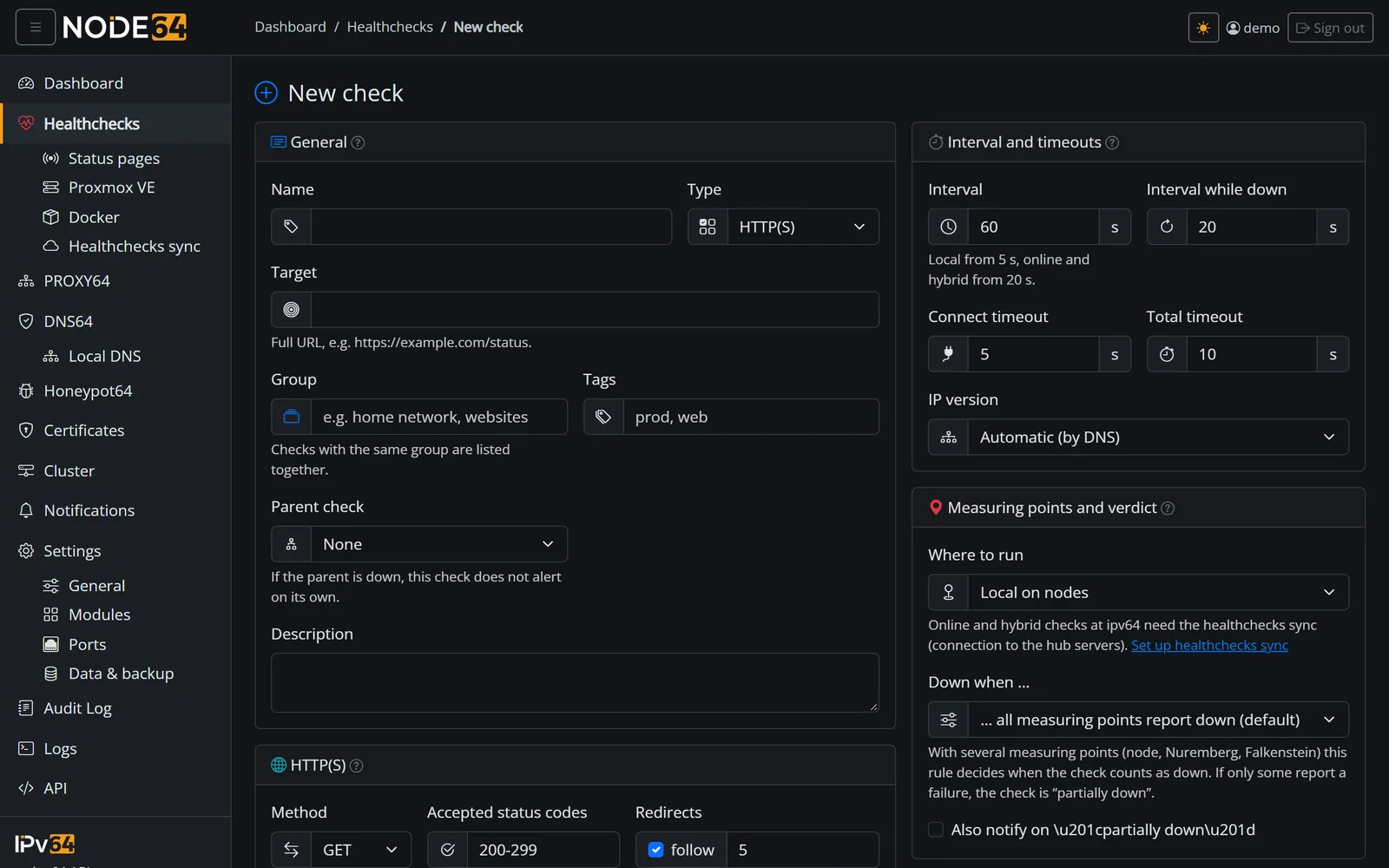
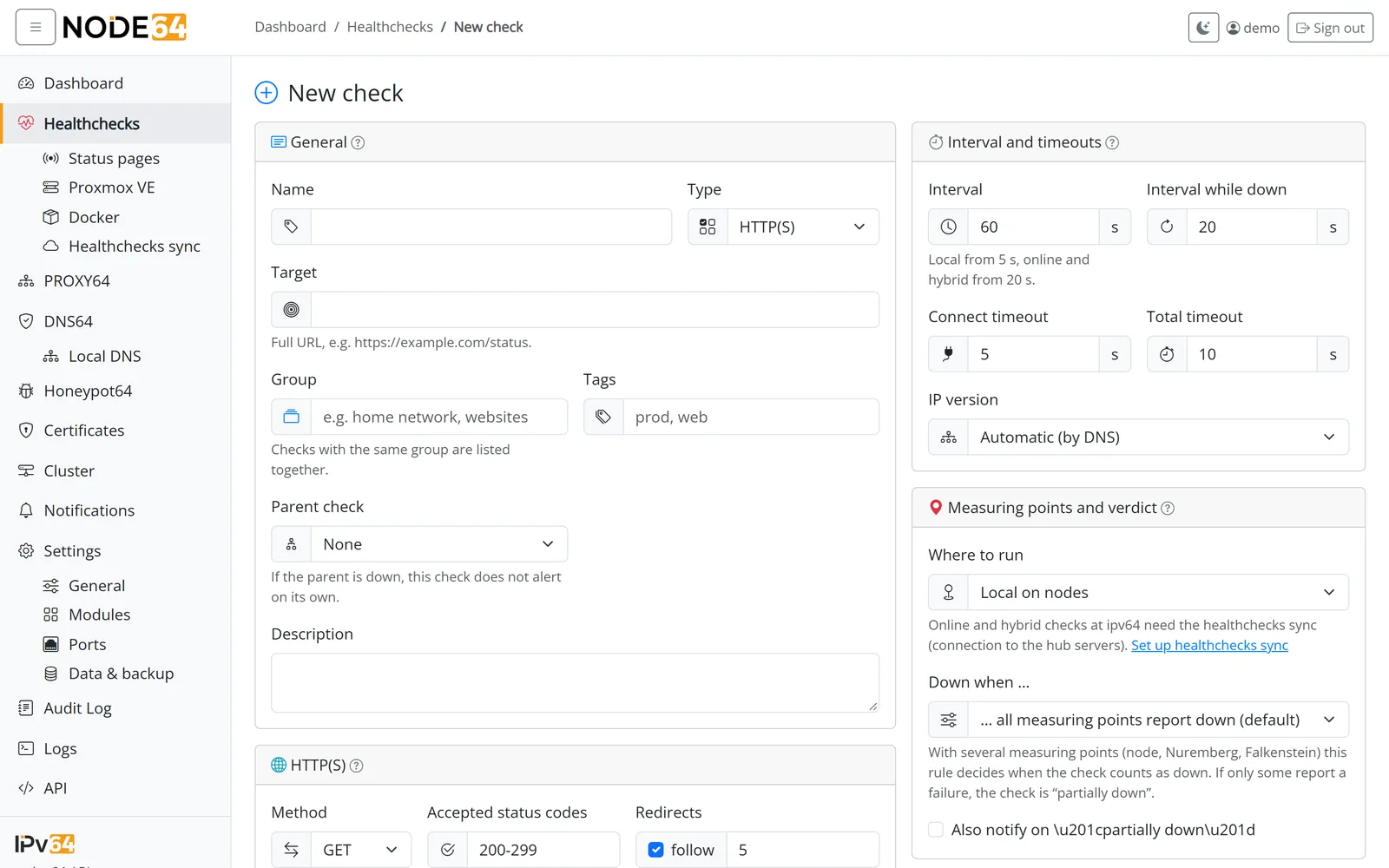
- Open Healthchecks and click New check.
- Choose the HTTP(S) type, enter a name (e.g. “Website”) and the full URL as the target, e.g.
https://example.com/. - The defaults are fine to start with: a check every 60 seconds, 1 retry before alerting, and 3 successes in a row before the check counts as OK again.
- Save – from now on Node64 measures at the configured interval. History and response times are on the check's detail page.
Besides HTTP(S) there are keyword, ping (ICMP), TCP, port, certificate, push/heartbeat and Docker container checks. All types and options are explained in Health checks.
Creating and testing a notification channel
To hear about an outage, Node64 needs at least one channel. Notifications are part of the core and always run.
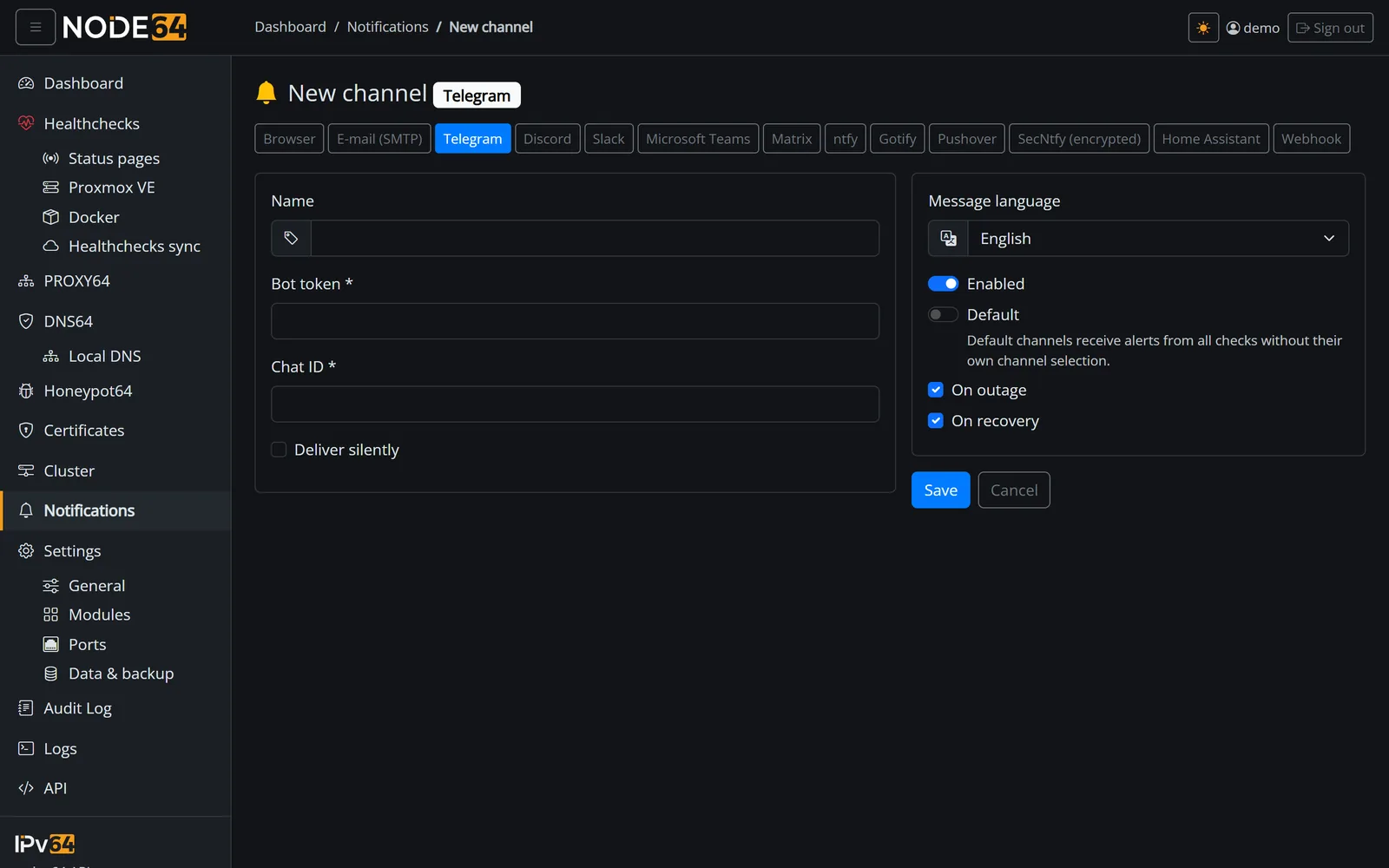
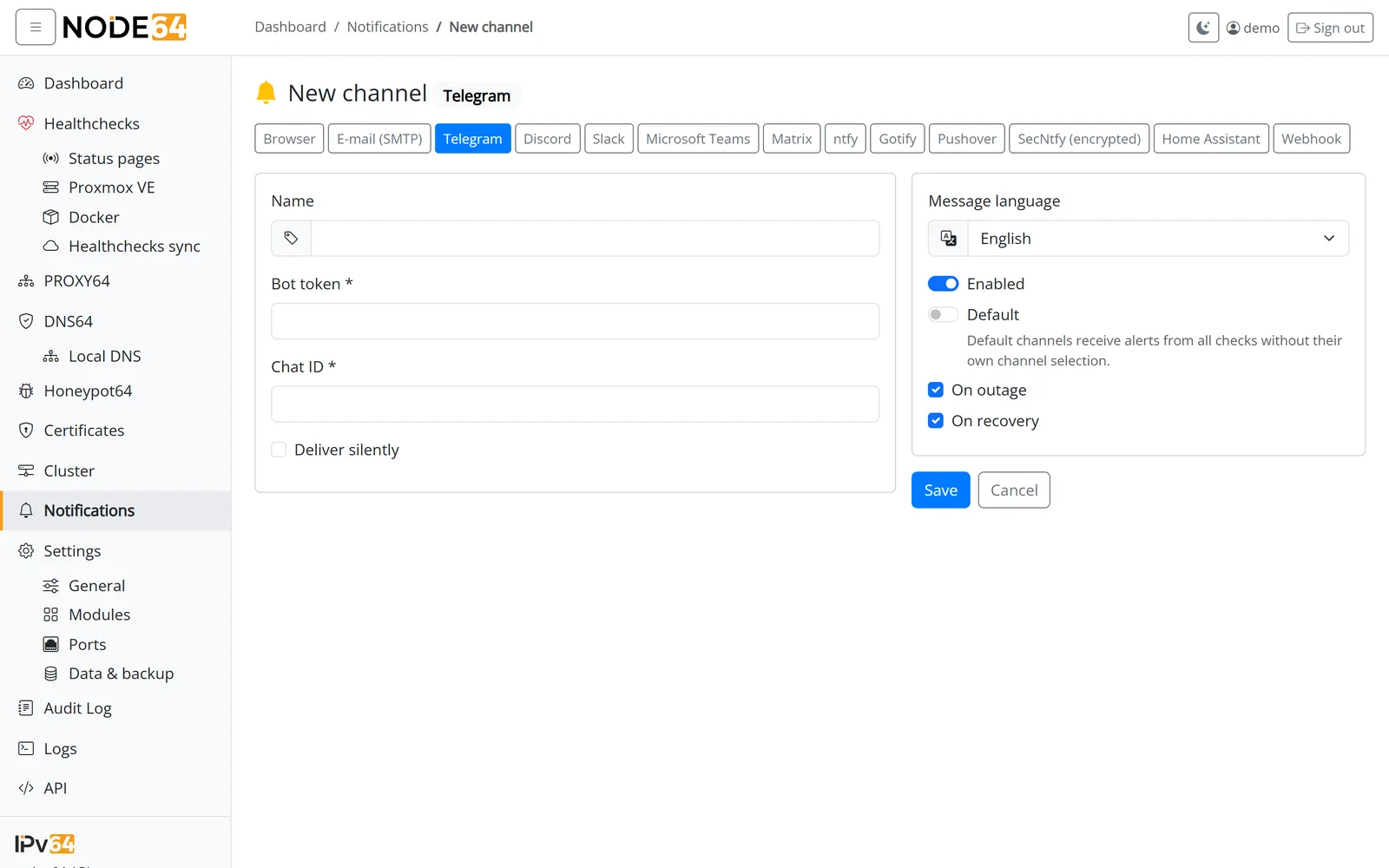
- Open Notifications and click New channel.
- Pick the type – e-mail (SMTP), Telegram, Discord, Slack, Microsoft Teams, Matrix, ntfy, Gotify, Pushover, webhook or browser notification – and fill in the fields (e.g. bot token and chat ID for Telegram).
- Tick Default: default channels receive all checks that don't have their own channel selection.
- Click Send test. If the test message arrives, you're all set.
Channel tokens and passwords are stored encrypted in the database. For messages to include a link back to the node, enter the external address of the node in the notification settings. More on this – including protection against alert noise – in Notifications.
Optional: connect an ipv64.net API key
Node64 works fully without an account. With a free ipv64.net account and its API key, though, you get quite a bit more:
- DynDNS: pick domains and records straight from your account and see your update limit.
- Certificates: Let's Encrypt via DNS-01 for your ipv64 domains, including wildcards, without opening port 80.
- PROXY64: have the DNS record created when you add a host, and publish services without port forwarding using CDN64.
- Health checks: manage online checks and link the health check sync with a single click.
- ipv64 mail and SMS as additional notification routes.
- Create an API key at ipv64.net (the Create an API key at ipv64 link in the node takes you there).
- Enter it under Settings → ipv64 API key and click Save and check. The node verifies the key with ipv64 and stores it encrypted.
An ipv64 API key has full rights to your account. Only enter it on devices you own.
Everything about linking – API key and health check sync – is covered in Connect to ipv64.net.
Next steps
Something unclear, missing, or a question about Node64? Ask in the official forum v64.tech.

